Ultra Virus Killer – Malware Removal and System Repair Multi-Tool

Authors: Bryce Whitty

Ultra Virus Killer, also known as UVK, is a free and portable application designed to help users detect and remove malware. UVK acts as a swiss army knife of malware removal as it contains similar functionality to a range of computer technician software use such as Process Explorer, Autoruns, Unlocker, Windows Repair and more.

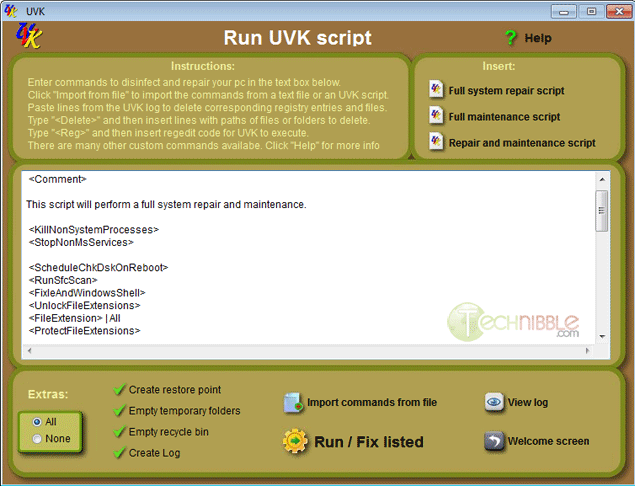
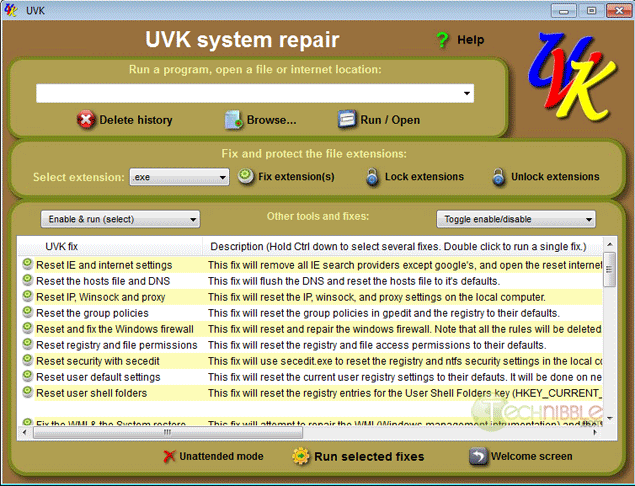
The strength of this application is not just its ability to help you remove the offending malware, but repair the damaged Windows install afterwards. For example, the application allows you to create scripts that will reset the hosts file and DNS, Reset IE, Reset Group Policy, Fix .exe extensions and much more.

While I was researching UVK, I discovered that the creator of UVK is a Technibble forum regular with some sizeable threads about it.

UVK has too many features to list here so be sure to check out the screenshots.

Screenshots

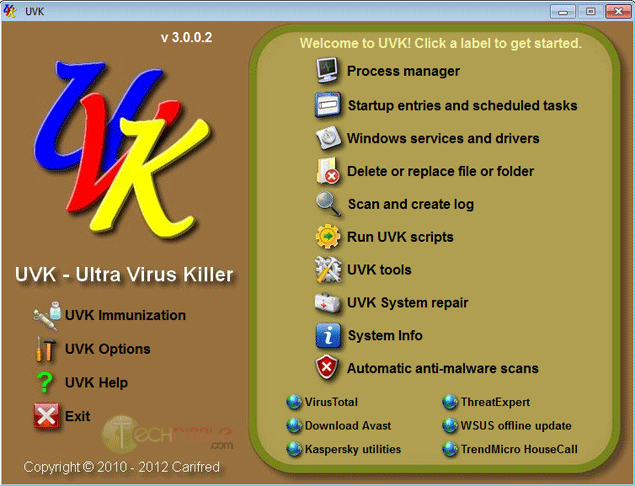
Ultra Virus Killer Front Page


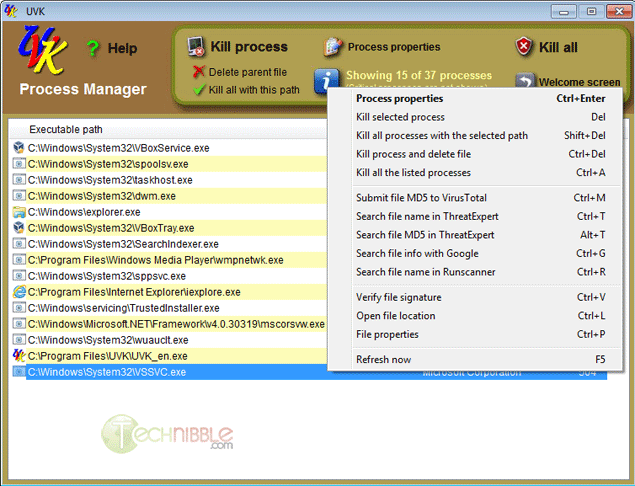
Ultra Virus Killer Process Explorer


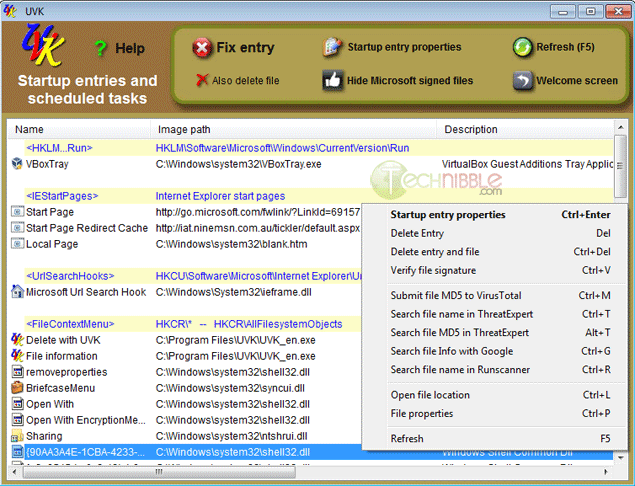
Ultra Virus Killer Startup Entries


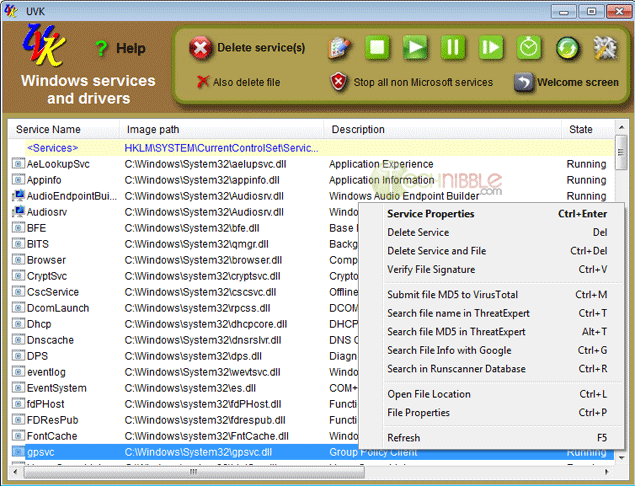
Ultra Virus Killer Windows Services and Drivers


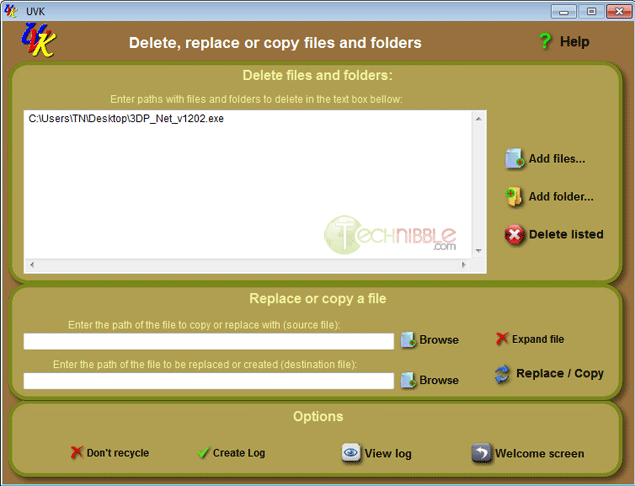
Ultra Virus Killer Delete Replace Files


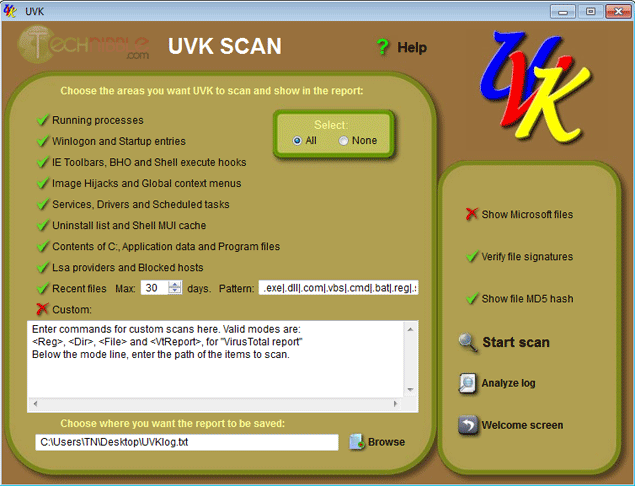
Ultra Virus Killer Scan


Ultra Virus Killer Script


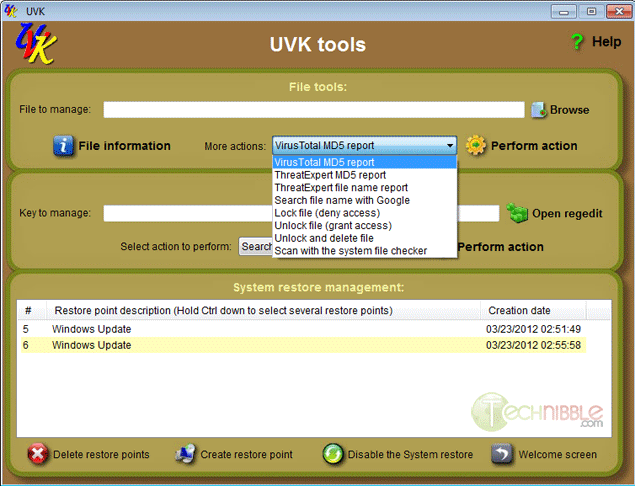
Ultra Virus Killer Tool


Ultra Virus Killer System Repair


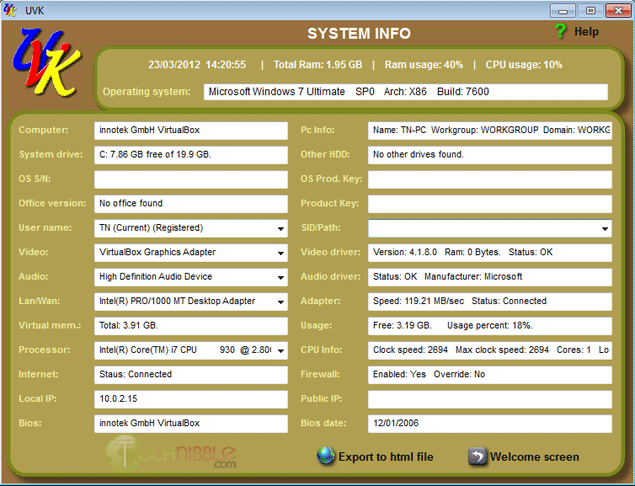
Ultra Virus Killer System Information


Ultra Virus Killer Process Explorer 0 0


Downloads:

Download from Official Site – 5.3mb

More Information

© Technibble – A Resource for Computer Technicians to start or improve their Computer Business
To get started with your own computer business, check out our Computer Business Kit.

Ultra Virus Killer Process Explorer 3 3

Read more:

3DP Net – Auto Detects and Installs Network Drivers

Authors: Bryce Whitty

As Computer Technicians, one of the most important things for us to do after we install a fresh copy of Windows is to get the operating system online so we can install the appropriate drivers. Unfortunately, there is sometimes a catch 22 where we cant get the operating system online because we dont have the network driver, and we cant get the driver because we cant get online.

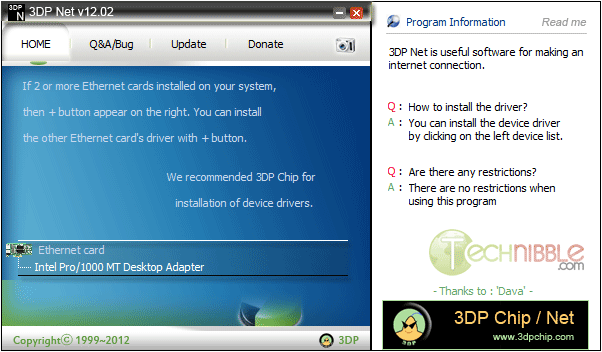
This is where 3DP Net comes in handy. 3DP Net is a freeware application that will either install the correct network card driver or a generic one allowing you to get online and download the appropriate drivers.

While other driver installing options exist like Driverpacks.net, some technicians prefer to only install the very latest drivers from the manufacturers website and only need a simple network driver. 3D PNet is a small, simple package to achieve that.

Screenshot


Downloads:

Download from Softpedia.com – 46mb

More Information

Special thanks to forum member MobileTechie for recommending this one.

© Technibble – A Resource for Computer Technicians to start or improve their Computer Business
To get started with your own computer business, check out our Computer Business Kit.

image

Read more:

Tweaking.com Windows Repair – Fix Common Windows Problems

Authors: Bryce Whitty

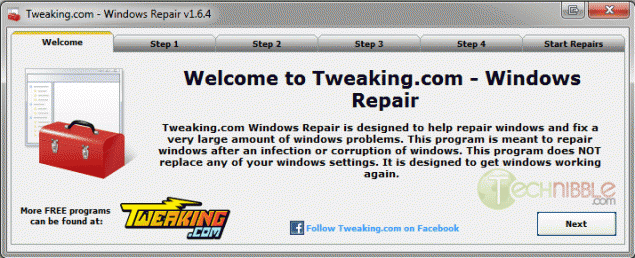
Tweaking.com Windows Repair is a small, portable and free all-in-one repair tool designed to help you fix common Windows problems. Dial-a-Fix used to be a great tool for this task but it does not work on Windows 7 and has not been updated for years. Windows Repair is a great alternative.

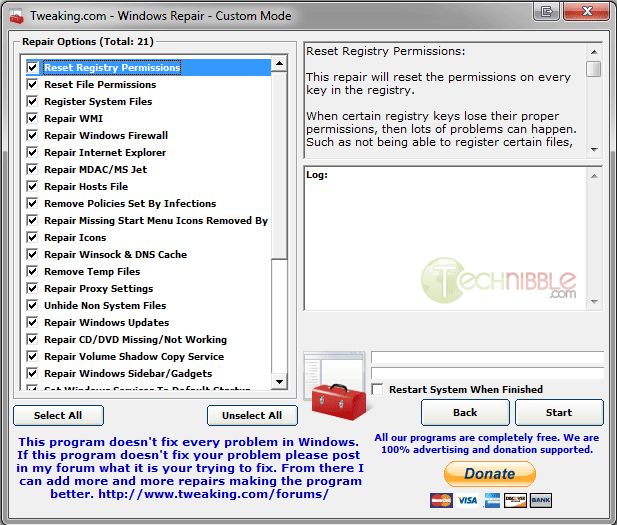
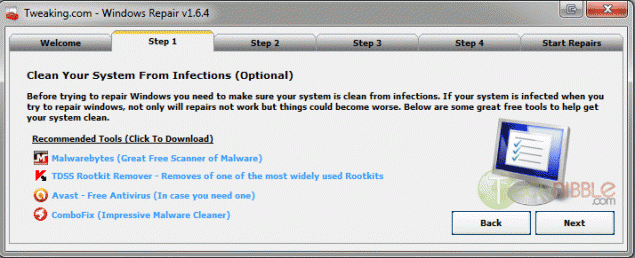
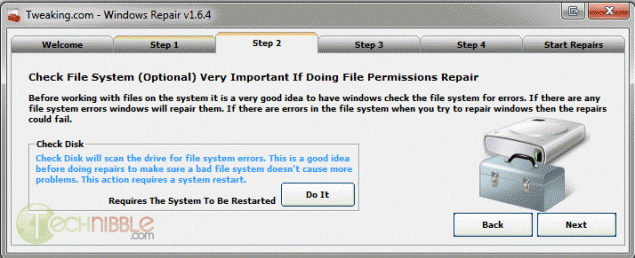
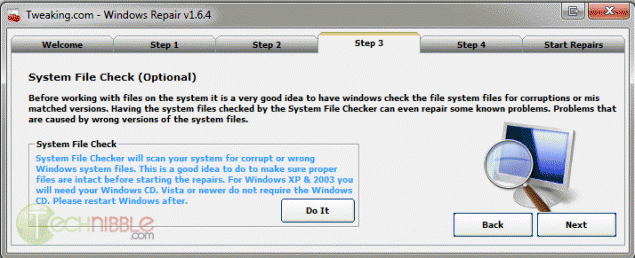
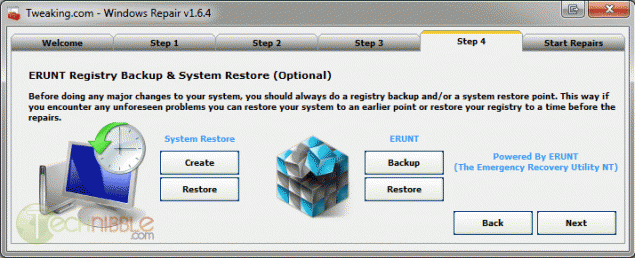
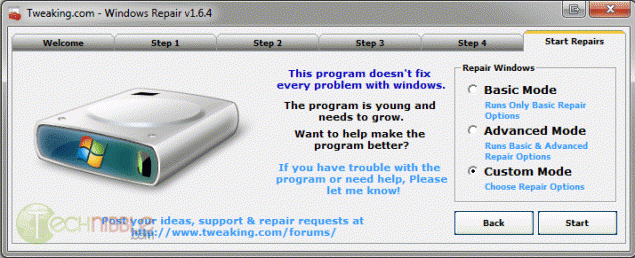
With its 5 step tabs telling you to run Checkdisk, System File Checker and Backup the Registry before you start using the main part, you can see it targets end users a bit more than Technicians but these steps are worth doing anyway. The real power is when you choose “Custom Mode” on the Start Repairs stage.

The following are the repair options you can choose:

  • Reset Registry Permissions
  • Reset File Permissions
  • Register System Files
  • Repair WMI
  • Repair Windows Firewall
  • Repair Internet Explorer
  • Repair MDAC & MS Jet
  • Repair Hosts File
  • Remove Policies Set By Infections
  • Missing Start Menu Icons
  • Repair Icons
  • Repair Winsock & DNS Cache
  • Remove Temp Files
  • Repair Proxy Settings
  • Unhide Non System Files
  • Repair Windows Updates
  • Repair CD/DVD Missing/Not Working
  • Repair Volume Shadow Copy Services
  • Repair Windows Sidebar/Gadgets
  • Set Windows Services to Default Setup
  • Repair MSI (Windows Installer)


Screenshot


Downloads:

Download from Official Site – 1.39mb

© Technibble – A Resource for Computer Technicians to start or improve their Computer Business
To get started with your own computer business, check out our Computer Business Kit. Tweaking.com Windows Repair – Fix Common Windows Problems

0 0

Read more:

‘Unboxing’ Apple Retail’s New On-Site IT Service for SMBs and Growing Box Makers

Authors: Diana

Guest blog post by Dan Shedd, President of Taylor Box Company The only way that companies get to stick around in a competitive industry like ours is to evolve quickly with emerging customer needs and to never settle for second best. We’ve been in business for 126 years and counting and a key to our […]

Read more:

MailStore Home – Easy Email Archiving, Backup and Migration

Authors: Bryce Whitty

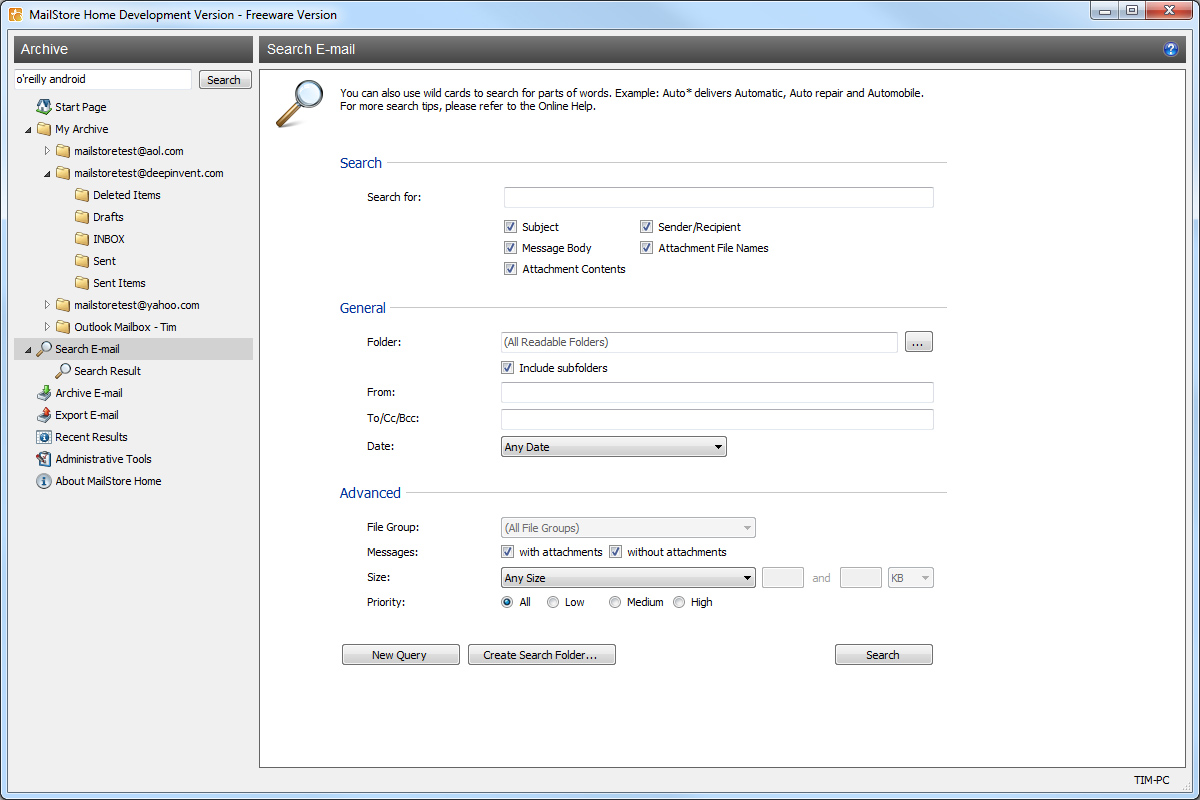
MailStore Home is a small, portable and freeware utility designed to make archiving, backing up and migrating emails easy. MailStore supports many different types of mailboxes such as Outlook, Outlook Express, Thunderbird, Exchange Server, Office 365, .EML files and more. It also supports a variety of internet based mailboxes such as Gmail, Hotmail and Yahoo mail.

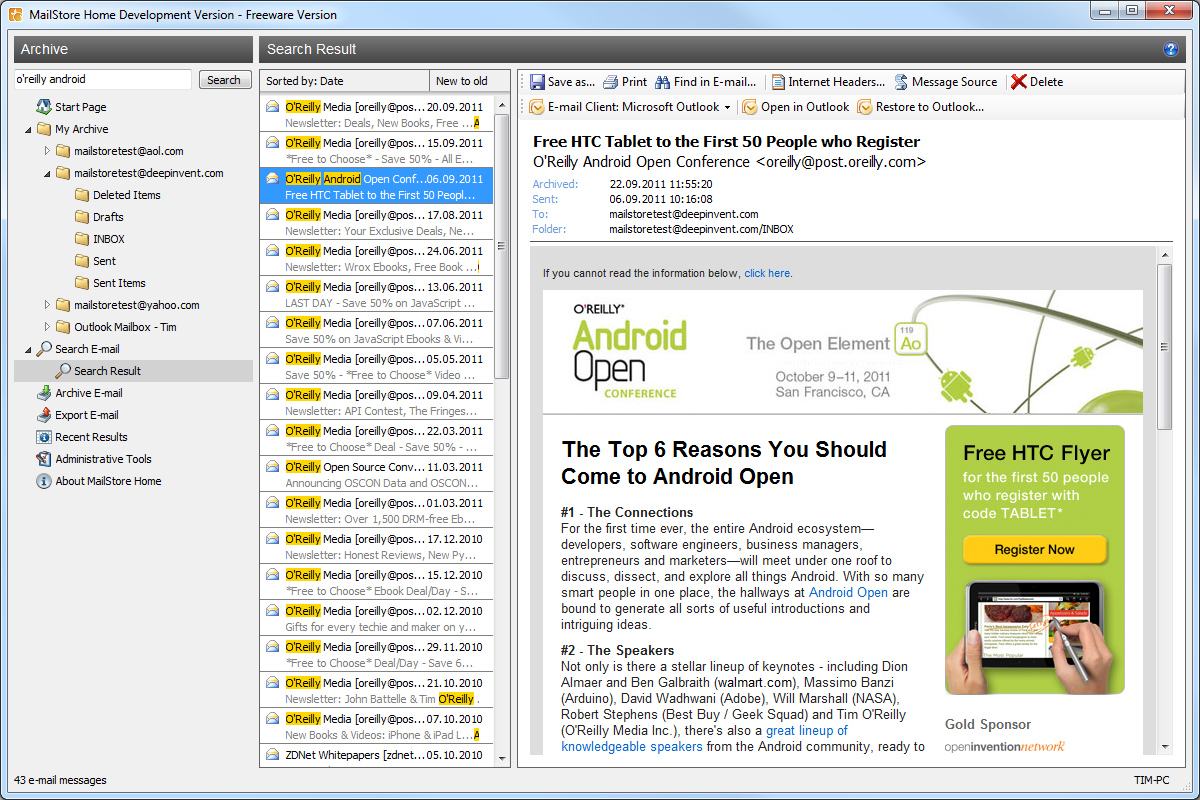
Once the email has been backed up, MailStore allows you to search in all of the email accounts from a central location within seconds. It allows you to restore the emails back to an email client with one click and migrate emails from one type of mailbox (ie. Gmail) to another type of mailbox (ie. Outlook).

If your personal life or business relies on cloud based email like Gmail, it is important to have an offsite backup since you never know when Google will suspend the account, have an extended outage or have your account hijacked by a hacker.


The best kind of backups are automated backups but unfortunately this software doesnt “officially” support automated backups with MailStore Home. However, this is a work around.
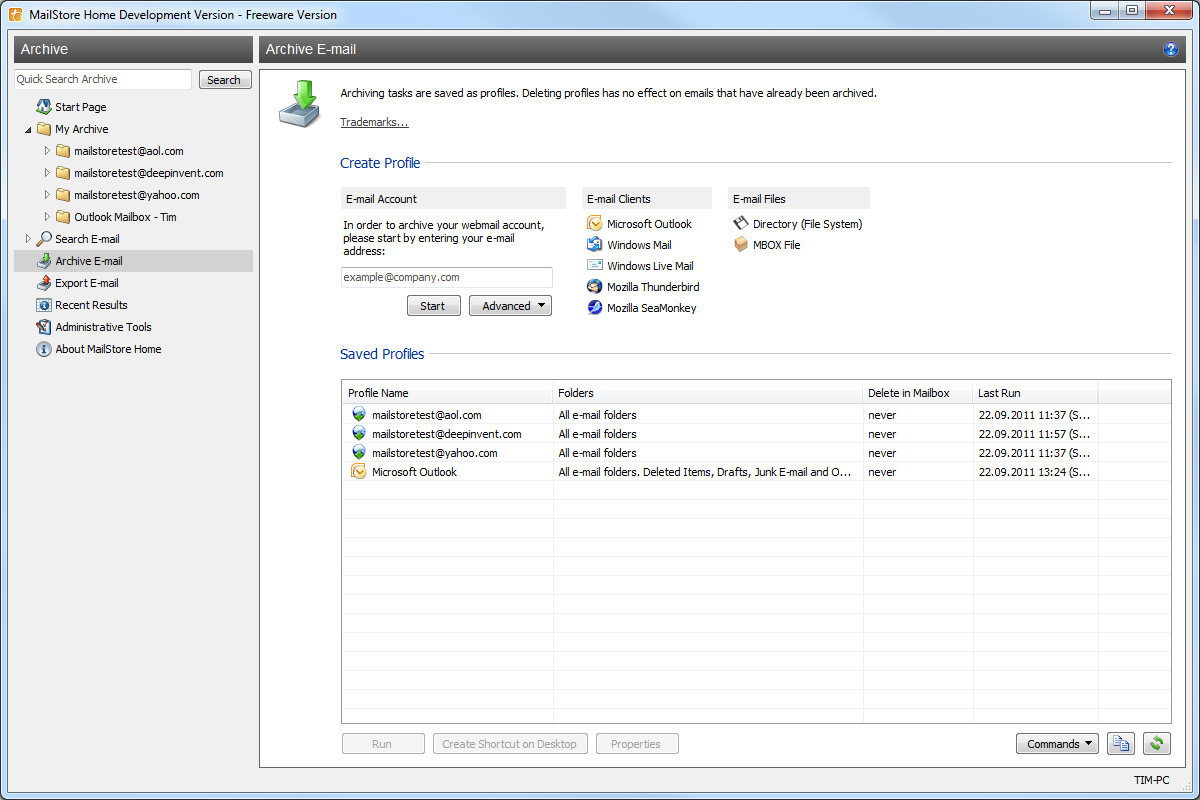
Once you have created a saved profile for an email address in the Archive Email area, highlight the profile and choose “Create a Desktop Shortcut”.
On the newly made desktop shortcut, right click, goto Properties and get the location string in the Target box. Once you have this string you can go to Task Scheduler and set up a scheduled task that will run this string.

Screenshots


Downloads

Download from Official Site – 5.91mb

© Technibble – A Resource for Computer Technicians to start or improve their Computer Business
To get started with your own computer business, check out our Computer Business Kit. MailStore Home – Easy Email Archiving, Backup and Migration

image

Read more:

Boost Your Revenue with Cloud Storage Backup

Authors: Guest Writer

Guest Post by William Conner
I started selling cloud services 7 years ago; I was a reseller of Carbonite a few months after they opened their doors and haven’t looked back. It’s easy to be afraid of cloud services, watching how they encroach on what used to be our exclusive domain, but really it’s the natural evolution of technology and we need to figure out how to leverage it to our advantage. The great thing about cloud services is they’re like any other IT product, diverse and ever changing. That still leave the IT Pro in the position of trusted expert to recommend products based on client needs.


When talking about backup, let’s keep in mind the 3-2-1 Rule of Backups. Keep three copies, the primary data and two backups, store the backups on two different media, cloud, magnetic, optical, etc., and keep one copy offsite. Cloud services allow for offsite backup beautifully. The 321 strategy gives us many options for disaster recovery in the event of fire, theft or seizure. A typical deployment for us is to back up to a low cost NAS like the D-Link DNS-320 and have a mirror of that backup in the cloud via BackBlaze or SymForm which works quite well.

I’m not going to shill for a bunch of different products, I still recommend Carbonite, and get my cut when I do, but I also use SymForm, Backblaze, Keepvault, Vembu, Acronis and others. Each caters to specific needs, so all we need to do is identify their strengths, figure out what the customer needs, and make the sale.

Let’s look at what might be important to a given user based on their usage profile:

Typical Demands Home – Light Data SOHO – Medium Data Small Business – Larger Data
Configuration Zero Configuration Little configuration needed Handled by IT contractor
Storage Space 100 GB or less 100-1000GB 500GB+
Backup Speed Quick, but not a huge concern Within a few hours As quickly as possible
Recovery Speed Can tolerate a multi-day redownload Needs unthrottled ASAP recovery options Unthrottled recovery and overnight delivery of storage media.
Remote access Handy access via smartphone or tablet Smartphone/Tablet or Web interface access to data. Generally only needs web access to datasets.
Encryption Strong Encryption – Provider managed keyset Strong encryption, controllable keyset Strong encryption, controllable keyset
Partner Support Can rely on vendor techsupport Expects VAR/IT Pro to provide support. Expects VAR/IT Pro to provide support.
Vendor data centre location Generally not an issue. May have concerns or regulatory compliance issues regarding foreign storage. May have concerns or regulatory compliance issues regarding foreign storage. May see foreign storage as an advantage.


When evaluating services, it’s important to pay attention to what they offer based on the chart above. Offerings are always changing, and much like anti-virus vendors, what may be great this year may be really bad the next. Carbonite was a really great provider, but they throttle daily backup amounts, Backblaze doesn’t. Symform recently started selling direct to consumer and included 200gb of free backup, changing their initial partner strategy and KeepVault has lagged in its pricing, moving from very competitive to very expensive.

Ok, so now you’ve determined your clients need, your vendor’s strengths and you need to figure out how to make some money with this information. Most providers offer partner programs that allow you to either take a cut of the sale through referral commission, or offer wholesale prices if you’ll handle billing and support. I like to do the latter, as my clients generally don’t care who the vendor is, just that product works and that they don’t have to deal with many invoices or helpdesks for their technology products.

I typically bill above retail, because of this added support, thereby extending my profit margins and taking responsibility for the product myself. With cloud backup, this is pretty easy to do because the servers are very much set-it-and-forget-it products that require little effort to maintain.

There are really only three ways to sell cloud backup; by using passive links on your websites and promotional products, as direct recommendations to clients on-site, and as part of your MSP (Managed Service Provider) packages. For the most part, the revenue from the first two is minor, maybe $10-15 a year per seat depending on the client and package, but as part of a MSP package, they’ve been invaluable to me in two ways.

The first is by including off-site backup in my packages by default I’ve created have a competitive advantage as I’m not aware of any local competitors who do this. The costs of the service are built into the package, but to the client it looks like a freebie, one that they may never thought of or heard about before. Some might be have been confused by the amount of vendors in the field, or by pricing schemes and previously been scared off, but when I bring it up they greatly appreciate it.

They’re hearing about the cloud in the media but they don’t understand it. This gives us credibility in the sales process thanks to Microsoft’s advertising, and we get to direct the content of the conversation. Cloud backup has allowed me to close more MSP contracts since I started bundling them by default because my clients see that I’m looking out for their interests and starting disaster planning from the get go.

Second, because of the success in boosting MSP contract sales, I’ve created residential MSP contracts for pre-qualified clients. These residential contracts sell easily with cloud backup as I’m able to talk to the prospect about total security and protection. I’ve cemented myself as their only vendor because their AV, cloud backup, remote access and support services are now channelled through my one single invoice. Not only does this allow me to completely own the client, but I can take that client portfolio with me to a vendor and negotiate better pricing.

No matter how you decide to integrate cloud backup into your offerings, whereby as a single sale add-on or as an integral part of your service packages, I highly recommend you do. You’d be putting yourself and your clients at a severe disadvantage if you don’t. I’ve seen a 15% boost in sales, greater stickiness and stronger relationships. I’m offering more comprehensive services and eliminating the feeling of being nickel in dimed clients often resent when dealing with multiple vendors in regards to their IT infrastructure.

And a final thought, the pitch for cloud backup is simple: “With cloud backup your data is encrypted and stored offsite within minutes, protecting you from accidental deletion, theft, seizure or god forbid a fire, local backup isn’t enough. You can always buy a new computer, but you can’t buy back your data, ready to sign?”

Note: substitute data with pictures if it’s a residential client.

Guest Post By William Conner: William Conner is the owner of MyComputerHero, an IT consultancy in Calgary, Alberta since 2005. He has been in the SMB IT industry for 15 years, holds various vendor and industry certifications and is finishing a BSc. in Computer Information Systems at Mount Royal University.

© Technibble – A Resource for Computer Technicians to start or improve their Computer Business
To get started with your own computer business, check out our Computer Business Kit. Boost Your Revenue with Cloud Storage & Backup

image

Read more:

17 Useful Windows Phone Tools For Computer Technicians

Authors: Guest Writer

Guest Post by Ric Chapman.

I think I’m somewhat safe in saying that Windows Phone 7 arrived late to the game and is still very much the underdog in today’s smartphone market. But whilst Microsoft are busy playing catch up their hard work is slowly paying off as it starts to carve its place among the Android, iPhone and Blackberry competition. Its ease of use and excellent integration into the Microsoft ecosystem is what’s starting to make it popular among home, business and now the technical community alike.
Having said that there’s still a bumpy ride ahead, at the time of this writing there are only 45,000 apps in the market place compared to Apple’s 500,000! When the phone was released, Technician apps were practically non-existent. I know, I was there, eagerly looking for what I could use out in the field. I didn’t find much, and what I did find didn’t work.. at all. But thankfully today is a much different story and I bring you the apps that I’m using on an almost daily basis as a Computer Technician.

Lync 2010

Lync 2010 arrives on time as promised and is an excellent app for staying in touch with colleagues, clients and family whilst on the move. Although it integrates nicely with the OS it would have been nice to see something similar to the Messenger integration deployed with Mango, but I’m just nit-picking. It’s a great app and although the app is free, you do require access to a Lync server. Mine comes courtesy of Office365, it just works and works well.
Price: FREE – Lync server required
Link

My Home Server

I absolutely love this app and is a must for anyone who owns their own or installs and maintains home servers for their clients. You can connect to any Home Server whilst you’re on the move allowing you to check important notifications, disk space, access files and manage user accounts including user creation and password resets. If your clients are happy for you to have access you can monitor and provide basic support from wherever you are at a touch of a button.
Price: FREE
Link

My Business Server

Almost identical to the My Home Server app with a focus on Microsoft Small Business Server Essentials only, would have been nice to have seen this for the SBS Standard but perhaps something will arrive later down the line. The SBS Essentials edition is the server of choice for my small business clients and as a support app is indispensable. The Live Tile only adds to my excitement by providing an instant indication of available disk space and the number of important / critical alerts you have pending right on the phones home screen.
Price: FREE
Link

Sky Wallet

Sky Wallet is a powerful password management app and I would be lost without it especially as clients are increasingly becoming reliant on their support techs for remembering their account details. Where Sky Wallet shines is its integration with SkyDrive, your details are synced and encrypted on your SkyDrive storage. If you need to reset your phone, you needn’t worry about losing the data. Secondly there’s a desktop companion app which comes included with this app allowing you to access your passwords directly from your PC avoiding the need to move back and forth between your desktop and phone.
Price: £2.99 / $3.99
Trial Available: Yes
Link

Flashlight 7

The flashlight tool is a very easily overlooked app and I’ve simply lost count on how much I’ve used this, I often find myself under a dimly lit desk or a dark comms cupboard. As I’m always carrying my phone, it makes sense not to be carrying a torch. There is a large array of flashlight apps which offer a variety of features so do shop around.
Price: FREE
Link

Subnet Calculator

Any technician working with medium and larger businesses should already know how to do this sort of thing without a calculator. But who would want to? We all work to a schedule and unless you can do this sort of thing in your head in less than 10 seconds then you might as well reach for your pocket. There are plenty of calculators out there, this one works great and has the added bonus of being free.
Price: FREE
Link

Connect Anything

The title of the app can be a little misleading and is simply a reference tool. I specifically use it for the Ethernet Pinout information when making up my own network cables.
Price: FREE
Link

Remote Desktop

Whilst there are plenty of remote desktop tools out there this is by far my favourite, not the cheapest but the one I generally get the best performance from overall. Most of these apps come with free trials and I’d recommend you try them before making a final decision.
Price: £4.99 / $5.99
Link

Amazon Kindle

Being a Kindle fan I downloaded this app the moment it became available and whilst I do read for pleasure, a lot of my reading also involves tech or reference books. Whilst not strictly a technical tool it can be a great informational tool avoiding the need carry the large books that plague most students and technicians. A quick and easy EBook reader on the go.
Price: FREE
Link

Network Tools

0 0A small collection of network connectivity tools providing ping tests, tcp port connection tests, http and https connectivity tests as well as the ability to save a selection of URI’s for periodic checking, useful if you’re wanting to check the health of multiple web sites quickly. It’s absolutely free if you don’t mind the adverts which are not intrusive.
Price: FREE with ads or £2.29/$2.99 for the ad free version
Link

The SSH Client

1 1A very simple and free SSH client that works brilliantly, the paid version comes with telnet support and a ton of customisation and configuration settings.
Price: FREE or £2.49/$3.49 for the PRO version
Link

IP Camera Viewer

2 2I find these are quite popular tools among the tech community so I’ve included my favourite, originally acquired to keep an eye on my home office as I struggled to find anything that I was certain I had left on my desk. Turns out wife likes to clean my desk …. a lot. IP based cameras provide an excellent option for security and this app extends their use allowing you to keep an eye on things whilst on the move.
Price: FREE
Link

As mentioned previously, the Windows Phone integration with Bing and the Live services are what helps this phone stand out among its peers and may play a large part in its future success. The following items are not apps but integrated features within the OS that work exceptionally well and can prove invaluable whilst out in the field.

Office Hub

The Office hub provides excellent mobile office apps including Word, Excel, PowerPoint and the ever popular OneNote. I live in OneNote and much prefer this to carrying around a notebook and pencil, an excellent note taking app regardless of your situation.

Maps

Finding new addresses is always a daunting task but Bing Maps makes the whole process a lot easier, I did have concerns about how it would stand up against Google Maps on other smartphones but I needn’t have worried. If you have a phone holder in the car it even serves well as (very temporary) sat-nav replacement provided that there is decent data coverage of course. Mileage is presented to the user but is not recorded so I use OneNote to take down mileage and the phones multi-tasking features make it easy to flick between the two apps.

Office 365

Microsofts cloud based service Office 365 was made for Windows Phone, whether you need an Exchange based email service, SharePoint file access then you simply cannot go wrong. Email access is powerful and SharePoint makes easy work of file collaboration with colleagues and clients. Office 365 is beyond the scope of this article but I do urge you to check it out.

SkyDrive

Cloud based file access with SkyDrive is simple and easy and was a missing key feature in the original release. I now store all my client notes and access them from the cloud whilst onsite where necessary using the free SkyDrive service.

Bing – Local Scout

Nowhere near home or the office? Need that coffee to see you through the next appointment? Then the local scout integrated with the Bing Search app is what you need. Food/Drink located and mapped in a couple of moments … a true techy life saver.

45,000 apps compared to 500,000 is quite a small number and Microsoft has some way to go before it’s covering all our technical needs. There’s no news on an official DropBox app (although there are plenty of alternative third party DropBox apps available) and presently there’s no word on how Skype will integrate with the phone. But I sense these things and other much needed apps are not too far away. 45,000 whilst comparatively small is still too large for one tech to cover so if there’s anything I’ve missed that you feel deserves a mention then please comment and let us know.

Guest Post by Ric Chapman: Ric has been in the IT support business for 12 years driven by his love of tech and passion to help others. Ric carries several certifications from both Microsoft and CompTIA and worked in a myriad of support environments, that experience he now puts into developing his own IT consultancy business.

© Technibble – A Resource for Computer Technicians to start or improve their Computer Business
To get started with your own computer business, check out our Computer Business Kit. 17 Useful Windows Phone Tools For Computer Technicians

5 5

Read more:

6 Reasons Why You Should Consider Remote Support

Authors: Bryce Whitty

Have you ever considered expanding your computer repair business by doing remote support? While it is unlikely to replace your physical computer repair work, it does allow you to save time with your current work and expand your service area. Here are some of the benefits of remote support that are worth considering.

Billable Hours

Many people scoff at the fact that a Computer Technician will charge in the range of $100 hour. Especially when a 9 to 5 office job will only earn in the range of $20-40 per hour. What these people dont understand is as business owners, we have to these charge prices because there is a large amount of unbillable hours where we still have to work, but cannot directly charge for. One of the biggest contributors to unbillable time is driving time (I know some techs DO charge for driving time/distance though).
With remote support, you can often cut out the driving time. In fact, you can pretty much start the moment you get the call.
If you are an onsite computer technician, think about how much time you spend driving around on a typical day. In my business, it was easily 3-5 hours depending on how many jobs I had lined up in the day.

Profit

On the topic of driving time, while you are running around town all day you are consuming fuel and slowly devaluing your vehicle as you rack up the miles/kilometers on the odometer. Of course, these are normal business expenses that you factor in but with remote support you can reduce these. Resulting in more overall profit.

Efficiency

Remote Support also allows you to work more efficiently. We all know about “loading bar time” where we cant do much more other than but sit there and watch the loading/installing bar slowly reach 100%. If you were working on a machine where you had to wait like this via remote support, you could use that time to work on another persons computer or do an in-office task – making better use of your time.

Access To Resources

We computer technicians cannot know what every single error message means and how to fix it, so we occasionally need to turn to the almighty Google. There is no shame in referring to Google but it doesnt always look good doing so in front of customers. With remote support, you have access to one of your own machines where you can research the clients problems and have access to a range of applications.

Geographic Location

This is an obvious benefit. Most onsite technicians have a “service area” where they limit the maximum distance they are willing to drive. With remote support, the geographics dont really matter anymore as long as the client has a good enough internet connection. Even with my own business, I look after my clients in my home city of Melbourne Australia even though I am currently living in London UK. Even though my clients are half a world away, the speeds are actually pretty good.

Proactive System Maintenance

If you are a computer technician who has maintenance contracts with their clients, keeping an eye on your clients systems is made much easier and more effective with remote support. For example, you can log into their systems and check the usual Windows/Antivirus updates and hardware statuses once every 2 weeks, and visit the clients physical location quarterly to check the physical state of the computer. Again, this saves you time driving around all the time to support your maintenance contracts.

Getting Started

If you are interested getting into remote support, I recommend you check out Lisa Hendricksons guide “Call That Girls Guide To Remote Support” which is now in its second edition.
Lisas book is not a technicial manual on how to do remote support but rather a remote support business operations manual. It includes setting your remote support rates, getting a ticketing system setup, marketing your remote support services, accepting payments remotely and up-selling.
It also talks about what to do if the clients internet doesnt work, dealing with issues you cannot fix remotely and how to deal with issues that make working remotely difficult.

Lisa’s guide is currently selling for $79 until December 24th, comes with a free copy of her “Computer Business Manual of Operations” and comes with a full refund policy if you find its not for you, so its completely risk free. You can check out the guide and what is in it by CLICKING HERE.

If you are looking for remote support software, ScreenConnect is picking up a lot of popularity on the Technibble forums. Their concurrent licenses start at $275 and once you purchase it you can use it forever. The software is self hosted giving you a bit more control over your product.
It comes with all the features you would expect from a good remote support package such as being crossplatform, has a Android/iOS app and is brandable. You can check out ScreenConnect HERE.

© Technibble – A Resource for Computer Technicians to start or improve their Computer Business
To get started with your own computer business, check out our Computer Business Kit. 6 Reasons Why You Should Consider Remote Support

image

Read more: