Bypass Windows Logons with the Utilman.exe Trick

Authors: Bryce Whitty

Utilman.exe is a built in Windows application that is designed to allow the user to configure Accessibility options such as the Magnifier, High Contrast Theme, Narrator and On Screen Keyboard before they log onto the system.
This was designed to help people who are hard of sight, hearing or mobility to log onto Windows themselves without the need of outside help. Its a great feature for disabled people but it opens up a security hole that we can take advantage of to bypass Windows logons.

Bypassing the Windows logon comes in handy if our clients have forgotten their logon password, their user profiles were corrupted or malware was interfering with the system before login.

This works because the user can trigger Utilman by pressing Windows Key + U before Windows logon. This will load up the Utilman.exe executable which resides in the Windows\System32 directory. If you swap the Utilman.exe file with something else like cmd.exe, you have access to the command prompt running SYSTEM privileges. SYSTEM is an account with the highest possible privileges on Windows which similar to the root account on Unix systems.

Here are the step by step instruction on how to do this.

WARNING:
You can do a lot of damage to a system if you dont know what you are doing. Technibble accepts no responsibility if something goes wrong.

First of all, we will need a way to access the file system to swap out Utilman.exe with something else like cmd.exe. There are a few ways to achieve this:

  • Remove the operating system hard drive from the target system and slave it into another system with a working operating system. From there you can swap out the files on the slave drive
  • Use a Boot CD like UBCD4Win and use the file management software there
  • Use the Windows Vista or 7 DVD

In this example we will be using the Windows 7 DVD. To begin, boot from your Windows 7 DVD and when you reach the first screen asking about the language, currency and keyboard format, Click Next.

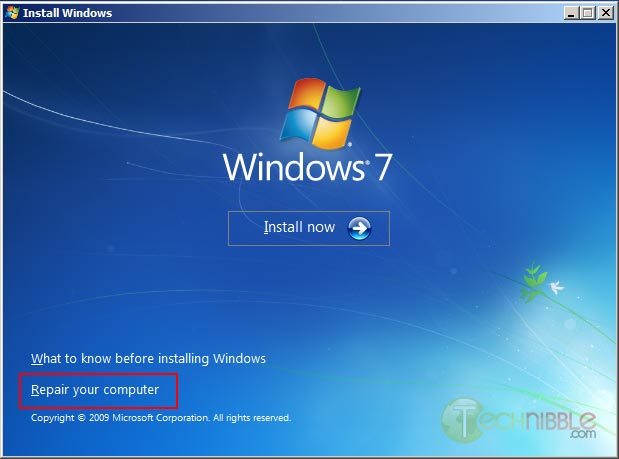
On the next page, down in the lower left hand side, click on the “Repair your computer” link.


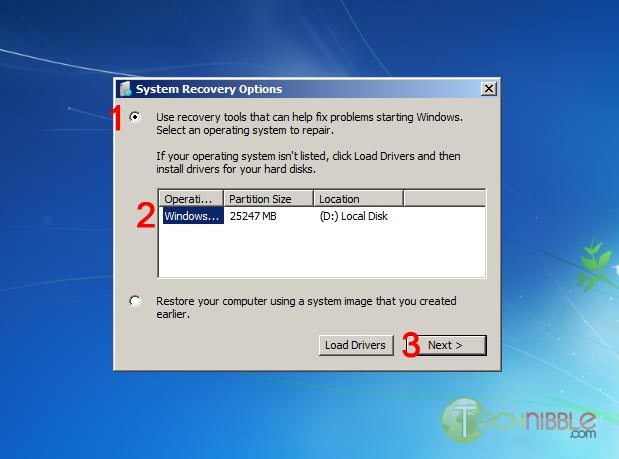
Next, select the “Use recovery tools that can help fix problems starting Windows. Select an operating system to repair” option, choose an operating system from the list and Click Next.


You will now have an option to “Choose a recovery tool”. Select Command Prompt.

You should now have a Command Prompt Window open. Type in the following commands:

C:\
cd windows\system32
ren utilman.exe utilman.exe.bak
copy cmd.exe utilman.exe

This will navigate to the system32 directory, rename utilman.exe to utilman.exe.bak, make a copy of cmd.exe and name it utilman.exe.

Remove the DVD and reboot the system.

Once the computer boots up normally, press the key combination Windows Key + U and you should get a Command Prompt. If the Command Prompt doesnt appear, press Alt+Tab as the Command Prompt may appear behind the Logon screen. From here, you can run many (if not all) of the commands you can normally use in Command Prompt.

Resetting an Existing Users Password

WARNING:
If you reset a users account password. This will permanently lose access to the users encrypted files. Be sure to back these up.

To reset an existing users password, we need type the text below. In this example, we will be changing JohnDoe’s password to “hunter2″.
net user JohnDoe hunter2

You should be able to log in with this new password straight away.

If you dont know what the username on the system actually is, you can see a list of the users by typing:
net user

Creating a New User Account

To create a new user account in the Command Prompt (Username: NewGuy. Password: abc123), and add them to the Administrators usergroup type:
net user NewGuy abc123 /add
net localgroup Administrators NewGuy /add

Again, you should be able to login straight away with this new account.

Reverting Changes

To restore utilman.exe, in the Command Prompt type in:
C:
cd windows\system32
del utilman.exe
ren utilman.exe.bak utilman.exe

Then reboot the system.

To remove the new user account you just created earlier, type in:
net user NewGuy /delete

That’s all there is to it.

Thanks to MobileTechie for mentioning this trick.

© Technibble – A Resource for Computer Technicians to start or improve their Computer Business
To get started with your own computer business, check out our Computer Business Kit.

image

Read more:

Using an iPad in the Computer Repair Business

Authors: Guest Writer

Guest post by Craig Lloyd:
The iPad is a great device for computer technicians to carry around while out in the field. It’s a small and portable, yet powerful machine capable of assisting computer technicians with their work. Here are just four ways that computer techs can take advantage of Apple’s tablet.

1. Organizing Client Information

A great iPad app that’s specifically targeted towards computer technicians is called iFix. It’s an app that aims to ensure that repair orders and client data stay organized and can be easily and quickly accessed. You’re able to add specific information about each client including info about their computer, a list of their service orders, status of said service orders, and a history of past repairs for each client. The app also has a handy search feature where you can quickly look up a specific client or bit of information in a very short amount of time. Essentially, every text field in the app is searchable.

The only drawback of iFix is multi-user support and the lack of database backup options. The developer said that these features are being worked, but that was a year ago, so just be aware of this if these features are important to you.

If iFix isn’t measuring up to your needs, an alternative is an app called mHelpdesk. It accomplishes some of the same features that iFix achieves and it can even schedule and sync appointments with your Google Calendar, as well as the ability to create and email invoices in PDF format. It even has a pretty comprehensive billing system of sorts that allows you to create estimates, email invoices, and record payments.

CommitCRM is another great piece of software geared toward computer technicians that keeps track of clients. While it doesn’t have a dedicated app for iPad, it has a feature-packed web interface that can be accessed through the web browser on the iPad. Just like other popular CRMs, CommitCRM is widely-used, so the community support is undeniable. However, it’s not free (or cheap), but a 30-day trial is available for anyone who wants to give it a try before diving deep.

2. Easily Accepting Credit Card Payments

The iPad is a great device to use as a register of sorts that you can use to accept credit card payments. You can hook up a Square credit card reader to it and begin taking credit card payments from clients right away. It’s an easier – and possibly cheaper option than having to open up a merchant account at a bank and purchase bulky processing equipment. There’s no cost to get started using Square – just a small transaction fee of 2.75% for every swipe.

If Square specifically doesn’t seem like your cup of tea, other options for easily accepting credit card payments via an iOS or Android device include PayPal Here and Intuit’s GoPayment, both of which have awesome competing features.

3. Remote Support

There are many remote support applications available. LogMeIn Ignition is just one option that’s wildly popular, but I find TeamViewer’s iPad app to be dead-easy to use. You simply enter in the TeamViewer ID and password for the computer you want to access and you’re controlling the desktop remotely within seconds. And just in the case the client is rather computer-illiterate, installing TeamViewer on a client’s machine is very simple and doesn’t involve multiple, confusing steps. They even have a standalone version that can simply be launched right after being downloaded — no installation required.

4. Inventory

Something that we all kind of loathe nowadays is doing inventory. However, the Computer Inventory iPad app can makes things a little easier. It allows you to manage your entire business’s inventory all the way down to what software is installed on which computers. It can also act as a more minimalistic CRM of sorts — being able to keep track of the type of machine a client has, as well as what software they have installed, that way you don’t have to keep asking them every time they report a problem to you. The app also allows you to export your lists to XML and email formats to send and store them accordingly.

Are you using an iPad app in your computer business that we didnt mention here? Let us know! Drop us a comment.

Guest post by Craig Lloyd. Craig has been tinkering with computers for over eight years and is CompTIA A+ certified. For the past three years, he’s been writing about and sharing his love of technology at various websites across the internet.

© Technibble – A Resource for Computer Technicians to start or improve their Computer Business
To get started with your own computer business, check out our Computer Business Kit.

image

Read more:

Accepting Credit Cards Onsite – PayPal Here vs. Square

Authors: Guest Writer

Guest Post by Craig Lloyd:
Not too long ago, going through the process of being able to accept credit card payments for small computer businesses was probably a daunting task for most. You would have to set up a merchant account and then buy expensive processing equipment. However, with the introduction of Square in 2009, the days of easy credit card payments are finally here, and PayPal just recently launched their own version, called PayPal Here, to take on Square. These services allow computer businesses to easily accept credit card payments through iOS and Android devices.

Both Square and PayPal Here have their own separate advantages, but are also so similar that it can be difficult to decide which one is best for your computer business. Let’s have a look at the two services and see which one would be ideal for you.

First off, Square and PayPal Here both charge a transaction fee for credit card swipes. Square charges a 2.75% fee, while PayPal Here charges a slightly lower 2.70% fee. The difference is very minute at first, but it can add up over time if you plan on bringing in a lot of transactions.

If, for any reason, you must manually enter in credit card transactions (if you don’t have the card reader for instance), both Square and PayPal charge a 3.5% + $0.15 fee per transaction. There’s also a $1,000 weekly deposit limit with manual entries. If you go over $1,000 for any given 7-day period, anything over the $1,000 will be held for 30 days before they’re released to your bank account.

However, there will be very few instances where you would manually enter in credit card details. Both Square and PayPal Here offer their readers for free with free shipping, and the accompanying app is free as well.

Customer service is obviously a huge factor when it comes to choosing a product or service. PayPal Here is promising to have both phone and online support 24/7, but since the service is just launching, it will be a little while before we find out just how good that support will be. As for Square, it hasn’t fared so well in the customer service department. Many Square customers have complained about the lack of live and easy-to-reach support. Only time will tell to see if PayPal eithers suffers the same fate or rises above.

Both Square and PayPal Here are great services and there’s nothing about either that would be an extreme deal breaker (unless you’re using Android, for which PayPal Here doesn’t support just yet). However, if you’ve been a loyal PayPal user for some time, choosing PayPal Here would be a good bet, since you’ll already have a wealth of features at your disposal. Plus, PayPal Here offers the ability to accept paper checks using your camera as a scanner of sorts.

If you’re going into it as a complete mobile-payment virgin, Square’s simple user interface makes the product really easy to use and they even have a separate app for the iPad that turns it into a full-fledged, easy-to-use register.

Whatever you choose, may your business flourish with the greatness of mobile-payment technology and let us know how it works out for you when you finally take the dive into the mobile payment pool.

Guest post by Craig Lloyd. Craig has been tinkering with computers for over eight years and is CompTIA A+ certified. For the past three years, he’s been writing about and sharing his love of technology at various websites across the internet.

© Technibble – A Resource for Computer Technicians to start or improve their Computer Business
To get started with your own computer business, check out our Computer Business Kit.

image

Read more:

Ultra Virus Killer – Malware Removal and System Repair Multi-Tool

Authors: Bryce Whitty

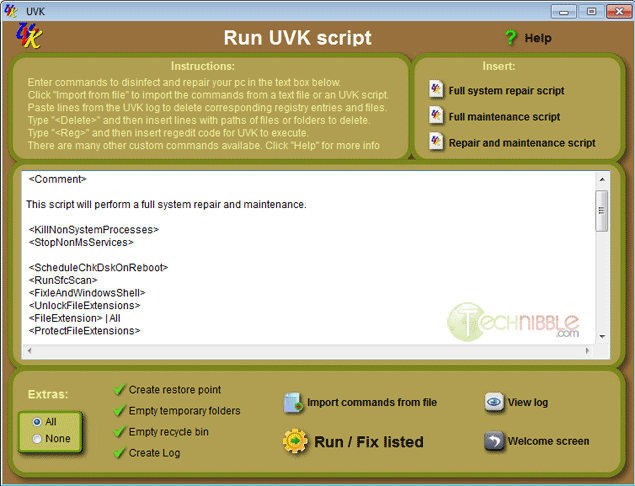
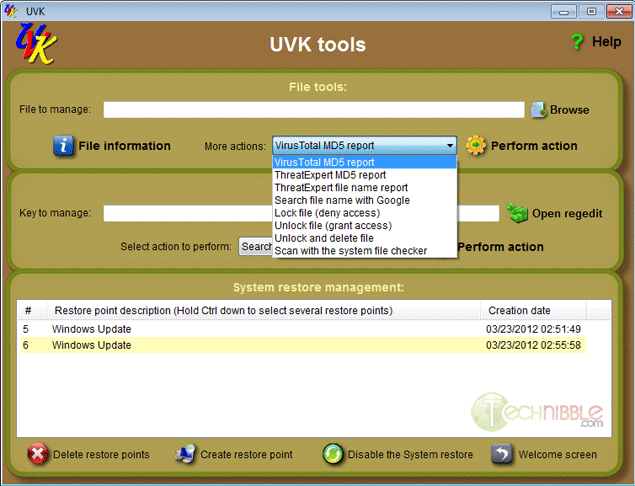
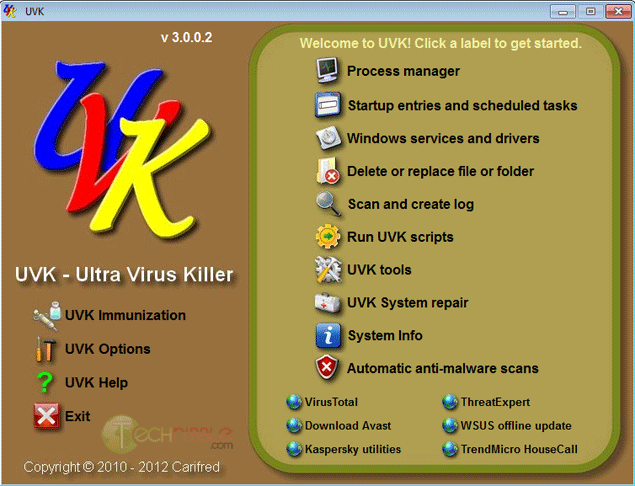
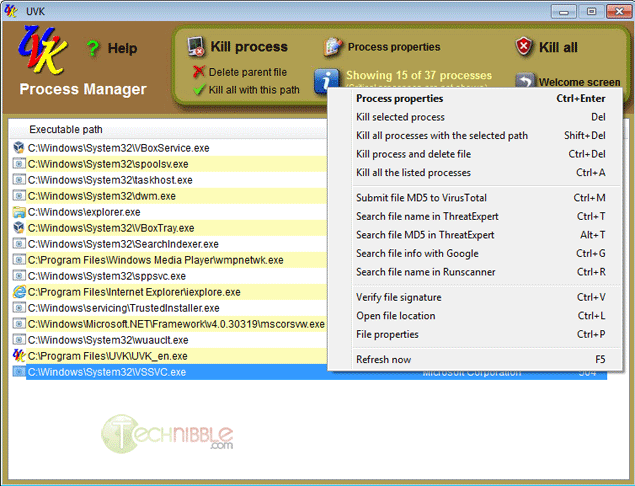
Ultra Virus Killer, also known as UVK, is a free and portable application designed to help users detect and remove malware. UVK acts as a swiss army knife of malware removal as it contains similar functionality to a range of computer technician software use such as Process Explorer, Autoruns, Unlocker, Windows Repair and more.

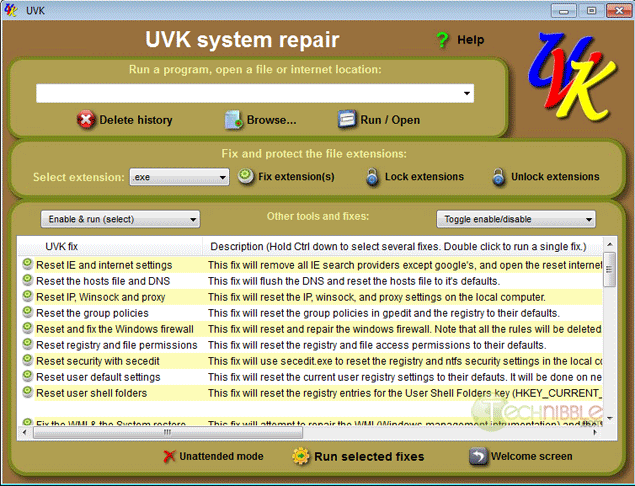
The strength of this application is not just its ability to help you remove the offending malware, but repair the damaged Windows install afterwards. For example, the application allows you to create scripts that will reset the hosts file and DNS, Reset IE, Reset Group Policy, Fix .exe extensions and much more.

While I was researching UVK, I discovered that the creator of UVK is a Technibble forum regular with some sizeable threads about it.

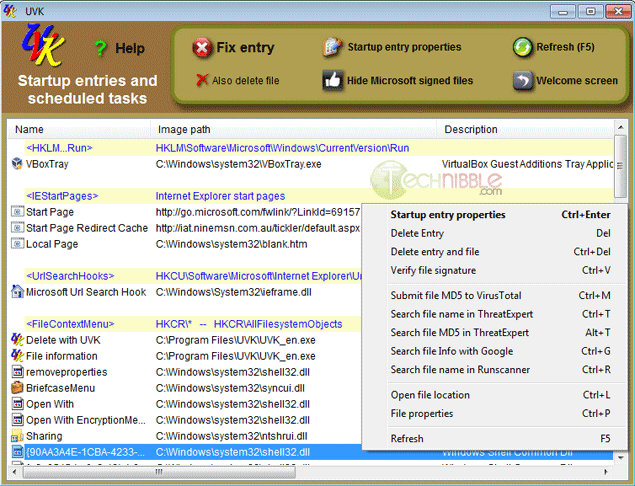
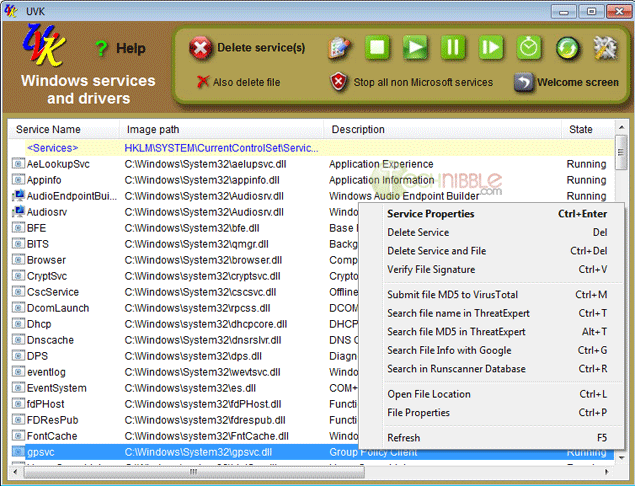
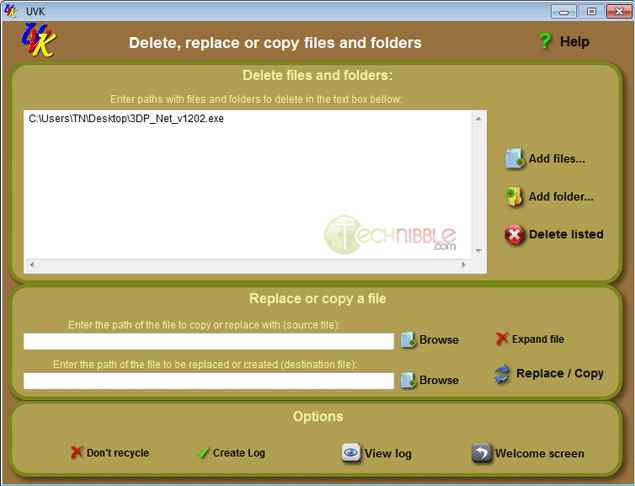
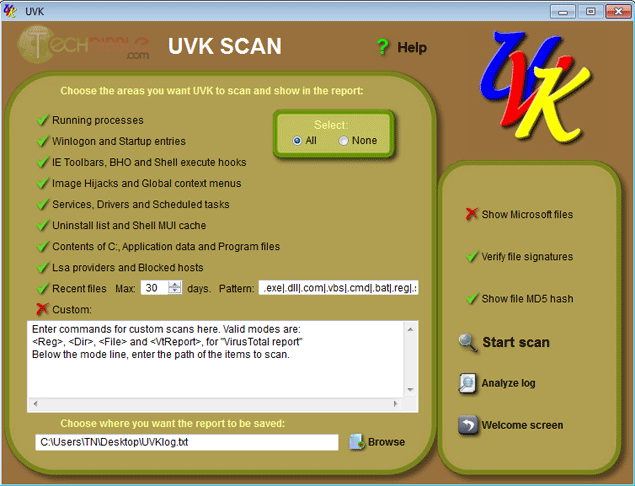
UVK has too many features to list here so be sure to check out the screenshots.

Screenshots

Ultra Virus Killer Front Page


Ultra Virus Killer Process Explorer


Ultra Virus Killer Startup Entries


Ultra Virus Killer Windows Services and Drivers


Ultra Virus Killer Delete Replace Files


Ultra Virus Killer Scan


Ultra Virus Killer Script


Ultra Virus Killer Tool


Ultra Virus Killer System Repair


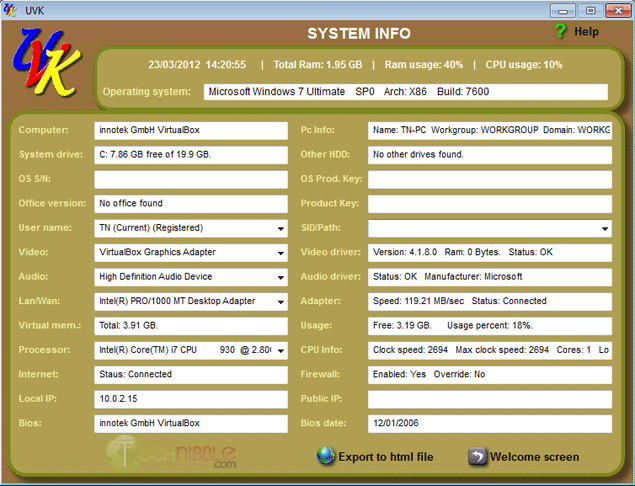
Ultra Virus Killer System Information


Ultra Virus Killer Process Explorer 0 0


Downloads:

Download from Official Site – 5.3mb

More Information

© Technibble – A Resource for Computer Technicians to start or improve their Computer Business
To get started with your own computer business, check out our Computer Business Kit.

Ultra Virus Killer Process Explorer 3 3

Read more:

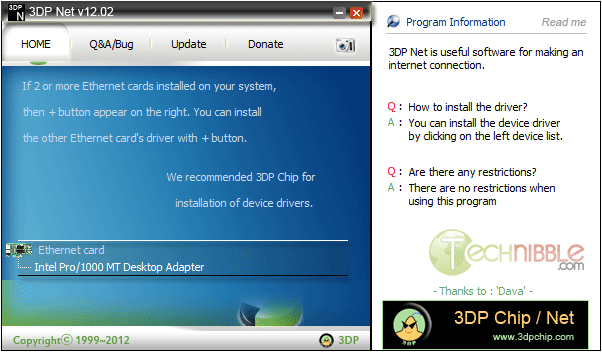
3DP Net – Auto Detects and Installs Network Drivers

Authors: Bryce Whitty

As Computer Technicians, one of the most important things for us to do after we install a fresh copy of Windows is to get the operating system online so we can install the appropriate drivers. Unfortunately, there is sometimes a catch 22 where we cant get the operating system online because we dont have the network driver, and we cant get the driver because we cant get online.

This is where 3DP Net comes in handy. 3DP Net is a freeware application that will either install the correct network card driver or a generic one allowing you to get online and download the appropriate drivers.

While other driver installing options exist like Driverpacks.net, some technicians prefer to only install the very latest drivers from the manufacturers website and only need a simple network driver. 3D PNet is a small, simple package to achieve that.

Screenshot


Downloads:

Download from Softpedia.com – 46mb

More Information

Special thanks to forum member MobileTechie for recommending this one.

© Technibble – A Resource for Computer Technicians to start or improve their Computer Business
To get started with your own computer business, check out our Computer Business Kit.

image

Read more:

The Ultimate SEO Checklist for Your Computer Repair Website

Authors: Guest Writer

Guest Post by Shawn Hutchison:

At the dawn of search engines, website owners quickly found that you could A) optimize your site for the search engines or B) optimize for human readability, which, due to the rudimentary nature of search engines at the time, meant you were likely the only one who knew about your website. Optimizing for both audiences was very difficult. As evidenced by Google’s recent update Panda (rewarded sites that were more useful to readers and devalued sites that were geared more toward search engines) it is Google’s goal for these two types of optimization to eventually converge. What is most valuable to humans will determine where a website will rank for a given search term. But search engines aren’t quite there yet. For website owners this means no straying too far to either end of the spectrum, and finding balance between the two audiences as the gap closes.

Following the steps and information in the Ultimate SEO Checklist will give your computer repair website a solid SEO foundation that will make sure you’re well on your way to finding that balance.

Forward

In April 2011 I decided I wanted to start my own computer repair business in San Diego, CA. I immediately started planning, designing and developing my computer repair website and business Pcbox. Unfortunately I allowed myself to lose sight of my website because a long string of well paying web design and SEO jobs fell into my lap. I still got a decent amount of computer repair jobs, but almost none of it was business driven from my website.

In hindsight, delaying the development of my website was both good and bad. Bad because I have a half-finished website that isn’t ranking well for anything worth noting. Good because although I already had a very good understanding of SEO at the time, I have learned a lot about SEO since then from the Panda update, and I would have had to revise my site anyway. On top of that, I’ve decided to start my computer repair business in Phoenix, AZ rather than San Diego so any links I would have targeted toward San Diego during that time would need to be redone.

My new goal is to rank on the first page for at least one search term within the next three months using the checklist below as a starting point. I thought I’d share my methods here in case any computer technicians out there looking to improve their SEO wanted to try the methods in this checklist at the same time, and share our results near the end of the three month period.

On to the checklist…

1. Use WordPress (or your CMS of Choice)

This may seem a bit biased, but really, do yourself a favor and use WordPress. The WordPress learning curve is a learning speed bump in comparison to Joomla or Drupal. The sheer amount of themes, plugins (SEO or otherwise) and community support available vs. other popular CMS’s is staggering. Best of all: it’s free. With WordPress, you just have a lot more options available to you.

If you’re already heavily invested in another CMS or are a die hard HTML purist, that’s okay; you can still benefit from this checklist and certainly achieve similar results, but it’s going to require a lot more time and effort.

2. Buy a Theme or Hire a Web Designer

Design may seem unrelated to SEO, but a poor design can affect bounce rate, time on site and ultimately your sales potential. Google keeps track of bounce rate and time on site, and if these metrics aren’t within reason, your relevance to search terms being used to reach your site will come into question in Google’s eyes. It doesn’t matter if you’re on page 1 for the most competitive search terms in the computer repair industry, if your web stats indicate that you aren’t providing value and relevance in relation to the search terms being used, your site isn’t going to perform as well as it could.

There are many affordable marketplaces and CMS/HTML themes to choose from such as ThemeForest or Technibble Jim’s (16k_zx81) Ultimate Tech Site WordPress Theme.

You want to instill value and professionalism in the mind of your website visitors, and if your site looks like Geocities’ Revenge, your conversions are going to suffer.

3. Find the Right Keywords

Proper keyword research is a must. The keywords you decide to target will be the focus of your entire on page and off page optimization strategy. So before you even create the first page of your website, you should have a list of 5-10 targeted keywords or keyphrases that receive a decent amount of traffic each month.

Brian Vest has already written an article on keyword research for Technibble. I don’t want to reiterate everything in the article as much of it is still very valid. Instead I recommend you read that article, then return to this section, which will will mostly improve upon the competitive analysis techniques used in the aforementioned article.

3.1 Competitor Keyword Analysis

One thing I found lacking in the above article was competitor keyword analysis, which not only gives you an idea of what keywords your competitors are ranking for, but also can spur many keyword ideas you may not have considered otherwise. In fact, this is often my first course of action when keyword brainstorming. It’s easy and takes very little time or effort when using the right tools correctly.

3.1.1 Google Keyword Tool

We are going to be working with the Google Keyword Tool   I suggest exporting the list of the keywords you decide to target from the Keyword Tool as a .csv file to Google Docs or your spreadsheet editor of choice. Having this list handy will help keep you on track for on page optimization and link building later on.

To check out what sort of keywords your competitors sites contain, first input a few of your competitors’ URLs, one at a time, check ‘Only show ideas closely related to my search terms’ and for match type select exact, which will give you more targeted search terms. After the results load, sort by number of local monthly searches, high to low, and choose the keywords that receive enough traffic, are relevant to your business, and aren’t too competitive.
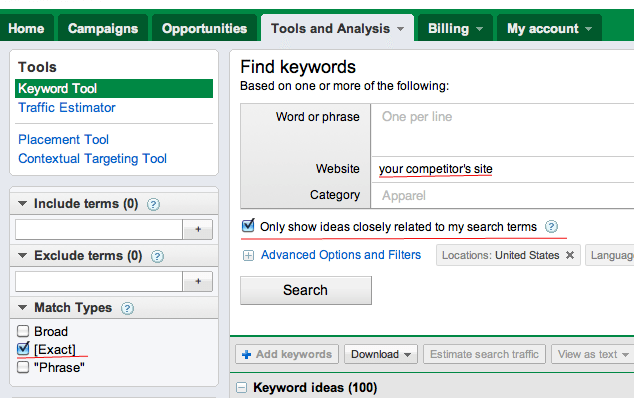
Google Keyword Tool


3.2 Don’t only focus on the big, competitive keywords

Being on the first page for keywords like virus removal phoenix, computer repair phoenix, etc is nice, and will most likely pull in the most traffic, but they will also take the most effort to rank for. If you spend all your efforts targeting the major keywords early on, you won’t be ranking for anything else until you start ranking for those keywords, which means less revenue. There is a lot of value in spending a portion of your time targeting low to medium competition words. That way you have some revenue coming in to motivate you until your efforts to rank for the big keywords pay off.

Following the advice in this keyword research article and use the competitive analysis method above, you should be able to consolidate your research into a list of 10 keywords or less.

4. Optimize On-Page Elements

It’s true that a website can rank well by means of off-page optimization alone. While the same cannot necessarily be said of on-page optimization, it should not be underestimated. Why not? Here’s an example:

I did a Google search for ‘virus removal phoenix az’ recently, and at the time my site was sitting at the top of page 3.

As I mentioned, my site is only about halfway done in terms of content creation and on-page optimization. Aside from my signature link, which did boost my rank 3 spots, I’ve done little to no link building for Pcbox. Wherever I’m ranking for any search term is almost entirely due to half-completed on-page optimization.

Improving my ranking from page 3 for any keyword is going to be exponentially more difficult from here on out. But instead of having to work my way from the savage-lands that are pages 10+, on-page optimization gave me a ride to the starting line.

4.1 URL Structure

Planning your URL structure beforehand is imperative. If some of your computer service pages look like this: http://domain.com/example-service/ and others look like this: http://domain.com/services/example-service/ then I’m looking at you. There are arguments on both sides for why each iteration is better than the other, but the only thing you really need to worry about is that your URL structure is uniform and meaningful.

As a guideline, try to adhere to a 2-directory-deep URL structure limit. Not only are long URLs not user friendly, but the more keywords present in your URL, the more each individual keyword’s impact is diluted. In short, long URLs are bad for both audiences.

Tips – The SEO Ultimate WordPress Plugin automatically removes stop words (prepositions and other low value words) from your URL slugs to reduce keyword dilution.

4.1.1 One Keyword per page

Don’t just dump all of your services onto one page and dust off your hands like that’s that. Search engines crawl your site to determine it’s relevance to a search term. If you have a page full of info pertaining to different services, how relevant is that page for someone specifically searching for a Computer Tune Up? Computer Tune Up info is there, but so is all of the information pertaining to data recovery, virus removal, network installs, email set up, remote support and so on, which reduce’s the info pertaining to the tune up’s impact.

Don’t make the search engines have to think about it. A One Keyword per page strategy makes it obvious what information that page holds.

Example –  Page targeted toward virus removal: [yoursite].com/virus-removal/, one targeted for data recovery: [yoursite].com/data-recovery/ et cetera.

4.2 Snippets

If I happen upon a site while Googling, and it looks even remotely like the snippet above, I’m steering my click-ship away from your site like it’s the Bermuda Triangle. No one needs to be welcomed to your website. ‘CLICKING HERE’ isn’t going to provide some wild thrill for anyone. It’s 2012. The novelty of clicking a link has passed. Also, and this may seem very obvious, but if you are including ‘Virus Removal’ or something similar to your Title Tag, be sure the rest of the phrase after ‘Virus’ doesn’t get cut off, or else it will look like you’re trying to GIVE them a virus. The snippet above is an only slightly exaggerated combination of real snippets of computer repair websites I’ve seen recently.
This snippet is your elevator pitch to potential clients and search engines alike, in some instances it is your only point of contact with a potential client. Make it count.

Tip – Use this snippet optimization tool to see more or less how your snippet will appear in Google.

4.2.1 Title Tags

The Title Tag is the first and arguably most important element of snippet, as it is one of the main indicators search engines and humans alike use to determine the relevance of a page to particular search term.

If I could offer you only one suggestion on title tags, it would be this:

Keep it short. Keep it classy.

For the same reasons outlined in previous sections, try not to keyword stuff. Your home page title tag doesn’t need to contain every single service you offer and every city in a 200 mile radius. That information is better suited for subpages’ title tags and body text. Google and most other search engines truncate title tags at around 70 characters, including spaces. Search engines can interpret it, but humans aren’t going to see it. What happens if the service they’re looking for is at the end of your ridiculously long title tag? They’re probably moving on.

In short, limit your Home Page Title Tag to 3 elements: Who You Are, What You Do, and Where You Do It. Anything else is better suited for either the Meta Description (next section) or on the webpage itself. A 70 character limit should be observed for the Title Tag, excluding blog posts.

4.2.1.1 Business in the front, party in the back

Placing relevant keywords near the front of the title tag and the brand name in the back has shown increased click through rate in websites that are not well known, recognizable brands. I personally like the branding aspect of having the business name in the front, but I am seriously considering moving my brand name to the back, despite being so short and relevant.

Optimal Title Tag formats:

Brand Name – Main Keyword and Secondary Keyword | Service Area

(My current format, recommended for businesses with very short, relevant names, or businesses that are well known within their service region)

or

Main Keyword and Secondary Keyword – Service Area| Brand Name

For inner service pages, I recommend sticking with the second format exclusively.

Tip – Many SEO WordPress plugins allow you to easily modify your title tag. SEO Ultimate allows you to append anything you wish to the suffix of the Title Tag, which can save a lot of time.

4.2.2 Meta Descriptions

Meta Descriptions are not directly valuable in determining rank, but the bolding effect triggered when a search term matches a keyword in the meta description leads to increased click through rates. Try to limit the length of  Meta Descriptions to about the size of a tweet, 140 characters. These are only valuable for human readability so try to avoid keyword stuffing here, and instead succinctly give your prospective clients a reason to visit your site, while also including an appropriate amount of keywords.

Tip – Create a unique Meta Description for each page in your website.

4.3 Heading Tags

The H1 Heading Tag is another significant on-page indicator of a page’s relevance. Your H1 tag (you should only have one per page) should match one or more of the main service keywords in your title tag.  H2′s should be reserved as subheadings to the H1 tag or for secondary keywords on the homepage. H3 tags should be reserved for site elements such as header, footer and sidebar headings.

4.4 Body copy

It is important to have enough body text for search engines to grab onto and determine your site’s relevance, but that doesn’t mean you should write more content than you need to provide an ample description. Try to use the main keyword of the page at least 3 times, one of which in bold text, so that reading the text feels natural as well as giving search engines a good idea of what’s going on. Keyword stuffing body text to the point where a cipher is needed to figure out what you’re talking about can be very frustrating and lead to a higher bounce rate, which in turn is totally counter productive. Imagine, you spent all that time throwing keywords around like confetti because you ‘heard it’s good for SEO’ (not true by the way) and by the time potential clients get to your page, they couldn’t hit the back button faster if they tried.

Make your body copy as descriptive and pleasant to read as possible. Break up the monotony of reading a giant brick of text with formatting, spacing and headings for easy scanning.

4.4.1 Optimize images within the body of your site

Be sure to include relevant keywords in the alt attribute with every image you use, as well as using keywords in the file name itself.

4.5 Internal Linking Structure

Internal linking is very valuable in establishing your site’s information architecture to search engines and humans alike. Not everyone who visits your site visits the home page first, and presenting visitors with header, footer, sidebar and body navigation links can reduce bounce rates by increasing the usability of your site.

4.5.1 Breadcrumbs

Breadcrumbs are named after the story of Hansel and Gretel, who leave a trail of breadcrumbs to find their way home , which is actually a pretty terrible idea. Animals love bread.

Website Breadcrumbs, on the other hand, are a great idea. They provide one-click access to higher levels of your site as well as strengthening your internal linking structure.

Tip Breadcrumb NavXT is an excellent WordPress plugin for adding basic breadcrumbs to your site.

4.5.2 XML and HTML Sitemaps

A sitemap is essentially a table of contents for your website. XML Sitemaps allow for easier indexing of your site for search engine bots. Anything that makes life easier for search engines is something you should consider doing. HTML Sitemaps are more beneficial to humans. They provide a quick overview of your site’s hierarchy, which can come in handy for you when making changes to site navigation, and to users who are searching for something very specific and don’t have the time to find it otherwise.

After creating your XML sitemaps, be sure to submit them to all 3 major search engines.

There are many tools that will automate the creation and submission process, such as the Google XML Sitemaps plugin for WordPress

For more information on sitemaps, visit sitemaps.org

Tip – Install Google Analytics to keep an eye of your site metrics.

5. Start Link Building

Link building, if done properly, will likely yield the largest return of all your SEO efforts, but will also take the most time.  There are far too many ways to go about link building to completely fit within the scope of this checklist, but I will outline some of the first linkbuilding steps to take with a new or underperforming computer repair site.

One thing I can’t stress enough when starting your link building campaign is to strive for quality before quantity, at least at first. Having a handful of links to your site from quality, relevant sources will really help boost and stabilize your rankings.

Time to bring out your keyword spreadsheet again, both to use for the anchor text of external links, as well as keeping track of the status of your link building. Keep track of what steps you’ve taken for each link you’re trying to get.

5.1 Claim your Business Listing pages

Local Business Listings are an easy and (usually) free way to gain back links. Not claiming your listing can work against you. If you don’t claim a spot on the list of local computer repair businesses in your city, someone else will.

Unfortunately the entire online local business ecosystem revolves around having a physical address, rather than being based on service area. If you do not have a physical address, you are unfortunately at somewhat of a disadvantage against computer repair businesses that do, at least when it comes to ranking for search terms that explicitly include the city name. Mobile businesses have been able to get around this problem by stating their business address as a P.O. box, but Google caught on to that pretty quickly and yanked the rug out from under some of them. You may still be able to get by with this in some areas.

Google Places

This is the one to focus on first and foremost, for obvious reasons. For computer repair businesses that aren’t ranking for the first page for computer services [your city], this is your opportunity. Don’t squander it. Take an entire day or two to completely max out your Google Places Listing. Be sure to include all the basics: name, address, phone #, and as many additional details as possible. Max out the pictures and videos if you can. Choose 2-3 categories. Write a detailed business description sprinkled with the occasional keyword. Include an offer for a discount on service. Encourage and respond to customer reviews.

These are all, albeit small, opportunities for you to demonstrate your businesses’ value. Carpe diem.

More Listings To Claim: Yahoo Local, Bing Local, CitySearch, Yelp, Manta, Yellow Pages, et cetera.

Tip – Avoid data confusion by using the exact same phone #, address and other business info across all listing sites.

 5.2 Examine  Competitors’ Back Links

One of easiest ways to find quality, relevant links is by snooping around your competitors’ back link profile.  Open up Open Site Explorer – a free site analysis tool. (The free version of OSE is limited to 3 searches per day, but you can gain full access by signing up for the free 30 day trial for SEOmoz pro.)

Start with your competitor that is ranking for the keyword you are most interested in ranking for right now. You can also click ‘Compare pages’ to input 4 more competitor domains to view other useful link metrics, but you may only view once competitor’s inbound links at a time.

After the list of back links populates, filter by ‘followed + 301′, ‘external links’ and ‘pages on this subdomain’. Add the top five back links (by page authority) to your spreadsheet and move on to the next competitor.

After your list has about 20 or so links, visit each link to determine what is required on your part to add a link to your site. Some sites will limit your anchor text to your domain name only, but if you have the option, utilize your list of keywords.

Tip  – Use the SEOmoz Link Acquistion Assistant to discover new linking opportunities that your competitors may not know about.

For a more detailed overview of linking, read SEOmoz’s Growing Popularity and Links


SEO is a vast subject. There are ideas and techniques that are not listed in this checklist, as well as ways to expand upon each section that is in the checklist.  Following the advice listed here will give new and underperforming sites a solid SEO foundation and a boost in the SERPs, which can then be augmented and fine tuned.

Think there’s something missing from this checklist that would be beneficial to computer repair businesses just starting their SEO campaign? Say so below in the comments, the more we share our ideas and experience, the better.


Additional Reading

Local Search Ranking Factors

SEOmoz Beginner’s Guide to SEO

Call That Girl’s Guide to Social Media


Recommended Tools

Open Site Explorer

Google Keyword Tool

SEO Ultimate WordPress Plugin

Ultimate Tech Site WordPress Theme

WooRank


Guest Post by Shawn Hutchison. Shawn is a Web Designer/Developer, Computer Technician with 10+ years experience and the Owner of Pcbox, a Mobile Computer Repair Business based in Phoenix, AZ.

© Technibble – A Resource for Computer Technicians to start or improve their Computer Business
To get started with your own computer business, check out our Computer Business Kit.


image

Read more:

Windows Reliability Monitor – Visualize Event Log Errors

Authors: Bryce Whitty

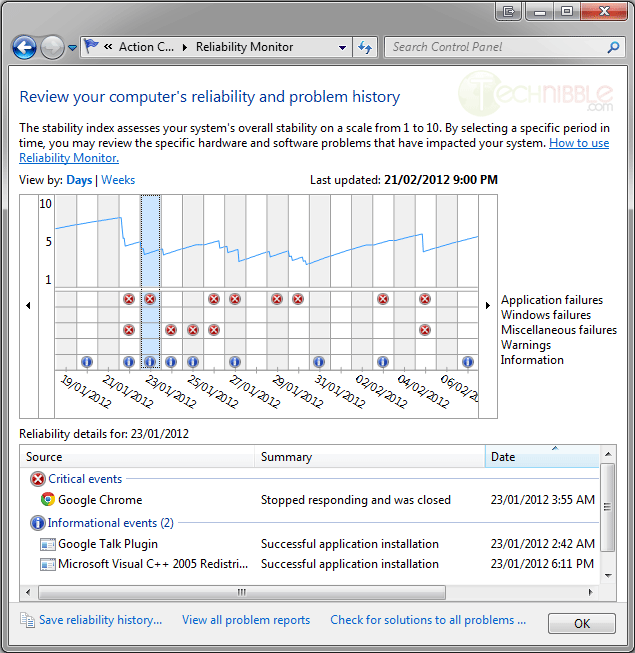
Windows Reliability Monitor is tool is built into Windows 7 that is definitely worth mentioning because few people know about it. Windows Reliability Monitor takes the events in Windows Event Viewer and displays them in a easy to read daily graph which makes it much easier to spot trends. For example, it may show that on a certain day a Windows update was installed and every day since there has been an error. One can assume that the Windows update might be the culprit.

Windows Reliability Monitor is not designed to replace Event Viewer since Event Viewer shows much more information, but rather to help you see overall behavior of the system and see how the events may link together.

Screenshot

Windows Reliability Monitor


How To Access It:

Goto Start and in the Run box type: reliability monitor

Or, you can go to:

Control Panel > Action Center
Expand the Maintenance drop down and under "Check for solutions to problem reports" press the "View reliability history". If you cannot see this link you may need to dismiss the error message.

© Technibble – A Resource for Computer Technicians to start or improve their Computer Business
To get started with your own computer business, check out our Computer Business Kit.
image

Read more:

Tweaking.com Windows Repair – Fix Common Windows Problems

Authors: Bryce Whitty

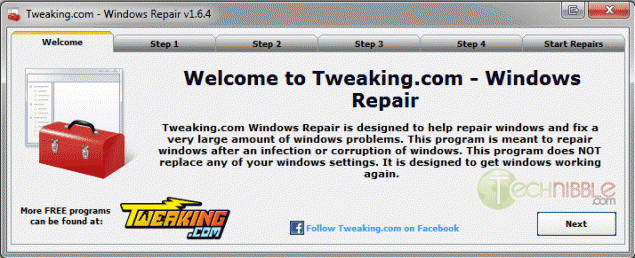
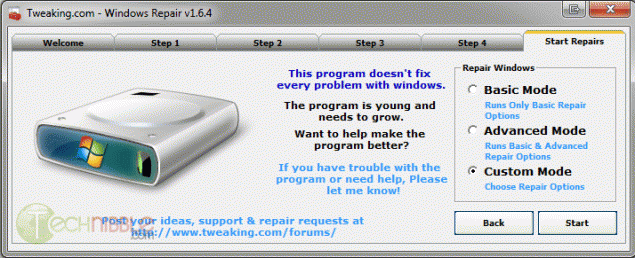
Tweaking.com Windows Repair is a small, portable and free all-in-one repair tool designed to help you fix common Windows problems. Dial-a-Fix used to be a great tool for this task but it does not work on Windows 7 and has not been updated for years. Windows Repair is a great alternative.

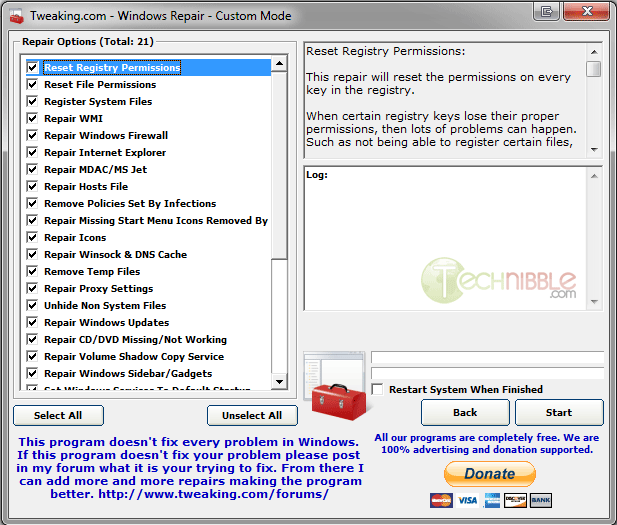
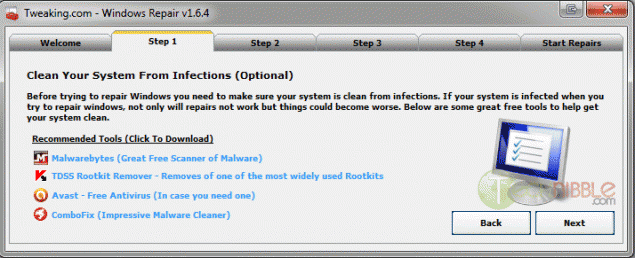
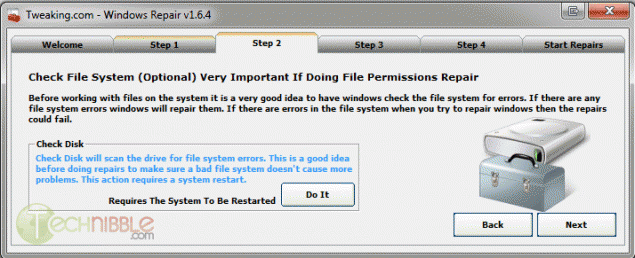
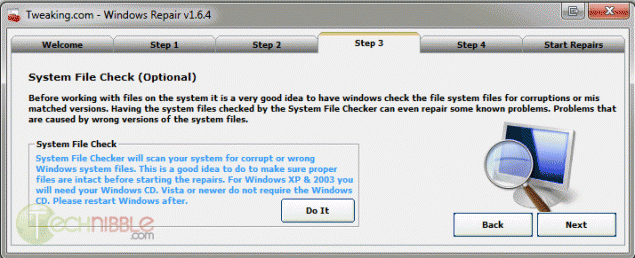
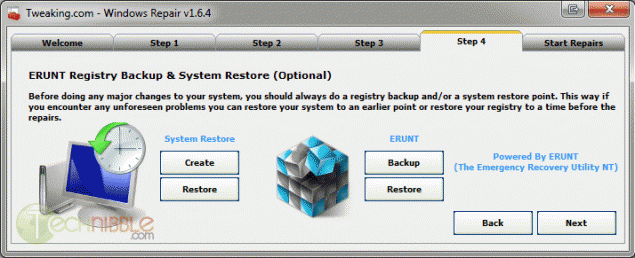
With its 5 step tabs telling you to run Checkdisk, System File Checker and Backup the Registry before you start using the main part, you can see it targets end users a bit more than Technicians but these steps are worth doing anyway. The real power is when you choose “Custom Mode” on the Start Repairs stage.

The following are the repair options you can choose:

  • Reset Registry Permissions
  • Reset File Permissions
  • Register System Files
  • Repair WMI
  • Repair Windows Firewall
  • Repair Internet Explorer
  • Repair MDAC & MS Jet
  • Repair Hosts File
  • Remove Policies Set By Infections
  • Missing Start Menu Icons
  • Repair Icons
  • Repair Winsock & DNS Cache
  • Remove Temp Files
  • Repair Proxy Settings
  • Unhide Non System Files
  • Repair Windows Updates
  • Repair CD/DVD Missing/Not Working
  • Repair Volume Shadow Copy Services
  • Repair Windows Sidebar/Gadgets
  • Set Windows Services to Default Setup
  • Repair MSI (Windows Installer)


Screenshot


Downloads:

Download from Official Site – 1.39mb

© Technibble – A Resource for Computer Technicians to start or improve their Computer Business
To get started with your own computer business, check out our Computer Business Kit. Tweaking.com Windows Repair – Fix Common Windows Problems
0 0

Read more:

MailStore Home – Easy Email Archiving, Backup and Migration

Authors: Bryce Whitty

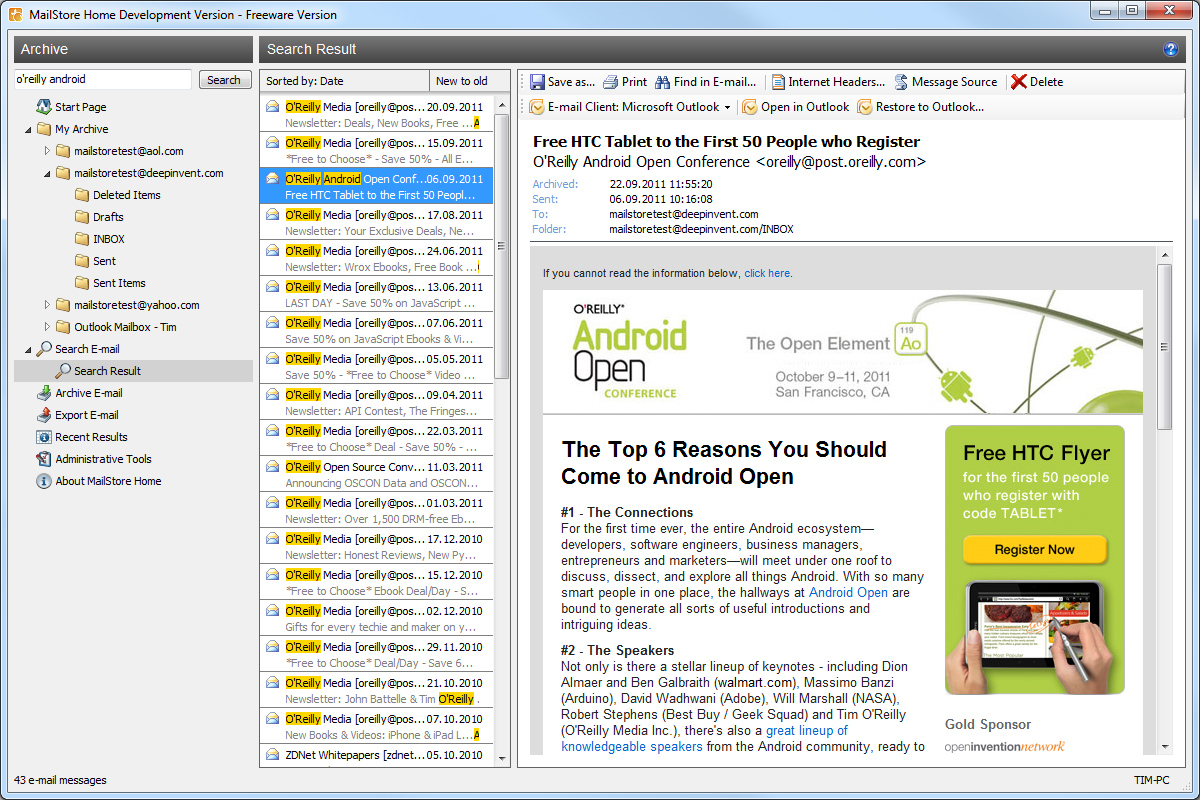
MailStore Home is a small, portable and freeware utility designed to make archiving, backing up and migrating emails easy. MailStore supports many different types of mailboxes such as Outlook, Outlook Express, Thunderbird, Exchange Server, Office 365, .EML files and more. It also supports a variety of internet based mailboxes such as Gmail, Hotmail and Yahoo mail.

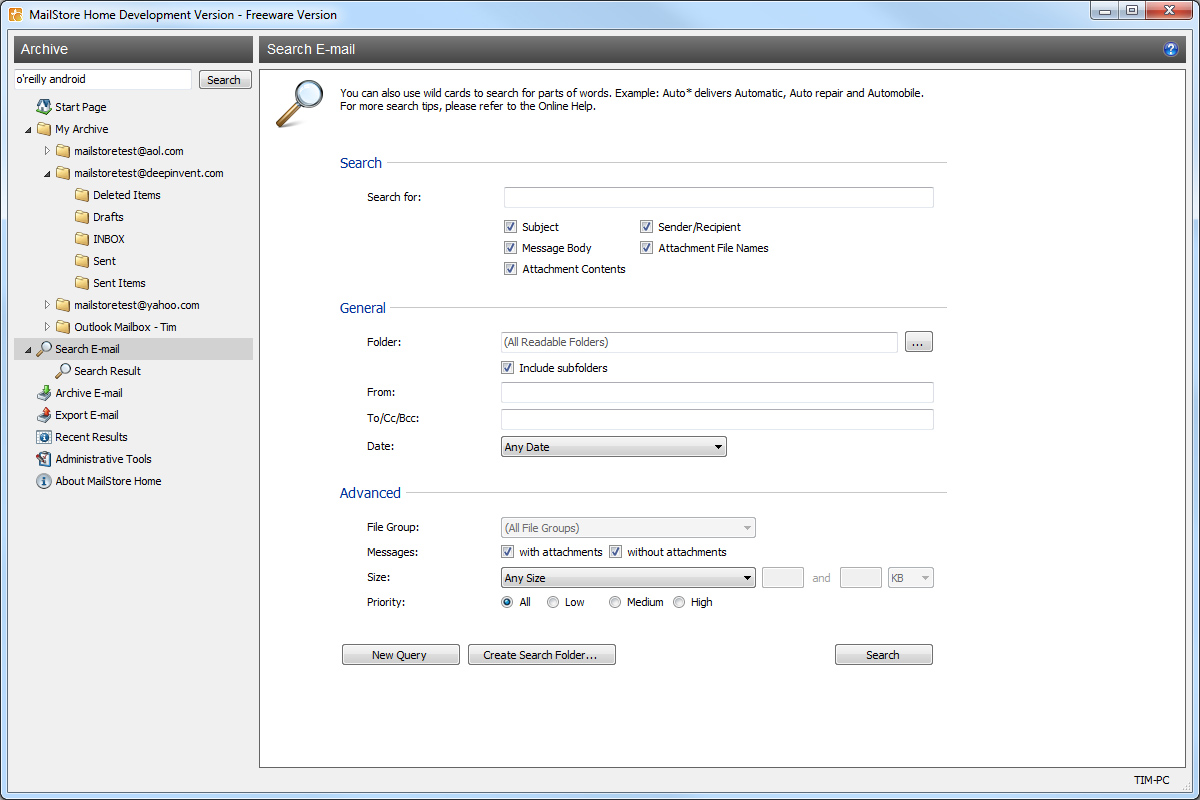
Once the email has been backed up, MailStore allows you to search in all of the email accounts from a central location within seconds. It allows you to restore the emails back to an email client with one click and migrate emails from one type of mailbox (ie. Gmail) to another type of mailbox (ie. Outlook).

If your personal life or business relies on cloud based email like Gmail, it is important to have an offsite backup since you never know when Google will suspend the account, have an extended outage or have your account hijacked by a hacker.


The best kind of backups are automated backups but unfortunately this software doesnt “officially” support automated backups with MailStore Home. However, this is a work around.
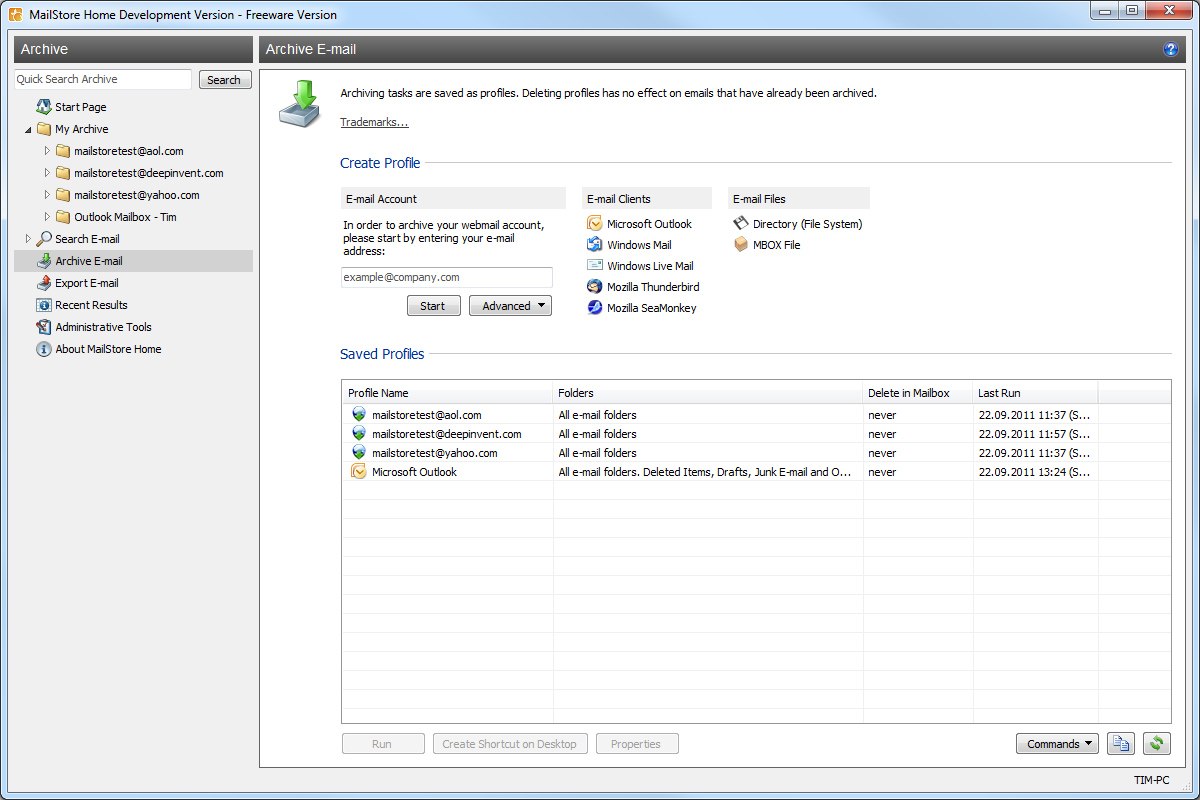
Once you have created a saved profile for an email address in the Archive Email area, highlight the profile and choose “Create a Desktop Shortcut”.
On the newly made desktop shortcut, right click, goto Properties and get the location string in the Target box. Once you have this string you can go to Task Scheduler and set up a scheduled task that will run this string.

Screenshots


Downloads

Download from Official Site – 5.91mb

© Technibble – A Resource for Computer Technicians to start or improve their Computer Business
To get started with your own computer business, check out our Computer Business Kit. MailStore Home – Easy Email Archiving, Backup and Migration
image

Read more:

Boost Your Revenue with Cloud Storage Backup

Authors: Guest Writer

Guest Post by William Conner
I started selling cloud services 7 years ago; I was a reseller of Carbonite a few months after they opened their doors and haven’t looked back. It’s easy to be afraid of cloud services, watching how they encroach on what used to be our exclusive domain, but really it’s the natural evolution of technology and we need to figure out how to leverage it to our advantage. The great thing about cloud services is they’re like any other IT product, diverse and ever changing. That still leave the IT Pro in the position of trusted expert to recommend products based on client needs.


When talking about backup, let’s keep in mind the 3-2-1 Rule of Backups. Keep three copies, the primary data and two backups, store the backups on two different media, cloud, magnetic, optical, etc., and keep one copy offsite. Cloud services allow for offsite backup beautifully. The 321 strategy gives us many options for disaster recovery in the event of fire, theft or seizure. A typical deployment for us is to back up to a low cost NAS like the D-Link DNS-320 and have a mirror of that backup in the cloud via BackBlaze or SymForm which works quite well.

I’m not going to shill for a bunch of different products, I still recommend Carbonite, and get my cut when I do, but I also use SymForm, Backblaze, Keepvault, Vembu, Acronis and others. Each caters to specific needs, so all we need to do is identify their strengths, figure out what the customer needs, and make the sale.

Let’s look at what might be important to a given user based on their usage profile:

Typical Demands Home – Light Data SOHO – Medium Data Small Business – Larger Data
Configuration Zero Configuration Little configuration needed Handled by IT contractor
Storage Space 100 GB or less 100-1000GB 500GB+
Backup Speed Quick, but not a huge concern Within a few hours As quickly as possible
Recovery Speed Can tolerate a multi-day redownload Needs unthrottled ASAP recovery options Unthrottled recovery and overnight delivery of storage media.
Remote access Handy access via smartphone or tablet Smartphone/Tablet or Web interface access to data. Generally only needs web access to datasets.
Encryption Strong Encryption – Provider managed keyset Strong encryption, controllable keyset Strong encryption, controllable keyset
Partner Support Can rely on vendor techsupport Expects VAR/IT Pro to provide support. Expects VAR/IT Pro to provide support.
Vendor data centre location Generally not an issue. May have concerns or regulatory compliance issues regarding foreign storage. May have concerns or regulatory compliance issues regarding foreign storage. May see foreign storage as an advantage.


When evaluating services, it’s important to pay attention to what they offer based on the chart above. Offerings are always changing, and much like anti-virus vendors, what may be great this year may be really bad the next. Carbonite was a really great provider, but they throttle daily backup amounts, Backblaze doesn’t. Symform recently started selling direct to consumer and included 200gb of free backup, changing their initial partner strategy and KeepVault has lagged in its pricing, moving from very competitive to very expensive.

Ok, so now you’ve determined your clients need, your vendor’s strengths and you need to figure out how to make some money with this information. Most providers offer partner programs that allow you to either take a cut of the sale through referral commission, or offer wholesale prices if you’ll handle billing and support. I like to do the latter, as my clients generally don’t care who the vendor is, just that product works and that they don’t have to deal with many invoices or helpdesks for their technology products.

I typically bill above retail, because of this added support, thereby extending my profit margins and taking responsibility for the product myself. With cloud backup, this is pretty easy to do because the servers are very much set-it-and-forget-it products that require little effort to maintain.

There are really only three ways to sell cloud backup; by using passive links on your websites and promotional products, as direct recommendations to clients on-site, and as part of your MSP (Managed Service Provider) packages. For the most part, the revenue from the first two is minor, maybe $10-15 a year per seat depending on the client and package, but as part of a MSP package, they’ve been invaluable to me in two ways.

The first is by including off-site backup in my packages by default I’ve created have a competitive advantage as I’m not aware of any local competitors who do this. The costs of the service are built into the package, but to the client it looks like a freebie, one that they may never thought of or heard about before. Some might be have been confused by the amount of vendors in the field, or by pricing schemes and previously been scared off, but when I bring it up they greatly appreciate it.

They’re hearing about the cloud in the media but they don’t understand it. This gives us credibility in the sales process thanks to Microsoft’s advertising, and we get to direct the content of the conversation. Cloud backup has allowed me to close more MSP contracts since I started bundling them by default because my clients see that I’m looking out for their interests and starting disaster planning from the get go.

Second, because of the success in boosting MSP contract sales, I’ve created residential MSP contracts for pre-qualified clients. These residential contracts sell easily with cloud backup as I’m able to talk to the prospect about total security and protection. I’ve cemented myself as their only vendor because their AV, cloud backup, remote access and support services are now channelled through my one single invoice. Not only does this allow me to completely own the client, but I can take that client portfolio with me to a vendor and negotiate better pricing.

No matter how you decide to integrate cloud backup into your offerings, whereby as a single sale add-on or as an integral part of your service packages, I highly recommend you do. You’d be putting yourself and your clients at a severe disadvantage if you don’t. I’ve seen a 15% boost in sales, greater stickiness and stronger relationships. I’m offering more comprehensive services and eliminating the feeling of being nickel in dimed clients often resent when dealing with multiple vendors in regards to their IT infrastructure.

And a final thought, the pitch for cloud backup is simple: “With cloud backup your data is encrypted and stored offsite within minutes, protecting you from accidental deletion, theft, seizure or god forbid a fire, local backup isn’t enough. You can always buy a new computer, but you can’t buy back your data, ready to sign?”

Note: substitute data with pictures if it’s a residential client.

Guest Post By William Conner: William Conner is the owner of MyComputerHero, an IT consultancy in Calgary, Alberta since 2005. He has been in the SMB IT industry for 15 years, holds various vendor and industry certifications and is finishing a BSc. in Computer Information Systems at Mount Royal University.

© Technibble – A Resource for Computer Technicians to start or improve their Computer Business
To get started with your own computer business, check out our Computer Business Kit. Boost Your Revenue with Cloud Storage & Backup
image

Read more: