Patch My PC – Mass Update Third Party Software Automatically

Authors: Bryce Whitty

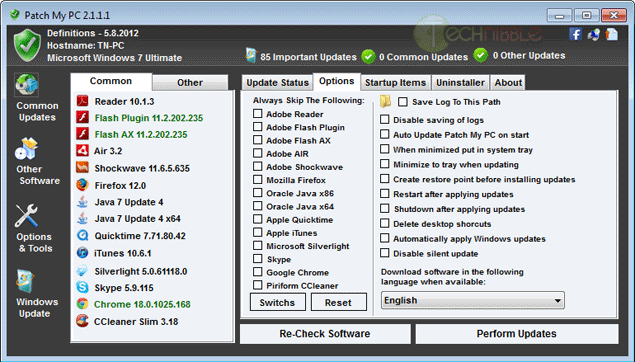
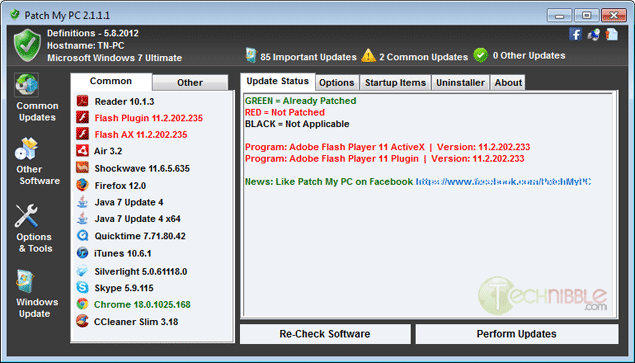
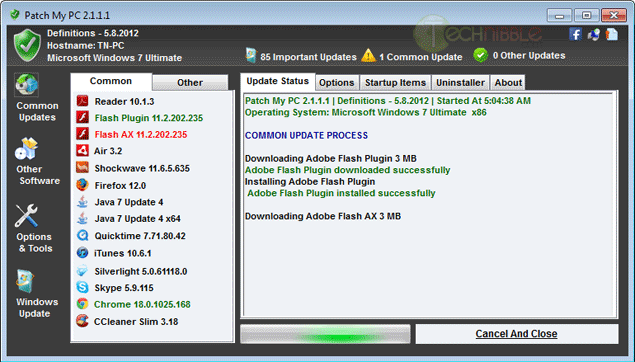
In today’s world, we are seeing malware writers focusing on weaknesses in third party applications such as Flash and Java rather than just targeting the operating system. Patch My PC is designed to help secure a machine against the vulnerabilities of having outdated third party software installed. Patch My PC is a small, portable and freeware application that will scan for outdated third party software and update them automatically. Some of the common software it will check include Adobe Reader, Adobe Flash, Adobe Air, Mozilla Firefox, Oracle Java, Apple QuickTime, Apple iTunes, Skype, Chrome, Microsoft Updates and much more.

Screenshots:


Downloads:

Download from Official Site – 344kb

More Information

© Technibble – A Resource for Computer Technicians to start or improve their Computer Business
To get started with your own computer business, check out our Computer Business Kit.

image

Read more:

How To Create Effective Craigslist Ads For Your Computer Repair Business

Authors: Bryce Whitty

Unless you have been living under a rock for the past few years, you have surely heard of Craigslist.org. If you haven’t, Craigslist is a network of online communities featuring free online classified advertisements. It allows you to post advertisements offering your computer repair services and essentially gain clients for free.

Some Computer Technicians love Craigslist and say that they have acquired their best clients from there while others wont go anywhere near it. It definitely has a bad reputation thanks to the $5 per hour technicians that advertise there but dont let that deter you as it can definitely help your business.

In this article, I’ll show you how to form an effective Craigslist ad and keep it visible.

Money vs Effort

Before we go any further, while posting on Craigslist is free (and who doesnt like free advertising right?), it does take time. Whether it is worth it or not will depend on your situation.
If you have time but not much money, Craigslist can be a fantastic source of clients. If you stay pretty busy with your existing clients then it may not be worth it. If you are just starting your business then you definitely shouldnt pass up the opportunity to gain some initial clients.

If you live in other countries where Craigslist isnt as popular like the UK or Australia, you can substitute Craigslist.org with Gumtree.co.uk or Gumtree.com.au

Creating Your Ad

The key to creating a great ad is to make it to be able to be read quickly and be keyword rich but still human readable. You might consider something like this:

*** YourTown Computer Repair ***
Honest, Secure and Reliable
Over X Years of Experience
Reasonable Rates
Services Include: Virus Removal, Desktop & Laptops, Hardware & Software Repair, Networking
Call XXX XXX-XXXX
Your Name

This is an effective ad because it can be scanned by the reader. You need to get your point across quickly as the customer may be looking at 10 other ads and they often they will not bother to read huge blocks of text.
While this ad is very short, it says a lot more than what was actually written. Let me break it down line by line so you understand why these words were chosen allowing you to create your own ad.

  • *** YouTown Computer Repair *** – When a future client is scanning a page of Craigslist advertisements but they are looking for a few keywords. They will be looking for Computer Repair services that is in their area. By having a heading like this, ticks all boxes in their mind and quickly gets their attention. Also, having a few special characters around the text seems to get more attention, but dont overdo it.
  • Honest, Secure and Reliable – As most people know, there are some seriously shady people on Craigslist. These words acknowledge that there are some bad operators on Craigslist and helps set you apart that you are not one of them.
  • Over X Years of Experience – This one is pretty obvious. If you have many years experience then it is worth mentioning to help separate you from the other ads. Of course, if you only have minimal experience then dont mention this line
  • Reasonable Rates – You may have noticed that I havent posted the price anywhere in the ad and have only said Reasonable Rates. The reason for this is that if the customer is shopping solely on price, you will usually lose out to the $15 per hour Computer Technician. However, not everyone is shopping based on price and would rather pay a premium for someone who is good, honest and reliable. These are the clients you want. Also, by not posting your rates it requires the customer to call you and this is your chance to sell. Understand your client, sympathize with their problem and offer to make it right:
    “Your computer wont start up and you have a school project to hand in tommorow? Oh, thats not good. We can have a tech out there today and we’ll do what we can to get your machine and running as soon as possible”.

    Keep in mind that the client will also be judging you based on your phone call. You can tell a lot about someone with only 30 seconds on the phone.
    Do you answer with “X Computer Services. How may I help you?” or with a sleepy “Hello?”
    Do you sound educated or speak in slang?
    Answering the phone like a professional will help separate you from the technicians who are only doing work for pizza money.

  • Services Include X, X and X – We are doing this so that people know the services that you offer, but also works as keywords for the Craigslist search feature. “Virus Removal” has been listed as the first service because most clients always think their problems are virus related, regardless of what the issue actually is.
  • Your Name – Signing it off with your first name makes it seem a bit more personal and that they are not dealing with a faceless corporation

Keep Posting

Depending on your location, the Craigslist listings can move fast. You could post your ad at 9am in the morning and it could be be pushed off the bottom of the page by 10am. The way to stay at the top of the page is to post your ad multiple times throughout the day. Having said that, Craigslist frowns upon duplicate postings so in order to post your ad multiple times a day you need to change the ad slightly. You can do this by moving the lines around, maybe even test out a few completely different ads to see which one is the most effective.

If you post your ad to the Craigslist pages of large cities, your ad may drop off the page too fast. Consider posting to the Craiglist pages of the smaller surrounding towns.

If your ad is still getting pushed off the page quickly, there are more extreme methods such as posting from a handful of different Craigslist accounts with each of them posting a few times a day.

© Technibble – A Resource for Computer Technicians to start or improve their Computer Business
To get started with your own computer business, check out our Computer Business Kit.

image

Read more:

Mobility Changing IT Field Services

Authors: Diana

Guest Blog: Scott Epple, OnForce Product Manager We’re living in pretty exciting times.  Most of us carry around small computers with us everywhere we go.  The same computing power that used to take up the size of a large room, now fits handily in our pockets.  Smartphones are connecting us to the people and places […]

Read more:

GSmartControl – Monitor and Test Hard Drive SMART Data

Authors: Bryce Whitty

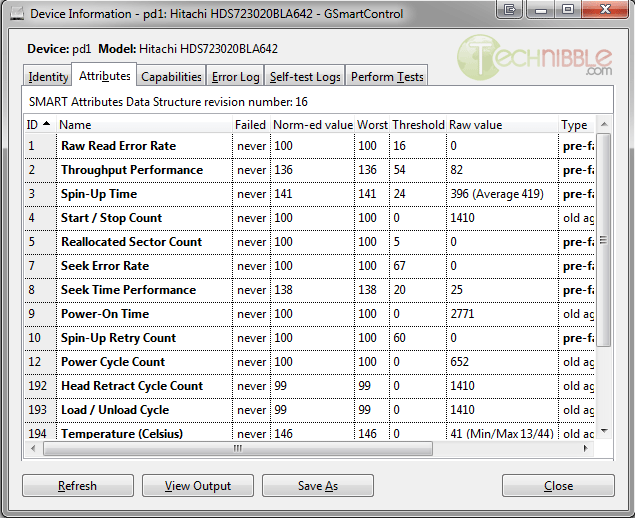
GSmartControl is an open source and portable application for identifying, monitoring and testing hard drives. GSmartControl differs from applications like CrystalDiskInfo because GSmartControl monitors the SMART data and runs tests, whereas CrystalDiskInfo just monitors the SMART data. The reason why you would want to actually test a hard drive rather than just monitoring its SMART data is because unless a hard drive has quite a few bad sectors, it probably wont trigger any warnings or alarms.

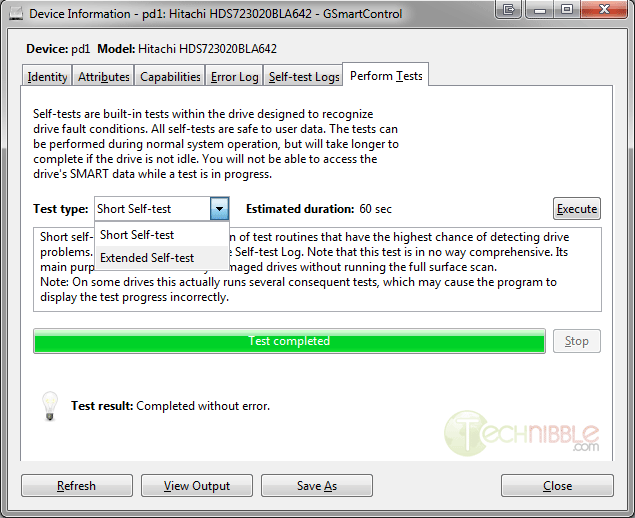
GSmartControl is capable of running the SMART Short self-test of 60 seconds and the Extended self-test which can take many hours depending on the size of the hard drive. The short diagnostic test will look for major issues but will often miss any smaller issues present. The Extended test is always recommended to test a hard drive if you have the time for it such as the machine being in your workshop.

GSmartControl runs on Windows, OSX, FreeBSD and a variety of Linux flavors including live CDs.

Screenshots:


Downloads:

Download from Official Site – 6.44mb

More Information

© Technibble – A Resource for Computer Technicians to start or improve their Computer Business
To get started with your own computer business, check out our Computer Business Kit.

image

Read more:

Mail Viewer – View Stand Alone Email Databases

Authors: Bryce Whitty

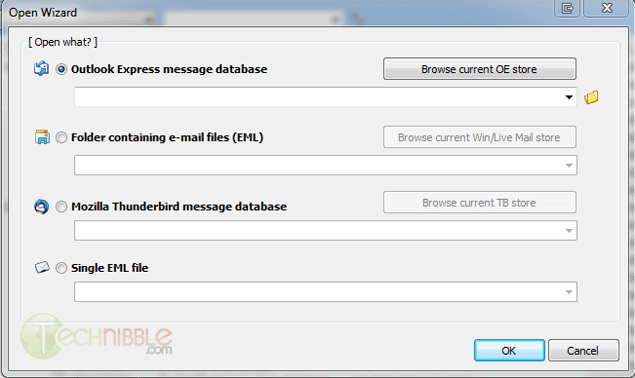
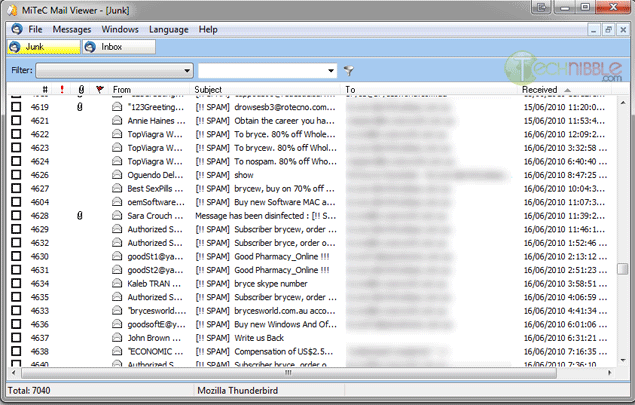
Mail Viewer is a free and portable application to view standalone Outlook Express, Windows Live Mail and Thunderbird databases. By standalone, I mean it will display a list of the emails contained in the databases without actually setting up the email client the file belongs to. Mail Viewer allows you to view most of what you can in an ordinary email client such as view single emails, attachments and HTML preview. It also features powerful search and filtering capabilities to find specific emails inside the databases.

I recently used this application when my father needed to reference an old email from 2007. We always keep backups but it was around this time he migrated from Outlook Express to Mozilla Thunderbird, so I wasn’t sure which database this email from 2007 was in. I also had backups of the backups from various periods so I had to look in many different backup versions to find it. While it isnt too hard to setup the old database in the new application, it would have been quite time consuming to search through all of the old backup versions. Mail Viewer was perfect for this situation and is definitely worth adding to your toolkit.

Mail Viewer is free for both private and commercial users.

Screenshots:


Downloads:

Download from Official Site – 1.37mb

More Information

© Technibble – A Resource for Computer Technicians to start or improve their Computer Business
To get started with your own computer business, check out our Computer Business Kit.

image

Read more:

Bypass Windows Logons with the Utilman.exe Trick

Authors: Bryce Whitty

Utilman.exe is a built in Windows application that is designed to allow the user to configure Accessibility options such as the Magnifier, High Contrast Theme, Narrator and On Screen Keyboard before they log onto the system.
This was designed to help people who are hard of sight, hearing or mobility to log onto Windows themselves without the need of outside help. Its a great feature for disabled people but it opens up a security hole that we can take advantage of to bypass Windows logons.

Bypassing the Windows logon comes in handy if our clients have forgotten their logon password, their user profiles were corrupted or malware was interfering with the system before login.

This works because the user can trigger Utilman by pressing Windows Key + U before Windows logon. This will load up the Utilman.exe executable which resides in the Windows\System32 directory. If you swap the Utilman.exe file with something else like cmd.exe, you have access to the command prompt running SYSTEM privileges. SYSTEM is an account with the highest possible privileges on Windows which similar to the root account on Unix systems.

Here are the step by step instruction on how to do this.

WARNING:
You can do a lot of damage to a system if you dont know what you are doing. Technibble accepts no responsibility if something goes wrong.

First of all, we will need a way to access the file system to swap out Utilman.exe with something else like cmd.exe. There are a few ways to achieve this:

  • Remove the operating system hard drive from the target system and slave it into another system with a working operating system. From there you can swap out the files on the slave drive
  • Use a Boot CD like UBCD4Win and use the file management software there
  • Use the Windows Vista or 7 DVD

In this example we will be using the Windows 7 DVD. To begin, boot from your Windows 7 DVD and when you reach the first screen asking about the language, currency and keyboard format, Click Next.

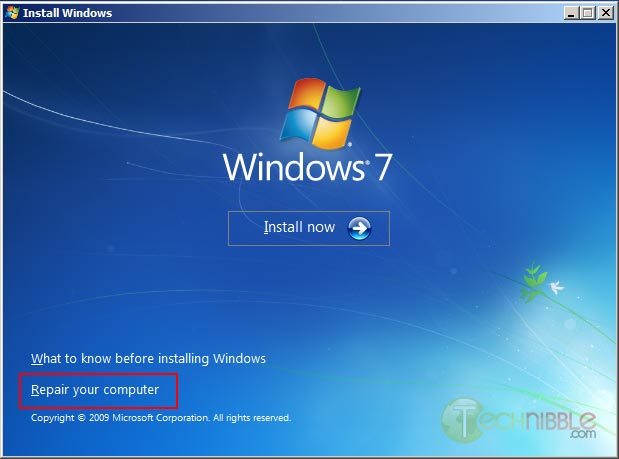
On the next page, down in the lower left hand side, click on the “Repair your computer” link.
 

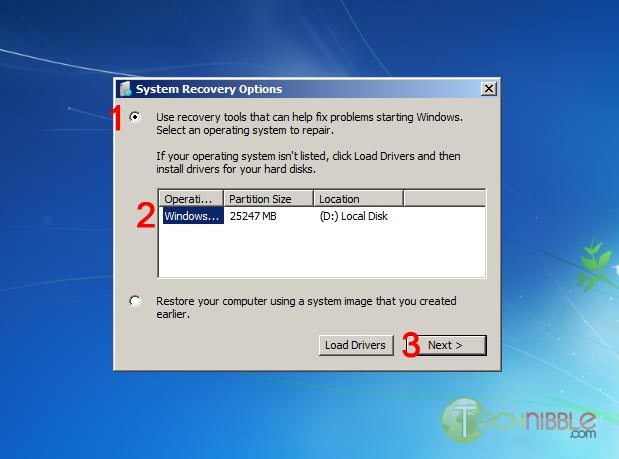
Next, select the “Use recovery tools that can help fix problems starting Windows. Select an operating system to repair” option, choose an operating system from the list and Click Next.
 

You will now have an option to “Choose a recovery tool”. Select Command Prompt.

You should now have a Command Prompt Window open. Type in the following commands:

C:\
cd windows\system32
ren utilman.exe utilman.exe.bak
copy cmd.exe utilman.exe

This will navigate to the system32 directory, rename utilman.exe to utilman.exe.bak, make a copy of cmd.exe and name it utilman.exe.

Remove the DVD and reboot the system.

Once the computer boots up normally, press the key combination Windows Key + U and you should get a Command Prompt. If the Command Prompt doesnt appear, press Alt+Tab as the Command Prompt may appear behind the Logon screen. From here, you can run many (if not all) of the commands you can normally use in Command Prompt.

Resetting an Existing Users Password

WARNING:
If you reset a users account password. This will permanently lose access to the users encrypted files. Be sure to back these up.

To reset an existing users password, we need type the text below. In this example, we will be changing JohnDoe’s password to “hunter2″.
net user JohnDoe hunter2

You should be able to log in with this new password straight away.

If you dont know what the username on the system actually is, you can see a list of the users by typing:
net user

Creating a New User Account

To create a new user account in the Command Prompt (Username: NewGuy. Password: abc123), and add them to the Administrators usergroup type:
net user NewGuy abc123 /add
net localgroup Administrators NewGuy /add

Again, you should be able to login straight away with this new account.

Reverting Changes

To restore utilman.exe, in the Command Prompt type in:
C:
cd windows\system32
del utilman.exe
ren utilman.exe.bak utilman.exe

Then reboot the system.

To remove the new user account you just created earlier, type in:
net user NewGuy /delete

That’s all there is to it.

Thanks to MobileTechie for mentioning this trick.

© Technibble – A Resource for Computer Technicians to start or improve their Computer Business
To get started with your own computer business, check out our Computer Business Kit.


image

Read more:

Episode 58 – ScreenConnect Part 1

Today we are going to talk with a professional from a company offering a self-hosted remote support solution that not only helps you service your customers, it can also be customized to promote your brand.

TechPodcasts Promo Tag :10
Intro 1:17
Billboard 1:14

News and Comment segment 5:22
Microsoft officially ended mainstream support of Windows Vista April 10.

Apple released a removal tool April 13 to get rid of the Flashback malware.

MakeUseOf is offering a FREE e-book called Computer Inside Your Computer: How To Use VirtualBox.

Western Digital is shipping its Scorpio Blue 2.5 inch hard drive.

ZDNet claims a new report from OnForce indicates that improvements in the economy may be a mixed bag for the IT industry.

Commercial Break 2:00
The Computer Business Kit

Intro to Topic 2:18
Today we’re going to talk with Jeff Bishop of Elsinore Technologies. We’ll learn about a remote support system called ScreenConnect. We’ll find out what makes it different and unique from other remote access products, some of the features and technical applications of the software and how you can integrate it into your own IT support services.

Interview with Jeff Bishop 18:59

Part 2 Teaser :32

Wrap up and Close :46

Comments, questions or suggestions? Send them in to comments@theforcefield.net or post them in The Force Field Forums. Feedback on this topic will be read by the host and included in future episodes of the show. Visit us at http://www.theforcefield.net!

©2012 Savoia Computer. All rights reserved.


Episode 58 – ScreenConnect Part 1

Today we are going to talk with a professional from a company offering a self-hosted remote support solution that not only helps you service your customers, it can also be customized to promote your brand.

TechPodcasts Promo Tag :10
Intro 1:17
Billboard 1:14

News and Comment segment 5:22
Microsoft officially ended mainstream support of Windows Vista April 10.

Apple released a removal tool April 13 to get rid of the Flashback malware.

MakeUseOf is offering a FREE e-book called Computer Inside Your Computer: How To Use VirtualBox.

Western Digital is shipping its Scorpio Blue 2.5 inch hard drive.

ZDNet claims a new report from OnForce indicates that improvements in the economy may be a mixed bag for the IT industry.

Commercial Break 2:00
The Computer Business Kit

Intro to Topic 2:18
Today we’re going to talk with Jeff Bishop of Elsinore Technologies. We’ll learn about a remote support system called ScreenConnect. We’ll find out what makes it different and unique from other remote access products, some of the features and technical applications of the software and how you can integrate it into your own IT support services.

Interview with Jeff Bishop 18:59

Part 2 Teaser :32

Wrap up and Close :46

Comments, questions or suggestions? Send them in to comments@theforcefield.net or post them in The Force Field Forums. Feedback on this topic will be read by the host and included in future episodes of the show. Visit us at http://www.theforcefield.net!

©2012 Savoia Computer. All rights reserved.

Using an iPad in the Computer Repair Business

Authors: Guest Writer

Guest post by Craig Lloyd:
The iPad is a great device for computer technicians to carry around while out in the field. It’s a small and portable, yet powerful machine capable of assisting computer technicians with their work. Here are just four ways that computer techs can take advantage of Apple’s tablet.

1. Organizing Client Information

A great iPad app that’s specifically targeted towards computer technicians is called iFix. It’s an app that aims to ensure that repair orders and client data stay organized and can be easily and quickly accessed. You’re able to add specific information about each client including info about their computer, a list of their service orders, status of said service orders, and a history of past repairs for each client. The app also has a handy search feature where you can quickly look up a specific client or bit of information in a very short amount of time. Essentially, every text field in the app is searchable.

The only drawback of iFix is multi-user support and the lack of database backup options. The developer said that these features are being worked, but that was a year ago, so just be aware of this if these features are important to you.

If iFix isn’t measuring up to your needs, an alternative is an app called mHelpdesk. It accomplishes some of the same features that iFix achieves and it can even schedule and sync appointments with your Google Calendar, as well as the ability to create and email invoices in PDF format. It even has a pretty comprehensive billing system of sorts that allows you to create estimates, email invoices, and record payments.

CommitCRM is another great piece of software geared toward computer technicians that keeps track of clients. While it doesn’t have a dedicated app for iPad, it has a feature-packed web interface that can be accessed through the web browser on the iPad. Just like other popular CRMs, CommitCRM is widely-used, so the community support is undeniable. However, it’s not free (or cheap), but a 30-day trial is available for anyone who wants to give it a try before diving deep.

2. Easily Accepting Credit Card Payments

The iPad is a great device to use as a register of sorts that you can use to accept credit card payments. You can hook up a Square credit card reader to it and begin taking credit card payments from clients right away. It’s an easier – and possibly cheaper option than having to open up a merchant account at a bank and purchase bulky processing equipment. There’s no cost to get started using Square – just a small transaction fee of 2.75% for every swipe.

If Square specifically doesn’t seem like your cup of tea, other options for easily accepting credit card payments via an iOS or Android device include PayPal Here and Intuit’s GoPayment, both of which have awesome competing features.

3. Remote Support

There are many remote support applications available. LogMeIn Ignition is just one option that’s wildly popular, but I find TeamViewer’s iPad app to be dead-easy to use. You simply enter in the TeamViewer ID and password for the computer you want to access and you’re controlling the desktop remotely within seconds. And just in the case the client is rather computer-illiterate, installing TeamViewer on a client’s machine is very simple and doesn’t involve multiple, confusing steps. They even have a standalone version that can simply be launched right after being downloaded — no installation required.

4. Inventory

Something that we all kind of loathe nowadays is doing inventory. However, the Computer Inventory iPad app can makes things a little easier. It allows you to manage your entire business’s inventory all the way down to what software is installed on which computers. It can also act as a more minimalistic CRM of sorts — being able to keep track of the type of machine a client has, as well as what software they have installed, that way you don’t have to keep asking them every time they report a problem to you. The app also allows you to export your lists to XML and email formats to send and store them accordingly.

Are you using an iPad app in your computer business that we didnt mention here? Let us know! Drop us a comment.

Guest post by Craig Lloyd. Craig has been tinkering with computers for over eight years and is CompTIA A+ certified. For the past three years, he’s been writing about and sharing his love of technology at various websites across the internet.

© Technibble – A Resource for Computer Technicians to start or improve their Computer Business
To get started with your own computer business, check out our Computer Business Kit.
image

Read more:

Accepting Credit Cards Onsite – PayPal Here vs. Square

Authors: Guest Writer

Guest Post by Craig Lloyd:
Not too long ago, going through the process of being able to accept credit card payments for small computer businesses was probably a daunting task for most. You would have to set up a merchant account and then buy expensive processing equipment. However, with the introduction of Square in 2009, the days of easy credit card payments are finally here, and PayPal just recently launched their own version, called PayPal Here, to take on Square. These services allow computer businesses to easily accept credit card payments through iOS and Android devices.

Both Square and PayPal Here have their own separate advantages, but are also so similar that it can be difficult to decide which one is best for your computer business. Let’s have a look at the two services and see which one would be ideal for you.

First off, Square and PayPal Here both charge a transaction fee for credit card swipes. Square charges a 2.75% fee, while PayPal Here charges a slightly lower 2.70% fee. The difference is very minute at first, but it can add up over time if you plan on bringing in a lot of transactions.

If, for any reason, you must manually enter in credit card transactions (if you don’t have the card reader for instance), both Square and PayPal charge a 3.5% + $0.15 fee per transaction. There’s also a $1,000 weekly deposit limit with manual entries. If you go over $1,000 for any given 7-day period, anything over the $1,000 will be held for 30 days before they’re released to your bank account.

However, there will be very few instances where you would manually enter in credit card details. Both Square and PayPal Here offer their readers for free with free shipping, and the accompanying app is free as well.

Customer service is obviously a huge factor when it comes to choosing a product or service. PayPal Here is promising to have both phone and online support 24/7, but since the service is just launching, it will be a little while before we find out just how good that support will be. As for Square, it hasn’t fared so well in the customer service department. Many Square customers have complained about the lack of live and easy-to-reach support. Only time will tell to see if PayPal eithers suffers the same fate or rises above.

Both Square and PayPal Here are great services and there’s nothing about either that would be an extreme deal breaker (unless you’re using Android, for which PayPal Here doesn’t support just yet). However, if you’ve been a loyal PayPal user for some time, choosing PayPal Here would be a good bet, since you’ll already have a wealth of features at your disposal. Plus, PayPal Here offers the ability to accept paper checks using your camera as a scanner of sorts.

If you’re going into it as a complete mobile-payment virgin, Square’s simple user interface makes the product really easy to use and they even have a separate app for the iPad that turns it into a full-fledged, easy-to-use register.

Whatever you choose, may your business flourish with the greatness of mobile-payment technology and let us know how it works out for you when you finally take the dive into the mobile payment pool.

Guest post by Craig Lloyd. Craig has been tinkering with computers for over eight years and is CompTIA A+ certified. For the past three years, he’s been writing about and sharing his love of technology at various websites across the internet.

© Technibble – A Resource for Computer Technicians to start or improve their Computer Business
To get started with your own computer business, check out our Computer Business Kit.
image

Read more: