Authors: Guest Writer
Guest Post by Shawn Hutchison:
At the dawn of search engines, website owners quickly found that you could A) optimize your site for the search engines or B) optimize for human readability, which, due to the rudimentary nature of search engines at the time, meant you were likely the only one who knew about your website. Optimizing for both audiences was very difficult. As evidenced by Google’s recent update Panda (rewarded sites that were more useful to readers and devalued sites that were geared more toward search engines) it is Google’s goal for these two types of optimization to eventually converge. What is most valuable to humans will determine where a website will rank for a given search term. But search engines aren’t quite there yet. For website owners this means no straying too far to either end of the spectrum, and finding balance between the two audiences as the gap closes.
Following the steps and information in the Ultimate SEO Checklist will give your computer repair website a solid SEO foundation that will make sure you’re well on your way to finding that balance.
Forward
In April 2011 I decided I wanted to start my own computer repair business in San Diego, CA. I immediately started planning, designing and developing my computer repair website and business Pcbox. Unfortunately I allowed myself to lose sight of my website because a long string of well paying web design and SEO jobs fell into my lap. I still got a decent amount of computer repair jobs, but almost none of it was business driven from my website.
In hindsight, delaying the development of my website was both good and bad. Bad because I have a half-finished website that isn’t ranking well for anything worth noting. Good because although I already had a very good understanding of SEO at the time, I have learned a lot about SEO since then from the Panda update, and I would have had to revise my site anyway. On top of that, I’ve decided to start my computer repair business in Phoenix, AZ rather than San Diego so any links I would have targeted toward San Diego during that time would need to be redone.
My new goal is to rank on the first page for at least one search term within the next three months using the checklist below as a starting point. I thought I’d share my methods here in case any computer technicians out there looking to improve their SEO wanted to try the methods in this checklist at the same time, and share our results near the end of the three month period.
On to the checklist…
1. Use WordPress (or your CMS of Choice)
This may seem a bit biased, but really, do yourself a favor and use WordPress. The WordPress learning curve is a learning speed bump in comparison to Joomla or Drupal. The sheer amount of themes, plugins (SEO or otherwise) and community support available vs. other popular CMS’s is staggering. Best of all: it’s free. With WordPress, you just have a lot more options available to you.
If you’re already heavily invested in another CMS or are a die hard HTML purist, that’s okay; you can still benefit from this checklist and certainly achieve similar results, but it’s going to require a lot more time and effort.
2. Buy a Theme or Hire a Web Designer
Design may seem unrelated to SEO, but a poor design can affect bounce rate, time on site and ultimately your sales potential. Google keeps track of bounce rate and time on site, and if these metrics aren’t within reason, your relevance to search terms being used to reach your site will come into question in Google’s eyes. It doesn’t matter if you’re on page 1 for the most competitive search terms in the computer repair industry, if your web stats indicate that you aren’t providing value and relevance in relation to the search terms being used, your site isn’t going to perform as well as it could.
There are many affordable marketplaces and CMS/HTML themes to choose from such as ThemeForest or Technibble Jim’s (16k_zx81) Ultimate Tech Site WordPress Theme.
You want to instill value and professionalism in the mind of your website visitors, and if your site looks like Geocities’ Revenge, your conversions are going to suffer.
3. Find the Right Keywords
Proper keyword research is a must. The keywords you decide to target will be the focus of your entire on page and off page optimization strategy. So before you even create the first page of your website, you should have a list of 5-10 targeted keywords or keyphrases that receive a decent amount of traffic each month.
Brian Vest has already written an article on keyword research for Technibble. I don’t want to reiterate everything in the article as much of it is still very valid. Instead I recommend you read that article, then return to this section, which will will mostly improve upon the competitive analysis techniques used in the aforementioned article.
3.1 Competitor Keyword Analysis
One thing I found lacking in the above article was competitor keyword analysis, which not only gives you an idea of what keywords your competitors are ranking for, but also can spur many keyword ideas you may not have considered otherwise. In fact, this is often my first course of action when keyword brainstorming. It’s easy and takes very little time or effort when using the right tools correctly.
3.1.1 Google Keyword Tool
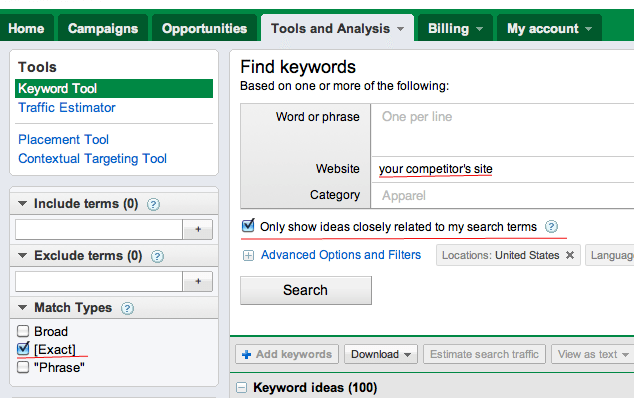
We are going to be working with the Google Keyword Tool I suggest exporting the list of the keywords you decide to target from the Keyword Tool as a .csv file to Google Docs or your spreadsheet editor of choice. Having this list handy will help keep you on track for on page optimization and link building later on.
To check out what sort of keywords your competitors sites contain, first input a few of your competitors’ URLs, one at a time, check ‘Only show ideas closely related to my search terms’ and for match type select exact, which will give you more targeted search terms. After the results load, sort by number of local monthly searches, high to low, and choose the keywords that receive enough traffic, are relevant to your business, and aren’t too competitive.
3.2 Don’t only focus on the big, competitive keywords
Being on the first page for keywords like virus removal phoenix, computer repair phoenix, etc is nice, and will most likely pull in the most traffic, but they will also take the most effort to rank for. If you spend all your efforts targeting the major keywords early on, you won’t be ranking for anything else until you start ranking for those keywords, which means less revenue. There is a lot of value in spending a portion of your time targeting low to medium competition words. That way you have some revenue coming in to motivate you until your efforts to rank for the big keywords pay off.
Following the advice in this keyword research article and use the competitive analysis method above, you should be able to consolidate your research into a list of 10 keywords or less.
4. Optimize On-Page Elements
It’s true that a website can rank well by means of off-page optimization alone. While the same cannot necessarily be said of on-page optimization, it should not be underestimated. Why not? Here’s an example:
I did a Google search for ‘virus removal phoenix az’ recently, and at the time my site was sitting at the top of page 3.
As I mentioned, my site is only about halfway done in terms of content creation and on-page optimization. Aside from my signature link, which did boost my rank 3 spots, I’ve done little to no link building for Pcbox. Wherever I’m ranking for any search term is almost entirely due to half-completed on-page optimization.
Improving my ranking from page 3 for any keyword is going to be exponentially more difficult from here on out. But instead of having to work my way from the savage-lands that are pages 10+, on-page optimization gave me a ride to the starting line.
4.1 URL Structure
Planning your URL structure beforehand is imperative. If some of your computer service pages look like this: http://domain.com/example-service/ and others look like this: http://domain.com/services/example-service/ then I’m looking at you. There are arguments on both sides for why each iteration is better than the other, but the only thing you really need to worry about is that your URL structure is uniform and meaningful.
As a guideline, try to adhere to a 2-directory-deep URL structure limit. Not only are long URLs not user friendly, but the more keywords present in your URL, the more each individual keyword’s impact is diluted. In short, long URLs are bad for both audiences.
Tips – The SEO Ultimate WordPress Plugin automatically removes stop words (prepositions and other low value words) from your URL slugs to reduce keyword dilution.
4.1.1 One Keyword per page
Don’t just dump all of your services onto one page and dust off your hands like that’s that. Search engines crawl your site to determine it’s relevance to a search term. If you have a page full of info pertaining to different services, how relevant is that page for someone specifically searching for a Computer Tune Up? Computer Tune Up info is there, but so is all of the information pertaining to data recovery, virus removal, network installs, email set up, remote support and so on, which reduce’s the info pertaining to the tune up’s impact.
Don’t make the search engines have to think about it. A One Keyword per page strategy makes it obvious what information that page holds.
Example – Page targeted toward virus removal: [yoursite].com/virus-removal/, one targeted for data recovery: [yoursite].com/data-recovery/ et cetera.
4.2 Snippets

If I happen upon a site while Googling, and it looks even remotely like the snippet above, I’m steering my click-ship away from your site like it’s the Bermuda Triangle. No one needs to be welcomed to your website. ‘CLICKING HERE’ isn’t going to provide some wild thrill for anyone. It’s 2012. The novelty of clicking a link has passed. Also, and this may seem very obvious, but if you are including ‘Virus Removal’ or something similar to your Title Tag, be sure the rest of the phrase after ‘Virus’ doesn’t get cut off, or else it will look like you’re trying to GIVE them a virus. The snippet above is an only slightly exaggerated combination of real snippets of computer repair websites I’ve seen recently.
This snippet is your elevator pitch to potential clients and search engines alike, in some instances it is your only point of contact with a potential client. Make it count.
Tip – Use this snippet optimization tool to see more or less how your snippet will appear in Google.
4.2.1 Title Tags
The Title Tag is the first and arguably most important element of snippet, as it is one of the main indicators search engines and humans alike use to determine the relevance of a page to particular search term.
If I could offer you only one suggestion on title tags, it would be this:
Keep it short. Keep it classy.
For the same reasons outlined in previous sections, try not to keyword stuff. Your home page title tag doesn’t need to contain every single service you offer and every city in a 200 mile radius. That information is better suited for subpages’ title tags and body text. Google and most other search engines truncate title tags at around 70 characters, including spaces. Search engines can interpret it, but humans aren’t going to see it. What happens if the service they’re looking for is at the end of your ridiculously long title tag? They’re probably moving on.
In short, limit your Home Page Title Tag to 3 elements: Who You Are, What You Do, and Where You Do It. Anything else is better suited for either the Meta Description (next section) or on the webpage itself. A 70 character limit should be observed for the Title Tag, excluding blog posts.
4.2.1.1 Business in the front, party in the back
Placing relevant keywords near the front of the title tag and the brand name in the back has shown increased click through rate in websites that are not well known, recognizable brands. I personally like the branding aspect of having the business name in the front, but I am seriously considering moving my brand name to the back, despite being so short and relevant.
Optimal Title Tag formats:
Brand Name – Main Keyword and Secondary Keyword | Service Area
(My current format, recommended for businesses with very short, relevant names, or businesses that are well known within their service region)
or
Main Keyword and Secondary Keyword – Service Area| Brand Name
For inner service pages, I recommend sticking with the second format exclusively.
Tip – Many SEO WordPress plugins allow you to easily modify your title tag. SEO Ultimate allows you to append anything you wish to the suffix of the Title Tag, which can save a lot of time.
4.2.2 Meta Descriptions
Meta Descriptions are not directly valuable in determining rank, but the bolding effect triggered when a search term matches a keyword in the meta description leads to increased click through rates. Try to limit the length of Meta Descriptions to about the size of a tweet, 140 characters. These are only valuable for human readability so try to avoid keyword stuffing here, and instead succinctly give your prospective clients a reason to visit your site, while also including an appropriate amount of keywords.
Tip – Create a unique Meta Description for each page in your website.
4.3 Heading Tags
The H1 Heading Tag is another significant on-page indicator of a page’s relevance. Your H1 tag (you should only have one per page) should match one or more of the main service keywords in your title tag. H2′s should be reserved as subheadings to the H1 tag or for secondary keywords on the homepage. H3 tags should be reserved for site elements such as header, footer and sidebar headings.
4.4 Body copy
It is important to have enough body text for search engines to grab onto and determine your site’s relevance, but that doesn’t mean you should write more content than you need to provide an ample description. Try to use the main keyword of the page at least 3 times, one of which in bold text, so that reading the text feels natural as well as giving search engines a good idea of what’s going on. Keyword stuffing body text to the point where a cipher is needed to figure out what you’re talking about can be very frustrating and lead to a higher bounce rate, which in turn is totally counter productive. Imagine, you spent all that time throwing keywords around like confetti because you ‘heard it’s good for SEO’ (not true by the way) and by the time potential clients get to your page, they couldn’t hit the back button faster if they tried.
Make your body copy as descriptive and pleasant to read as possible. Break up the monotony of reading a giant brick of text with formatting, spacing and headings for easy scanning.
4.4.1 Optimize images within the body of your site
Be sure to include relevant keywords in the alt attribute with every image you use, as well as using keywords in the file name itself.
4.5 Internal Linking Structure
Internal linking is very valuable in establishing your site’s information architecture to search engines and humans alike. Not everyone who visits your site visits the home page first, and presenting visitors with header, footer, sidebar and body navigation links can reduce bounce rates by increasing the usability of your site.
4.5.1 Breadcrumbs

Breadcrumbs are named after the story of Hansel and Gretel, who leave a trail of breadcrumbs to find their way home , which is actually a pretty terrible idea. Animals love bread.
Website Breadcrumbs, on the other hand, are a great idea. They provide one-click access to higher levels of your site as well as strengthening your internal linking structure.
Tip – Breadcrumb NavXT is an excellent WordPress plugin for adding basic breadcrumbs to your site.
4.5.2 XML and HTML Sitemaps
A sitemap is essentially a table of contents for your website. XML Sitemaps allow for easier indexing of your site for search engine bots. Anything that makes life easier for search engines is something you should consider doing. HTML Sitemaps are more beneficial to humans. They provide a quick overview of your site’s hierarchy, which can come in handy for you when making changes to site navigation, and to users who are searching for something very specific and don’t have the time to find it otherwise.
After creating your XML sitemaps, be sure to submit them to all 3 major search engines.
There are many tools that will automate the creation and submission process, such as the Google XML Sitemaps plugin for WordPress
For more information on sitemaps, visit sitemaps.org
Tip – Install Google Analytics to keep an eye of your site metrics.
5. Start Link Building
Link building, if done properly, will likely yield the largest return of all your SEO efforts, but will also take the most time. There are far too many ways to go about link building to completely fit within the scope of this checklist, but I will outline some of the first linkbuilding steps to take with a new or underperforming computer repair site.
One thing I can’t stress enough when starting your link building campaign is to strive for quality before quantity, at least at first. Having a handful of links to your site from quality, relevant sources will really help boost and stabilize your rankings.
Time to bring out your keyword spreadsheet again, both to use for the anchor text of external links, as well as keeping track of the status of your link building. Keep track of what steps you’ve taken for each link you’re trying to get.
5.1 Claim your Business Listing pages
Local Business Listings are an easy and (usually) free way to gain back links. Not claiming your listing can work against you. If you don’t claim a spot on the list of local computer repair businesses in your city, someone else will.
Unfortunately the entire online local business ecosystem revolves around having a physical address, rather than being based on service area. If you do not have a physical address, you are unfortunately at somewhat of a disadvantage against computer repair businesses that do, at least when it comes to ranking for search terms that explicitly include the city name. Mobile businesses have been able to get around this problem by stating their business address as a P.O. box, but Google caught on to that pretty quickly and yanked the rug out from under some of them. You may still be able to get by with this in some areas.
Google Places
This is the one to focus on first and foremost, for obvious reasons. For computer repair businesses that aren’t ranking for the first page for computer services [your city], this is your opportunity. Don’t squander it. Take an entire day or two to completely max out your Google Places Listing. Be sure to include all the basics: name, address, phone #, and as many additional details as possible. Max out the pictures and videos if you can. Choose 2-3 categories. Write a detailed business description sprinkled with the occasional keyword. Include an offer for a discount on service. Encourage and respond to customer reviews.
These are all, albeit small, opportunities for you to demonstrate your businesses’ value. Carpe diem.
More Listings To Claim: Yahoo Local, Bing Local, CitySearch, Yelp, Manta, Yellow Pages, et cetera.
Tip – Avoid data confusion by using the exact same phone #, address and other business info across all listing sites.
5.2 Examine Competitors’ Back Links
One of easiest ways to find quality, relevant links is by snooping around your competitors’ back link profile. Open up Open Site Explorer – a free site analysis tool. (The free version of OSE is limited to 3 searches per day, but you can gain full access by signing up for the free 30 day trial for SEOmoz pro.)
Start with your competitor that is ranking for the keyword you are most interested in ranking for right now. You can also click ‘Compare pages’ to input 4 more competitor domains to view other useful link metrics, but you may only view once competitor’s inbound links at a time.
After the list of back links populates, filter by ‘followed + 301′, ‘external links’ and ‘pages on this subdomain’. Add the top five back links (by page authority) to your spreadsheet and move on to the next competitor.
After your list has about 20 or so links, visit each link to determine what is required on your part to add a link to your site. Some sites will limit your anchor text to your domain name only, but if you have the option, utilize your list of keywords.
Tip – Use the SEOmoz Link Acquistion Assistant to discover new linking opportunities that your competitors may not know about.
For a more detailed overview of linking, read SEOmoz’s Growing Popularity and Links
SEO is a vast subject. There are ideas and techniques that are not listed in this checklist, as well as ways to expand upon each section that is in the checklist. Following the advice listed here will give new and underperforming sites a solid SEO foundation and a boost in the SERPs, which can then be augmented and fine tuned.
Think there’s something missing from this checklist that would be beneficial to computer repair businesses just starting their SEO campaign? Say so below in the comments, the more we share our ideas and experience, the better.
Additional Reading
Local Search Ranking Factors
SEOmoz Beginner’s Guide to SEO
Call That Girl’s Guide to Social Media
Recommended Tools
Open Site Explorer
Google Keyword Tool
SEO Ultimate WordPress Plugin
Ultimate Tech Site WordPress Theme
WooRank
Guest Post by Shawn Hutchison. Shawn is a Web Designer/Developer, Computer Technician with 10+ years experience and the Owner of Pcbox, a Mobile Computer Repair Business based in Phoenix, AZ.
© Technibble – A Resource for Computer Technicians to start or improve their Computer Business
To get started with your own computer business, check out our Computer Business Kit.