System Restore Explorer – View, Delete and Browse Inside System Restore Points

Authors: Bryce Whitty

System Restore Explorer is small, freeware tool that allows you to view and delete specific Windows system restore points. This is a handy way to clear up some disk space without wiping out all of the restore points since previously the only built in option we had was either all or none.

However, the best feature is that it allows browse and copy individual files inside the system restore points, without performing a full system restore.


When you install System Restore Explorer, you see a list of all the available system restore points including the time and date of when they were taken. You can right click on any of these and you
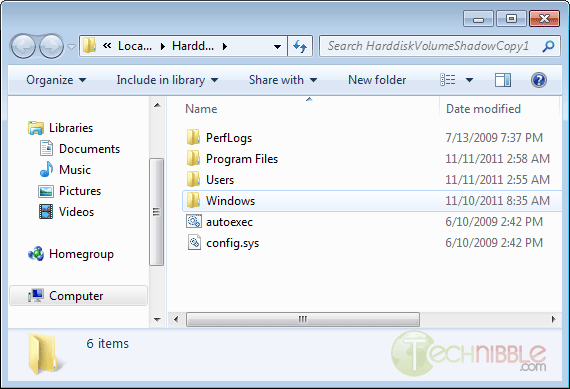
have the option to Mount, Unmount or Delete that specific restore point. If you Mount that restore point, it will show you the files inside that restore point in your standard Windows Explorer interface allowing you to manage the files inside it like you would any other file on your system.

This application only works in Windows Vista and Windows 7.

Screenshots

Viewing the list of available restore points to Mount or Delete.


Browsing inside a mounted restore point.


Download

Download from Official Site (search for “download it here”) – 840kb

Special thanks to the forum member Galdorf for recommending this one.

© Technibble – A Resource for Computer Technicians to start or improve their Computer Business
To get started with your own computer business, check out our Computer Business Kit. System Restore Explorer – View, Delete and Browse Inside System Restore Points

image

Read more:

Seeking Computer Technicians To Interview

Authors: Bryce Whitty

I am going to be interviewing fellow computer technicians via email so people can hear their stories, be inspired by them and learn something new.

What questions would you like me to ask them beyond the typical “Who you are and how did you start”? You can leave a comment below. (Or hit reply if you are reading this via Email)

If you consider yourself successful, whether a single guy in his bedroom always keeping busy, or someone with a shop and multiple employees, I would love to interview you via email. Shoot an email to tips@technibble.com, tell me a little bit about yourself, what about yourself you believe would be interesting to your fellow techies and I’ll get in touch with you.

Last but not least, if you know someone you would really love to have interviewed, send me their details to tips@technibble.com and I’ll do what I can.


© Technibble – A Resource for Computer Technicians to start or improve their Computer Business
To get started with your own computer business, check out our Computer Business Kit. Seeking Computer Technicians To Interview

image

Read more:

How To Perform a Perfect BackUp Reinstall with Apple Time Machine

Authors: Bryce Whitty

Guest Post by Marco Rodi: Marco Rodi owns an IT Engineering university degree. He has his own computer repair business (OrdiRodi) that mainly does Apple Support.

So you receive a call from a client saying “My hard drive just crashed!!” or “I just bought a new Mac and I need to transfer all my information” or even “I want to clear my hard drive and do a clean installation”.

As a professional, you need to know exactly what to do to perform a perfect backup and reinstall. You don’t want to lose a client’s files or preferences. The client wants to have the exact same thing as before: their beautiful Mac, up and running again. They do not want to call you back and say: “Hey! I don’t have my music in my iTunes anymore!”, “Where are my bookmarks?” or “How come my icons are smaller?”.

Here are the steps to perform a perfect backup and reinstall on OSX using Time Machine.


First of all, you need to backup everything. With Apple it’s easy.
There is a built in application called Time Machine and you simply need to plug an empty external drive into the computer (Yes, it must be empty because it will wipe everything on it), and activate Time Machine.

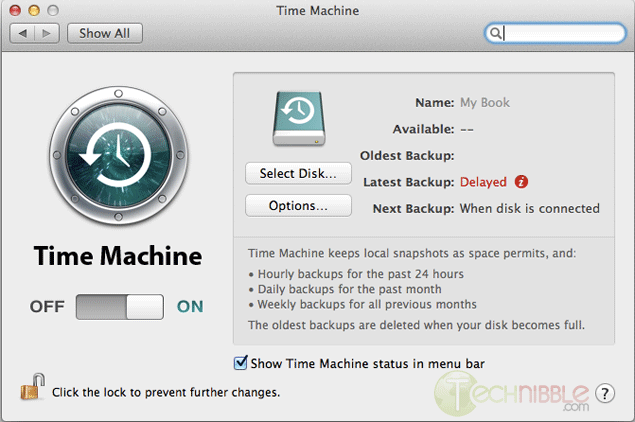
To activate Time Machine, simply open your System Preferences. And click on the Time Machine icon.

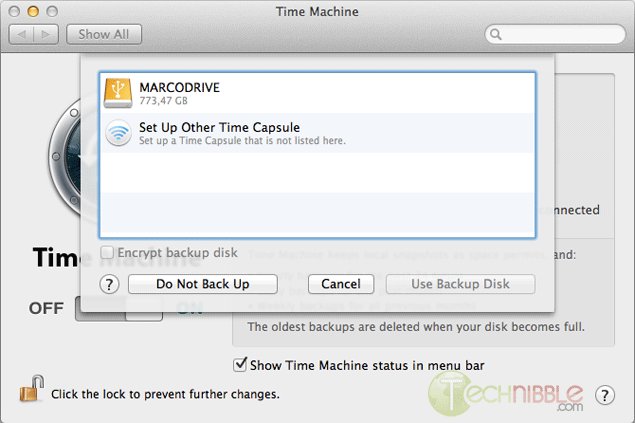
Click on “Select Disk”.

Choose your external drive and click on “Use Backup Disk”.

Time Machine will copy everything (OS, Software, Files, and Preferences) to the external hard drive. So when you will reinstall the OS, you can restore everything from that backup.

Once everything is backed up, we need to clear and format the new hard drive. To do so, you need to have a copy of the OS that you need to install (Snow Leopard or Lion). It can be on either CD or USB, it does not matter.

Shutdown the computer and insert your bootable device into the client’s Mac.

Boot the Mac while holding the “Option” key (ALT key if you are using a non-Apple keyboard). You will arrive on a window where you can choose a bootable device. Please choose your OS Installation (Either CD or USB).

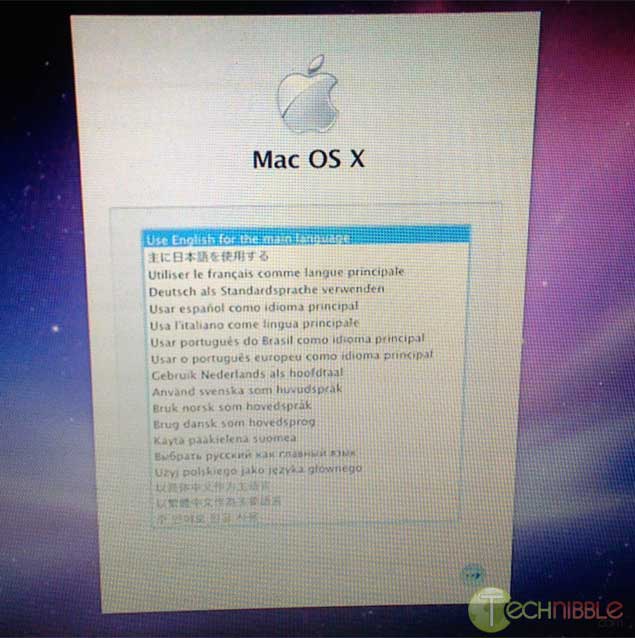
You will then arrive at this window. Choose the language you want and press enter.

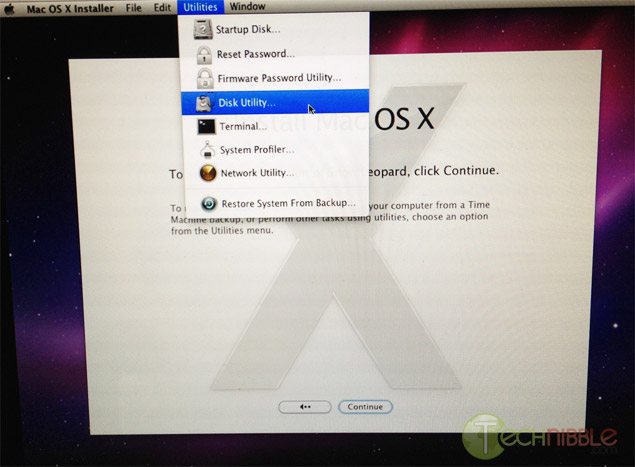
Click on Utilities and choose Disk Utility.

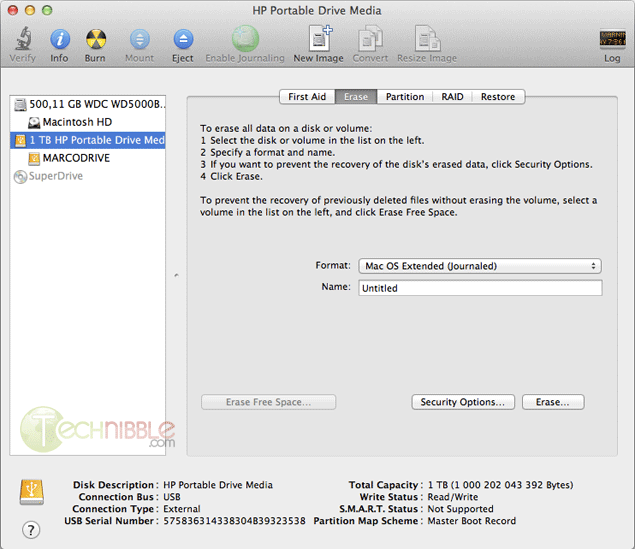
Select the drive you want to format to the left.

On the Erase Tab, use the “Format” Dropdown and choose “Mac OS Extended (Journaled)”.

Name your Hard Drive

Click the Erase Button.

It will then take some time to format the hard drive.

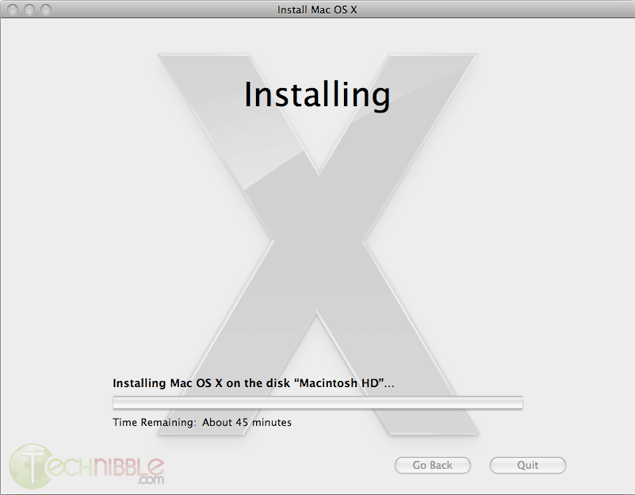
Once this is completed, you can close the Disk Utility window and start the installation. It will install the OS on your new hard drive.

Once the installation is complete, it will reboot and it will start from your newly installed OS.

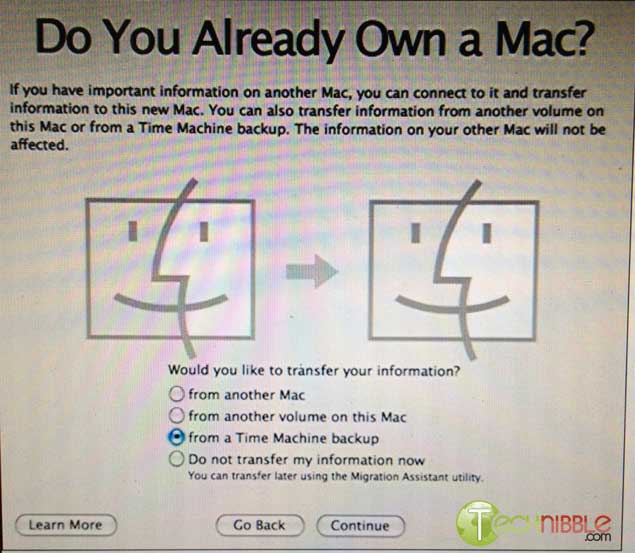
At the beginning, it will ask you if you want to transfer your information.

Plug your external device with the Time Machine backup and select “from a Time Machine backup” at the “Do You Already Own a Mac?” stage.

It will transfer all the files and settings that Time Machine made a backup of back onto the Mac.

So that is it. You can let your client test the computer and confirm that everything is back to normal.

© Technibble – A Resource for Computer Technicians to start or improve their Computer Business
To get started with your own computer business, check out our Computer Business Kit. How To Perform a Perfect BackUp & Reinstall with Apple Time Machine

0 0

Read more:

Google+ Pages for Computer Businesses – What You Need To Know

Authors: Bryce Whitty

There is no doubt that social networking is here to stay. While some Computer Technicians may consider it just a new buzz word, other technicians are using it as their primary source of advertising. Google+ is newest major player in the social network game.

After several months, Google finally announced Google+ pages for local businesses, groups, brands and organisations. If you are familiar with Facebook pages, this is basically the Google+ equivalent. In this article, I’ll tell you why you should look into Google+ Pages and what you need to know before you claim your page.

Why You Should Care

Google+ Pages, like Facebook Pages allows you to have a two way conversation with your clients. If they follow your page, your updates appear in their stream. This is an incredibly cheap way to advertise your business through discounts, specials and generally being on the front of your clients mind.

What If You Already Have a Google+ Account For Your Business?

I know of many Computer Businesses who have already have Google+ accounts for their business. However, it is actually against Google+’s terms to have a Google+ profile for a business. The account must be for an individual. The Google team will suspend accounts that break this rule.

From the Google+ Help Pages:
Your profile and name must represent one individual.
Google+ does not support profiles for couples or groups of people. Additionally, you cannot create a profile for a non-person entity such as a pet or business.

Violation examples: Jones Family, Jeremy & Mel Mason, Vegas the Dog, Brooklyn Bagels, Northern California Conservation Society

Google does plan to allow Google+ Business Profiles in time, but don’t hold your breath plus your account could get banned in the mean time.
If you have already done this, you can change your businesses Google+ account back to an individual (typically yourself). You can do this by going to your Google+ profile, click the “Edit Profile” button that is on the top right. Click on the name displayed up the top of the profile page. From there, you can type in a legitimate first name and last name. Then press save.

What You Need to Know Before You Claim Your Google+ Page

  • Contests, Sweepstakes, Offers, Coupons and Other Promotions From Your Page
    In Google+’s content and promotion policies page, it disallows you from running contests, sweepstakes, offers, coupons and other promotions DIRECTLY on your Google+ page. You may however, link to a separate site (such as your actual businesses site or blog) that contains the promotion.

    You may not run contests, sweepstakes, offers, coupons or other such promotions (“Promotion”) directly on your Google+ Page. You may display a link on your Google+ Page to a separate site where your Promotion is hosted so long as you (and not Google) are solely responsible for your Promotion and for compliance with all applicable federal, state and local laws, rules and regulations in the jurisdiction(s) where your Promotion is offered or promoted. Your Promotion must not be run or conducted in a way which conflicts with the +1 Button Policies, Google+ Privacy Policy or Google+ Pages Additional Terms of Service. Google has the right to remove your Promotion content from Google+ Page for any reason.

  • Linking your Personal Account To Your Business Page
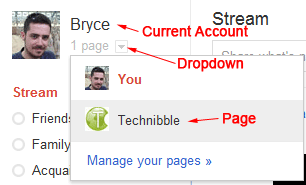
    When you visit the Create Page link and create a page, the page will be associated with the account that is currently logged in. To access your page from your account, there will be a drop down next to your name saying “1 Page”. Make sure you are logged into the account you want to associate the page with. Unlike Facebook pages, you cannot currently add any additional administrators to your account.
  • Be Careful When Switching Between Linked Accounts
    When using a Google+ account or page, it is not always obvious which one you are currently using. You will want to double check every time you are about to post something as you will probably not want to send a personal message out to all your clients and vice versa.

Beautify Your G+ URL

Once you create a G+ page, you will find that its URL is pretty long. For example, Technibbles G+ page URL is: https://plus.google.com/b/111951375001480014041/
Obviously, you don’t want to have write that long URL on any advertising so you can shorten it with a G+ specific URL shortner. I recommend gplus.to

Using gplus.to, I can change Technibbles page URL to http://gplus.to/technibble

So What Now?

© Technibble – A Resource for Computer Technicians to start or improve their Computer Business
To get started with your own computer business, check out our Computer Business Kit. Google+ Pages for Computer Businesses – What You Need To Know

image

Read more:

Computer Technicians Guide To The Apple Mac Boot Shortcuts

Authors: Bryce Whitty

Guest Post by Marco Rodi: Marco Rodi owns an IT Engineering university degree. He has his own computer repair business (OrdiRodi) that mainly does Apple Support.

In this article you will learn all the most important boot shortcuts on a Mac. We’ve all been there. The client is there, you boot their computer and the screen just hangs there. No OS. You sometimes see the grey apple logo, sometimes it’s all white and sometimes you see nothing at all. You absolutely need to know which key to press in order to repair the Mac. Enter the Apple Mac boot shortcuts.


First of all, you don’t have to use an Apple Keyboard to do these. Any regular USB PC keyboard will work as long as you keep in mind the following:
Option = ALT Key
Command = Windows Key

To make these boot shortcuts work, the computer needs to be shutdown and you need to press/hold these keys while booting the computer.

C

Sometimes, the Mac is not programmed to automatically boot from a CD. This allows you to boot directly from the CD.

Option

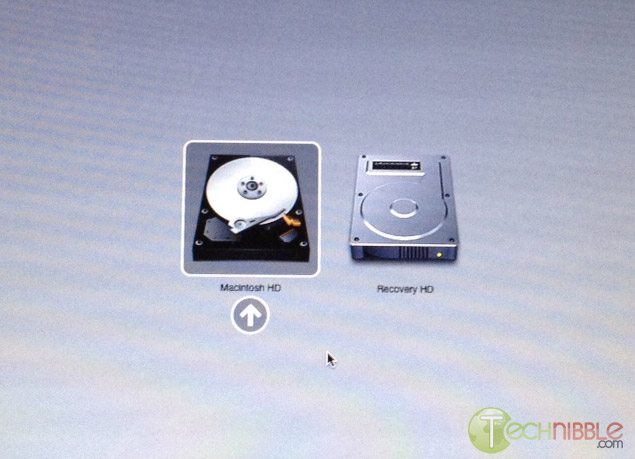
By far, the most useful shortcut that will tell if the computer has a hard drive failure or a motherboard corruption. When you hold option at start, it will detect all the bootable devices in the Mac such as the CD, Hard Drive, External USB and External FireWire. You can then choose which devices you want to boot from. This is perfect if you want to boot from an external USB/FireWire.
 

D

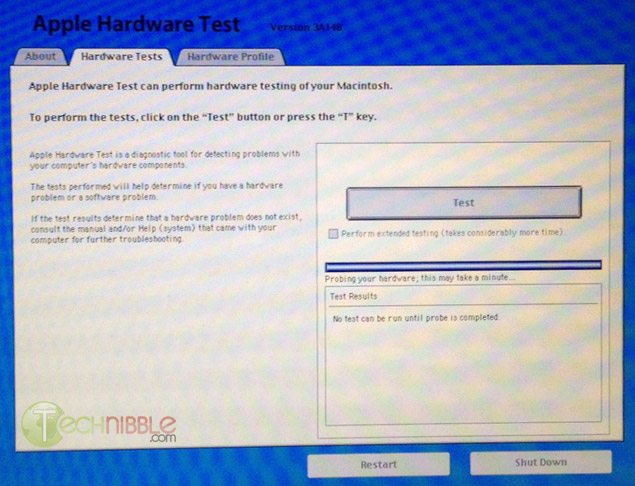
All Apple Computers come with an Hardware Test CD. When you hold D, the cd needs to be already inserted. It will boot Apple Hardware Test which is an incredible powerful tool that will make a precise diagnostic on your client’s computer about any form of hardware failure: RAM, hard drive, motherboard etc.
 

Option – Command – P – R

This combination will reset the NVRAM and PRAM of your client’s computer. What does it mean? It will reset all the default settings on the motherboard or built in features including: Serial Port Configuration, Clock, Volume, Double-Click time, Virtual Memory, RAM disk, Mouse Speed, Application Font, Alarm Clock, Monitor Color Depth, Startup Disk and Serial Printer location. This is often done if your client’s machine boots into a weird pink color. To do this NVRAM/PRAM reset, your need to hold the keys when you boot your client’s Mac. Hold down the keys until the computer restarts with the startup sound the second time.

Hold the mouse or trackpad button

This will eject all the removable media plugged to your Mac. (Cd, USB, Firewire etc.) This is perfect if the CD is stuck inside and the keyboard is not working or if the Mac tries to boot from an unknown external device.

Command-S

This will boot the machine in Single-User mode. It is a UNIX-like interface where you can enter many simple commands to troubleshoot the machine. This is mainly popular with the use of “fsck ” to check the computer disk permission.

Command-V

This starts the Mac in Verbose Mode. You will see all the descriptive text of all the boot steps, similar to Windows’s Safe Mode. If the computer freezes on startup, you can see where it will freeze.

T

This puts the Mac in Target Mode. It will transform the Mac into a giant Firewire external drive. You can access the files from another computer. Perfect if you need to repair a corrupted hard drive or backup files.


Shift

This will start the Mac on a safe boot. It will disable all the login items, all the non-default fonts, disable all the cache and it will force a directory check.

If you are still unable to enter the system or at least see the grey Apple logo at the beginning after using these shortcuts, the problem is most likely going to be a motherboard corruption.

Guest Post by Marco Rodi: Marco Rodi owns an IT Engineering university degree. He has his own computer repair business that mainly does Apple Support (OrdiRodi – http://www.ordirodi.com) located in Montreal. He works for Transat as an application support Engineer where he has to maintain all the software that makes the airplanes fly. He’s also an active bassist. (http://www.marcorodi.com)

© Technibble – A Resource for Computer Technicians to start or improve their Computer Business
To get started with your own computer business, check out our Computer Business Kit. Computer Technicians Guide To The Apple Mac Boot Shortcuts


image

Read more:

Ask The Readers: The One Piece of Advice You Wish You Could Have Told Your Past Self

Authors: Bryce Whitty

Everyone has that one main piece of advice that changed their life/business that they wish they knew when they were first starting out. So, I want to ask the readers, What is that one piece of advice you wish you could have told your past self as a Tech/Business Owner?


I’ll start. For me it is to never stop learning and never stop improving.
In any business it takes time for you to establish your systems and eventually you’ll reach a point where things will start to run really smoothly. You have a steady amount of clients and you can handle just about any problems that come your way. All you need to do is repeat this process to continue making money.

In my early years I got into a fairly comfortable position and as a result I wasn’t working ON my business, only IN my business keeping the wheels turning. A year or two went by and I started to improve my existing systems such as slipstreaming my Windows CDs, experimenting with different forms of advertising and tweaking my existing advertising.

With just a few simple tweaks I started making significantly more money by either working faster (allowing me to take on more jobs) or my advertising being more effective. Which made me wonder how much more money I was leaving on the table, so I continued improving and haven’t stopped since. I just wish I had done it sooner since there was a fair bit of money I missed out on by not improving earlier.

So, whats the one piece of advice you wish you could have told your past self?

For those of you reading this via email or RSS reader, head over to the site and drop us a comment. I would love to hear your piece of advice.

© Technibble – A Resource for Computer Technicians to start or improve their Computer Business
To get started with your own computer business, check out our Computer Business Kit. Ask The Readers: The One Piece of Advice You Wish You Could Have Told Your Past Self

image

Read more:

Computer Business Kit / Fabs Autobackup 4 Competition Winners

Authors: Bryce Whitty

I would like to thank everyone who purchased the Computer Business Kit v2 during our 2 launch weeks. If you purchased during these two weeks you were automatically entered into our Fabs Autobackup 4 Competition.

The winners of this competition are:


***@milboro.co.uk
*******@buncometech.com
jakehenrythe8th@***.com
cpp512news@*****.com
****@dontech.com.au

Congratulations to the winners! You will be contacted shortly.

Thank you to everyone who purchased during the launch weeks and thank you to Fabrice, the creator of Fabs Autobackup 4 for providing the licenses.

I encourage everyone to go checkout Fabs Autobackup 4. There is a reason why I keep using it as a prize in Technibble competitions; it is a really solid and incredibly useful product that I think no tech should be without. It is such a timesaver.

You can check our Fabs Autobackup 4 Here

PS: The Fabs Autobackup 4 competition may be over but if you havent checked out our Computer Business Kit for Computer Technicians yet, you can do so by clicking here.

© Technibble – A Resource for Computer Technicians to start or improve their Computer Business
To get started with your own computer business, check out our Computer Business Kit. Computer Business Kit / Fabs Autobackup 4 Competition Winners

image

Read more:

Changes at Technibble

Authors: Bryce Whitty

Technibble has a new design! We have been working for quite some time to make a design that is clean, functional but still feels like Technibble. If you follow us via some other means other than visiting the front page, come check us out.
It was designed with an emphasis on making the content easy to read and look good at the same time.

<\/span> Avatars in Comments Previously when people wanted to reply to someone via comment they had to use @Someuser. Technibble now supports threaded comments so you can reply to someone and your post shows up before theirs. Also, we also support avatars next to your comment so you can include your company logo or a picture of yourself if you want. The avatars are provided by Gravatar so if you want to use a picture, sign up to Gravatar and use the same email address when commenting here as you did when signing up to Gravatar. Social Media and a Favor We are focusing on social media more and I have a favor to ask of our readers. If Technibble has helped you in your business, please share Technibble’s content by pressing the social media icons below the articles you like for whatever services you use. In most cases its only 1 or 2 mouse clicks to Tweet, Like or +1 Technibble’s content but it would make a world of difference for us. If you have any comments, suggestions or constructive criticism for our design, please leave us a comment below. © Technibble – A Resource for Computer Technicians to start or improve their Computer Business
To get started with your own computer business, check out our Computer Business Kit. Changes at Technibble image image image

Read more:

SkyAngel Wireless Router Emulators – Emulate the Router Admin to Assist with Phone Support

Authors: Bryce Whitty

This repair tool of the week isn’t a application, but instead a website. “SkyAngel Wireless Router Emulators & Guides” is a website that stores copies of the admin webpage area of various wireless routers.
The site includes the admin areas of brands such as Linksys, Netgear, D-Link, Belkin, TrendNet, Draytek, ActionTec and Apple. The main benefit of this is during phone support when you are helping a client with their router. It will significantly help you give directions to your client when you can actually see what your client is seeing. In most cases, Technicians would use some remote support software to see what their client is seeing but unfortunately in most cases where you need the client to go into their router settings, its because there are connectivity issues.

On each brand tab, the site has a list of the most common router model numbers of that brand. However, the real gold is when you click the “All” link as there are a huge amount of model numbers here.
While changing settings in the admin areas wont do anything, you can navigate around the webmin as if it was the real thing.

The website also has a collection of modem admin areas as well.

Screenshots


Website:
You can find the website here: http://skyangel.wikidot.com/emulators

© Technibble – A Resource for Computer Technicians to start or improve their Computer Business
To get started with your own computer business, check out our Computer Business Kit. SkyAngel Wireless Router Emulators – Emulate the Router Admin to Assist with Phone Support

image

Read more:

Blame Yourself

Authors: Bryce Whitty

One of the most powerful mindsets to have as your own boss is to always blame yourself for anything that goes wrong. That’s right, anything. Everything is your fault.
Why on earth would you want to blame yourself for everything? Because it allows you to build up an incredibly rugged business. It allows you to change how external problems affect you.

Ill jump right into an example of what I am talking about. Let’s say you have spent hours on a single clients computer. You do the work, invoice the client, a few weeks pass and you give them a call. They tell you that they are not going to pay you. Not because they have a complaint or that you have done anything wrong, they are just not going to pay you.
I am sure you will be thinking all sorts of expletives towards your customer and how this external source hurt your business. However, at the end of the day you let this happen.
You probably should have had a system in place to prevent this happening, but hindsight is always 20/20.
You need to take it on board and put a new system in place. Take a deposit up front, do a credit check before you take on big projects, get a contract signed, create payment milestones, whatever you need to do.
Suddenly, you’ve taken control of the situation to prevent or at least minimize the chances of it happening again. It was your fault that you didn’t have a system in place to begin with, you took it on board and now you do. Your business just got stronger.

Another example is a common scam that is attempted against business. In fact, one of my business clients fell for this one. It is a scam where scammers "invoice" businesses for something very general. The secretary or whoever is in charge of paying the bills often doesn’t know what is happening out in the field and therefore doesn’t know what their co-workers purchased. This is especially true in larger business. It’s the secretary’s job to pay the bills and so they do what they are hired to do.
This scam works very well on businesses that don’t have a defense against it. Now, as I mentioned before, one of my business clients got stung by this one so they set up a system where the boss (who has a better idea of the businesses purchases), gives all the invoices a quick "once over" to make sure that they did actually purchase what they are being invoiced for. Again, the scammer was an external source but they took it on and controlled it.

You might have lost one of your clients details in the craziness of your day to day work. Don’t let that happen again by setting up a CRM like CommitCRM, mHelpdesk or ShopManager.
Forgot to invoice? Make your onsite Computer Technicians invoice from their Smartphone as soon as they return to their car. Tech CRMs like CommitCRM, mHelpdesk and Shopmanager can all be made web accessible so onsite Technicians can do this.

Not Blaming Yourself
I knew someone who has been blaming others for his problems for his entire life, no matter what it was.
This person eventually purchased a business with a shop front.

The business is failing? "The person who I bought it off cooked the books".

"My customers take advantage of the business, they are all bastards".

All of these issues remained something that he couldn’t control because he never took ownership of them. Eventually, the business went bust. He still maintains that it wasn’t his fault.

By always taking the blame on board, you are being pro-active at preventing it from happening again, making your business incredibly robust.
So next time something happens, think "I shouldn’t have let that happen, and I am not going to let it happen again".

© Technibble – A Resource for Computer Technicians to start or improve their Computer Business
To get started with your own computer business, check out our Computer Business Kit. Blame Yourself

image

Read more: