Pricing In Your Computer Business – Why Margin Matters

Authors: Guest Writer

Guest Post by Chris Michalec:
How do you measure success in your computer business? Is it the number of customers you have? Maybe how much profit you make each month? Or maybe you go by the revenue you bring in. Properly defining success in your business is critical for sustainable growth and a very profitable business that will support more than just you. If you never grow out of a one person business, then you haven’t created a business; you have just created a job for yourself.

Another question that frequently comes up, whether you are just starting out or launching a new service, is how to price it. Obviously you want to look at what others in your area are charging, but this shouldn’t be the only way you determine what to charge. Let me give you the one way to measure success that will also help you competitively price your services every time and give your business room to grow – margin!


Having the right margin, also called profit margin, is the difference between success and failure in business. Let me give you a real world example. Right now, there are several different mobile phone manufacturers. The big players are Nokia, HTC, Samsung, & Apple, at least with smartphones. Apple has the largest share of profit by far, with Samsung coming in second. HTC sells a lot of phones, but isn’t making any money. Now, if you judged by revenue or number of customers, HTC might rank high. However, which business would you rather have? Apple or Samsung’s, right? HTC isn’t a profitable business right now, so who cares about their revenue or number of customers. You are in business to serve your customers, but also to make money!

Now, you might be saying that profit is the best way to judge. However, you probably have several services, and in terms of the dollar amount they provide, very different numbers. Your actual dollar profit isn’t always the best way to judge success. You want that to grow, but $5,000 profit working 80 hours versus $2,500 profit working 10 hours is a big difference. Your margin is higher on the $2,500 because you are working fewer hours, and therefore have lower costs. You don’t want to work yourself to death. All profit isn’t created equal.

When you are setting prices for something new, margin is a great way to figure out what you should be charging. For example, we have some of our cloud services that in actual dollars, don’t bring in as much profit as our managed services. However, our margins are very healthy on our cloud services so I know that I have priced them right. If I set my prices on pure dollars, I would price myself out of the market. Instead, I make good margins and plan to make up the rest on volume.

Calculating your margin isn’t difficult at all. All you have to do is take your revenue, whether it is on a customer, service, or your business as a whole, and subtract your costs. Then divide that by that same revenue number. Convert that to a percentage, and you now have your margin. For an example, let’s say that you sell a service at $150. Delivering this service costs you $50. You would have a 67% gross margin. Here is how the formula would work.

$150 – $50 = $100
$100 / $150 = .67
.67 x 100% = 67%

Knowing your gross margin (just the costs for delivering the service) and your net margin (all your costs included) is very important. When pricing your services, you want to focus on gross margin. But looking at your business as a whole, don’t forget net margin. Net margin will include rent, utilities, salaries, insurance, etc. Your gross margin is just going to include the actual costs of delivering that particular service or providing service to a specific customer. For example, for managed services, you would include your RMM tool costs and anything else, like antivirus software, that you include in your managed services plan.


In order to grow your business, you need sufficient margin. Otherwise, you won’t be able to afford advertising, to hire employees, or even to move to a bigger office. I like to keep my gross margin around 60%-70% for most of our services, with some having to be lower due to market prices. In our market, I have found that this keeps us nicely profitable, but still very competitive on deals. My margin also varies based on how complex it is for me to deliver the service.

When you are judging your business success, remember that not all growth is good growth. Margin matters; and, when you get it right, you’ll have plenty of cash in the bank with which to grow your business.

How are you measuring your success, and what margin do you aim for? Let me know in the comments.

Guest Post by Chris Michalec: Chris is the owner of Parkway Technology Solutions, a managed services provider serving small businesses with 1-15 employees in Winston-Salem, North Carolina. He started Parkway Tech in 2008 after 10 years of working for several computer repair shops as a technician and manager.

© Technibble – A Resource for Computer Technicians to start or improve their Computer Business
To get started with your own computer business, check out our Computer Business Kit.
image

Read more:

Why Have Everything in Writing When it Comes to Invoicing?

Authors: Guest Writer

Guest Post by Micah Lahren:
I’m sure we’ve all been there before. We’re called in to migrate applications and data from an old machine to a new one, which may or may not include proprietary software from obscure companies who only do business with a limited industry sector. You’ve arrived, and get down to it. You start going through the checklist of items on the old machine, asking the client or the client’s employees exactly what they use on the computer, and what other data will need to be transferred. Meanwhile, they’re more interested in listening to the latest album of their favorite band on their MP3 player than answering your questions. The answers you get?

"I don’t know if we use that or not…"

"Well, I don’t think we use that one…"

"Steve’s out of the office, he knows all that stuff…"

You’ve possibly driven an hour or more to take care of this client, but the individuals left in charge of the office aren’t knowledgeable enough to answer your questions. Perhaps they were only hired a few months ago and aren’t completely familiar with all the operations performed by the company. Just to be safe, you include the programs the client wasn’t sure if they needed or not, and perform the transfer. Upon completion of the transfer, it’s discovered that some of the applications refuse to perform correctly, or worse, fail to launch at all. Upon further inquiry, you discover that the individual you’re dealing with doesn’t actually possess the installation media in any form, and also doesn’t know where to obtain it.

A routine data transfer has more or less turned into a circus act, minus the screaming monkeys. On the other hand, maybe you’re the one screaming like a monkey now. After you do some technical detective work and track down the companies responsible for the inoperable software, you finally get everything installed and working correctly. All the network drives have been remapped, and everything is how it should be. The printers, scanners, fax machines, and other pieces of hardware have all been reinstalled and are operational. Convincing the client to drop their MP3 player just for 10 minutes, you reboot the system and inquire as to whether everything they need is working as it should. Upon final testing, everything seems to be finished.

After several hours of jumping through fiery hoops trying to locate proprietary software sources and obscure business application companies, downloading hundreds of megabytes of printer software and drivers because original media was missing, and final testing to ensure absolutely everything is working, you leave the premises and return to other service calls. The next day, the client calls you back. “Nothing is working! You took too long to do it anyway! We’re not paying you, and we’re calling someone else!”

Have Everything in Writing Before and After the Work

Routine service calls such as malware removal or simple hardware installation rarely turn messy like the scenario mentioned earlier. You usually deal with the individual who is most knowledgeable about the system you’re working on, and they generally care enough to know what they need done. But occasionally you’ll run into scenarios where you’re dealing with employees of a company who sometimes couldn’t care less what happens to their computer until they are under pressure to complete tasks that require them to use that computer.

In situations like that, you need to have everything in writing beforehand. Two basic steps will save you a lot of headaches, and possibly much more, including your reputation as an experienced Tech. If you already have the CBK from Technibble, which I will talk about in a bit, you’ve already got all these bases covered with the plethora of forms available to you in the kit, but if you don’t, you’ll need to implement the following steps below with your own forms.

1. Do investigative work and use preparation techniques. Write/Type out everything you’ll be doing, and require their signature or written consent to perform it. If this involves migration of data and applications, require a list of all data locations and applications that will need to be transferred to be given to you via email or fax, before you do the work. This requires the client (or the client’s employees, if the client isn’t knowledgeable about the systems being used) to be at least marginally knowledgeable about what they actually use on their computer. Require that all installation media for the applications be available, and when media is missing, require contact details for the companies responsible for the software you will be dealing with.

Most companies have this kind of information easily available in a filing system for future reference. For other service calls of a less detailed nature, simple notation of what work you’re about to perform should be sufficient, along with their signature or initials for confirmation. You should also have some information regarding what liability you will or will not have depending on what issue may resurface after your work is done, such as a warranty limitation or exclusions. This may seem like overkill, but in many cases, it will protect you and your reputation in the long run.

2. After the work has been completed, pull out that paperwork you prepared, with a space for them to add their signature with a note that all work was completed to their satisfaction, and that all programs and applications are completely operational. Any issues that may pop up later, due to the incompetence of the computer user, cannot be traced back to your previous work, as all work was noted as being completed to their complete satisfaction, with their signature. In the case of routine service calls such as malware removal, this will also negate the possibility of individuals complaining that you didn’t actually remove the malware, when in all actuality, you did remove it, but they inadvertently repeated the bad move that put the malware on their system in the first place.

This kind of paperwork requires that you be absolutely sure beyond a shadow of a doubt that you have completed all requested work. For basic examples, the malware was completely eliminated with no traces left, or you tested all applications you transferred to ensure compatibility and operational status, or you located all the data you transferred and ensured there was nothing missing.

As I mentioned, this may sound like overkill to many, but I vividly remember experiences where this kind of paperwork could have saved me many headaches, but I had not yet implemented my paperwork strategy to that level of effectiveness. Most of us love working with tech, and I speak for myself when I say sometimes the paperwork aspect can suffer as a result of being focused on the work more than the paperwork. Perhaps you don’t feel you have the time, energy, motivation, or creativity you need to effectively create the forms that would be indispensable in situations where having things in writing is imperative. You don’t have to create them yourself. They’re already available in Technibble’s CBK, the Computer Business Kit.

In the CBK, you’ll have access to forms such as the Data Backup Checklist, which outlines exactly what data you’ll be backing up, and has slots for the client to list exactly what applications they’ll require along with keys or serial numbers for those applications. Browsers and browser data are also included in the information gathered beforehand. You’ll also find the Engagement Forms, which detail such things as liability in the case of data loss or other situations, along with information regarding liability in the scenario of incomplete or inaccurate information supplied by the client, which is a successful prevention method of severe complications and many headaches.

You’ll also find the handy ‘Work Order’ form, which includes warranty information regarding your work, along with exclusions designed to protect you from such things as user error or user inflicted infection of the computer you just finished working on. All of these forms are easily modified to fit the specific situation you may find yourself in, so I really recommend getting the CBK. I’ve only touched the tip of the iceberg, you might say, in the way of the amount and variety of forms encompassed in the kit, as I’ve only mentioned a few. You’ll most likely also find the maintenance forms useful as well, as most of us do regular maintenance for companies who rely on their machines 24/7.

In conclusion, I’d just like to reiterate the importance of having everything in writing. You never know when you’ll be asked to do work around the lines of the scenario mentioned at the start. It will happen, sooner or later, and with the Computer Business Kit under your arm, you’re well prepared for any similar situation. I’m sure you’d agree that your reputation, time, money, and sanity are worth the paperwork involved in having those work forms filled out and signed by the client. In addition, you’re much less likely to put on a screaming monkey act when things go awry.

Guest Post by Micah Lahren – Micah covers a wide spectrum of the tech industry, including PC repair, front-end development, WIMAX networking and installation, and more. He currently works with an ISP in Texas that also provides web hosting/design and computer repair, although he’s been tinkering with computers since he was 6 and eventually turned it into a career. He also enjoys traveling and doing volunteer missions in other countries.

© Technibble – A Resource for Computer Technicians to start or improve their Computer Business
To get started with your own computer business, check out our Computer Business Kit.
image

Read more:

6 Reasons Why I Hesitate to Make Recommendations to Clients

Authors: Guest Writer

Guest Post by Ronn Hanley:
I have never refused to answer a direct question from a client, but I have been known to cringe a bit when I’m asked for recommendations about specific computer equipment, software or technology purchases.

It’s a lesson that I’ve learned the hard way through trial and error (mostly error…). If you’re in the process of starting any kind of technology based business or even just helping out a friend, it’s important to realize that choices you make for yourself won’t always match your client’s needs.

Here are my six top reasons to always think twice when offering advice or answers to clients about technology choices.

1. Recommendations can blow up in your face

Your clients need computers or other technology devices to do specific tasks for them. Trouble is, they may only have a vague idea of what they want to do based on some Microsoft commercial that talks about how amazing the ‘cloud’ is. Once they ask you, the problem becomes yours to solve.

If you’re at all conscientious, you’ll approach the question from the standpoint of reliability, functionality, and ease of use. The biggest thing you want to do is be honest about the technology since you know that it has its upsides and downsides. As a matter of fact, a lot of what you might say to them is based on your own biases, there isn’t much you can do about that, if you been working in the field for any length of time you will have developed specific likes and dislikes.

Here’s where it gets difficult, your clients needs and your dislikes or likes aren’t going to agree. You’ve developed your skills along a specific path, usually due to trial and error. When they ask about a specific computer brand, that’s where the inclination to steer them away or towards a brand comes from.

It’s very possible, even with the knowledge you possess, the product you ‘recommend’ might not suit their needs. There are many reasons for this, but ultimately if things don’t work out, it becomes your problem for recommending the product in the first place. I’m not saying this happens every time, but its well within human nature to blame the person who made the recommendation.

2. There might be too hard or too long of a learning curve

Your clients are busy people. They have a business to run and they don’t intend to spend a lot of time learning new software or hardware. Businesses are all about making money. They aren’t making money if their staff are taking time learning the newest app or hardware gadget.

I’ll be totally honest, they don’t really care about new whiz-bang stuff like that. They want it to work right out of the box. They don’t want long winded explanations and they certainly don’t want a lot of techno babble doublespeak.

I realize this sounds harsh, but remember, you didn’t get into this business to be coddled.

3. The client will have to change too much to make the software/hardware work

Sounds trite, but clients are people and people generally avoid changing how they do things. It doesn’t matter that you ‘know’ what you are proposing will work better, that’s never the point. You must to be prepared to handle this mindset. Don’t believe me? Ask an older tech, I bet they’ll tell you the same thing. Business owners are slow to change from what has worked for them in the past.

It’s not a bad thing, it’s just something you have to factor in when making recommendations and one reason that I will make sure I ask a billion questions of my client before they ever get even a small recommendation from me. I’ve run into clients who are upset that what I offer actually works better than their current pet machine or product. You are messing with people’s ideas and emotions when you make a recommendation, be prepared for that.

4. The software/hardware solution may not work for them depending on how they try to use it

Every office runs different. If you want to see push-back, try introducing Open Office in a Windows or Microsoft Office environment. It doesn’t matter that OO if free and pretty much works the same. Your clients are only worried that their documents are readable by the receiving end. And there is that pesky learning curve to consider. It’s very possible that the recommendation you offer, be it hardware or software will simply not work based on how the client does business.

Internet Explorer has been the standard browser for more than 20 years. MANY Citrix, Electronic Discovery or SharePoint applications simply will not work in Firefox, Opera or even Chrome (To be perfectly honest, a lot of them won’t work in IE9…). It’s not your fault, it’s the way the system works, so you have to be careful about any recommendations you make in this regard. And you also need to be prepared to make corrections on the fly when something doesn’t work properly.

Yes, it’s true that many companies are changing their back office systems, but Windows is the largest out there and that’s not going to change any time soon.

5. All recommendations are subjective

Just because you had a good experience with a certain hardware or software solution doesn’t mean that your clients will. It’s no different than movies or food, your tastes aren’t always going to be in alignment with your clients. I’ve had friend who swore by a certain cable company, and I’ve also had friend who wants to find medieval ways to destroy the same cable company.

Any recommendation you make is completely subjective, which sucks since you are just trying to do your best for your client. Be aware that your job is to think things through after asking questions. Get to know your client well before you offer anything. It’s a policy I’ve learned the hard way and I won’t change it no matter how ‘simple’ it might make me seem to a new client.

Trust and believe that when you get to know your clients and how they do business, you become a valued member of the team, not just some guy or girl who fixes stuff when it breaks (this is both good and bad, but I’ll save that for another article). Your recommendations will still be subjective, but at least they will be flavored with solid knowledge about what works for particular clients.

6. You very seriously run the risk of losing customers

Losing customers is never a joke. It’s hard on you, it’s hard on them, and its hard on your bottom line.

The problem is, you can never please everyone. Think about it this way, even the worst client contact usually is nothing personal. You are a vendor, they are a client and they need you to do a job. Your recommendations need to follow the same concept. You aren’t helping a friend (even if it is a friend), you’re helping a client solve a problem. Treat them all as serious – I’ll bet you dollars to donuts that your clients are.

Ultimately you have to determine the risks

In the end it’s up to you whether or not you want to offer advice or recommendations. You know your clients and you know their way of thinking. The best advice I can offer is to be honest in your appraisals of their questions. If you don’t know about something, SAY SO. A good client doesn’t expect you to know everything, and if someone does, then that’s not a person you need to be working for anyway.

Guest Post by Ronn Hanley: Ronn is a technology enthusiast from way back, during the dark ages of the Arpanet and the Purple monochrome monitor screens. His first computer was a Commodore PET and his first laptop was the size of a suitcase. Despite that, he loves computers and technology to distraction and has been working in the tech world for almost 10 years full time, currently as the owner of a Desktop and Network support company in Atlanta, Georgia.

© Technibble – A Resource for Computer Technicians to start or improve their Computer Business
To get started with your own computer business, check out our Computer Business Kit.
image

Read more:

YUMI – Install Multiple Operating Systems to a Single Bootable USB Drive

Authors: Bryce Whitty

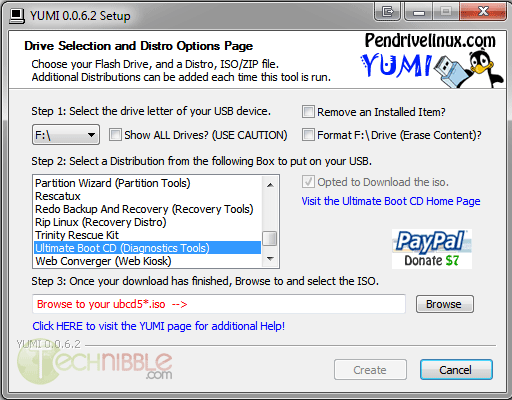
YUMI (which stands for Your Universal Multiboot Installer) is a tool that allows you to install multiple operating systems to a single bootable flash drive. YUMI will automatically create a menu allowing you to choose which operating system you wish to boot into as the system starts. We have featured mutliboot creators in the past but I really like YUMI because it is just so easy to use.

To use YUMI, you simply choose the drive letter of the thumb drive you wish to use, select a distribution you wish to install from the list, tick the “Download the ISO” if you havent done so already, wait for the ISO to download, navigate to the download location of the ISO on your hard drive and press Create. Thats it. To add an additional ISO to the USB drive, just do the steps above again.

Even though the boot menu and the ISOs installed on the USB drive are Linux based, you can still use the same drive to carry your Windows based repair tools since it formats the thumb drive to FAT32 – which is readable by Windows. However, I suggest you don’t move any of the files YUMI placed since it may upset the software installed on it.

Another reason I like this software, especially for us Computer Technicians is the selection of ISOs you can install on it. As you would expect, the usual suspects like Linux Ubuntu, Mint and Puppy are included. However, YUMI features a lot of distributions specifically intended for computer repair such as:

  • Acronis Antimalware CD
  • AVG Rescue CD
  • AVIRA AntiVir Rescue CD
  • BitDefender Rescue Disk
  • Dr. Web Live CD
  • F-secure Rescue CD
  • Kaspersky Rescue Disk
  • Panda SafeCD
  • Blackbox (penetration testing)
  • BackTrack5 Blackbox (penetration testing)
  • Clonezilla (Backup + Clone Tool)
  • DBAN (Hard Drive Nuker)
  • Deft 7 (Forensics)
  • DRBL (Diskless Remote Boot in Linux)
  • EASEUS Disk Copy (Disk Cloning Tool)
  • GParted (Partition Tool)
  • HDT (Hardware Detection Tool)
  • Matriux (penetration testing)
  • Offline NT Password & Registry Editor
  • Ophcrack XP (Password Finder)
  • Ophcrack Vista/7 (Password Finder)
  • Parted Magic (Partition Tool)
  • PING (Partimg Is Not Ghost)
  • Partition Wizard (Partition Tool)
  • Redo Backup and Recover (Recovery Tool)
  • RIP Linux (Recovery Distro)
  • Trinity Rescue Kit
  • Hirens Boot CD
  • Kon-Boot Floppy Image
  • Windows Vista/7/8 Installer

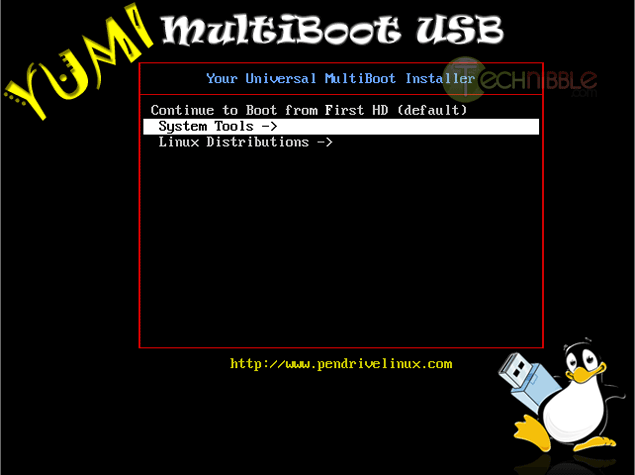
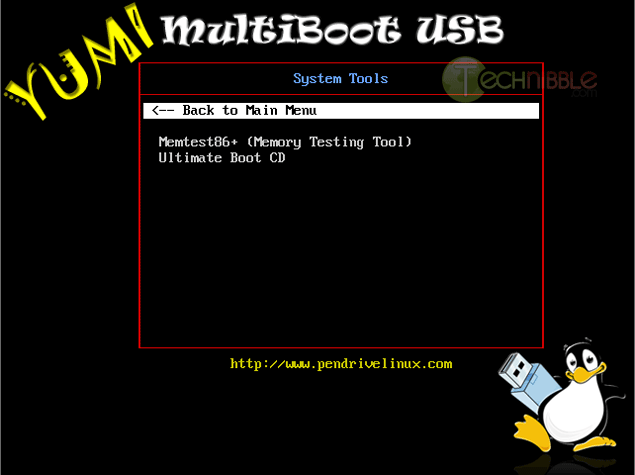
If you happen to install multiple operating systems to your USB key, YUMI will categorize them as you can see in the screenshots.

Screenshots

YUMI - Multiboot USB Interface

YUMI - Multiboot USB Bootloader

YUMI - Multiboot USB Bootloader


Downloads:

Download from Official Site – 948kb

More Information

© Technibble – A Resource for Computer Technicians to start or improve their Computer Business
To get started with your own computer business, check out our Computer Business Kit.
image

Read more:

How to Increase Your Business Clients to Improve Your Profit Margins

Authors: Guest Writer

Guest Post by Richard Muscat Azzopardi
Taking the step from being a computer technician fixing home PCs to someone running a business which thrives off planning, building, maintaining and repairing other businesses’ IT solutions is one which might seem daunting to some. However by doing so you can increase profit margins considerably and probably reduce your general stress levels in the process too.

Before you ponder on changing your business model, however I would advise taking a long hard look at the business you’re running at the moment. Have you ever thought of whether it is really profitable? If you were paying yourself (and your better half, who’s probably putting in quite a bit of hours with you) an honest wage would you still be running a profitable business? When was the last time you ran this exercise?

As part of this check I would also recommend analyzing the different jobs you’re doing. Which of them are profitable and which of them are you doing as a “service” to your clients? For example some home clients expect you to do the installation work for free when you sell them hardware. Even if you are charging them, there is a limit to what you can charge unless you want them to run to the Internet to look for advice and try it out themselves.

Business customers are very different. First of all they see IT as an essential tool. There might have been a time when a farmer would try and fix his own truck, but nowadays they all take them to mechanics. The same goes for computers – businesses see them as something they can’t live without (because they really can’t!) and therefore tend to do whatever is needed to keep their systems running smoothly. A home computer not working for a day means you can’t check Facebook for 24 hours. A business computer not working for a day implies loss of productivity and therefore precious income.

Because IT is so important to businesses, they tend to generate a significant amount of work. A successful business must take its maintenance seriously, its upgrades with enough foresight and its backups with the precision of a Swiss watch! In addition to generating more work per computer, when you’re hooked up with a business client, you usually have more PCs to work on too. If you take a look at the turnover generated by a single (small) business client over the course of a year you can probably equate it to four to five families’ worth of work.

It is not all fun and games, because expectations on your level of commitment increase too, but this is mainly the reason you can charge higher rates. It is also harder to win the client over because there is more competition and a higher chance that they are already in some form of a relationship with another supplier/technician.

If you have decided that it is worth exploring as an idea, you now need to find ways to get the word out there and start attracting business clients. I have a few suggestions that you might want to try out.

1) Tap your existing client base

Your existing clients are probably an ideal first step in trying to get new business. Statistically, most of them work at a small business, so if you approached them there is a good chance of them either being the decision maker at office or at least knowing who is. Don’t push yourself too hard with people who are generating your bread and butter income though, because you don’t want to scare them off from giving you their custom. You can either drop a hint when you’re at their place or else insert a new email signature which says you service businesses too. It might also be worth your while to offer a small bounty to friends and long-term clients who can introduce you to a new business client.

2) Approach the local business community

Targeting local businesses with direct mail, the local yellow pages or advertising in a local paper would be a great method to start offering services. Your major investment here could be your time. Offer a free audit of their systems – that way you can give them something of value. If you do your job well enough at this stage, you’re the one they’re going to want to implement the recommendations to fix the issues that arise.

3) Mixing at business events

Scour the papers and online notice boards for business breakfasts or any other business meetings organised in your community. These are a great source of new contacts and people are expecting you to discuss business opportunities. If there are talks, then try and get a speaking gig – even if you offer your time for free. Use this time to outline the importance of having a solid IT infrastructure. Businesses love having a thought leader consulting them – it inflates their ego.

4) Buy a set of golf clubs

Or join the local chapter of the Rotary Club. Every community has its own version of a place for businessmen to hang out informally. Whereas these might seem to be a place to relax, a lot of business wheeling and dealing goes on in between holes on the local golf course. You will have to take it more easily here. People are officially there to enjoy themselves and relax so you have to observe others and respect the etiquette in place.

5) Online

Building a good presence online is a crucial part of achieving your goal. I have left it to last for one simple reason – no matter which of the methods above you decide to go with, this should have to happen in tandem. Create a personal LinkedIn profile and build it up as much as possible. Get recommendations from former colleagues and current clients and keep the account active on a daily basis. Create Google+ and Facebook pages as a local business and post items to them regularly. Ideally you shouldn’t broadcast, but also interact with people who’ve liked your pages. Offer free advice online to business customers – and make these posts public so you can show your expertise.

Whichever of these tickles your fancy, I would suggest not trying out more than one or two of them to start off. Ease yourself into the market and there is far less chance of being overwhelmed. Slow and steady wins the race.

This is a guest post written by Richard Muscat Azzopardi on behalf of IT Channel Insight, a site related to managed IT services. Richard draws on his experience from over 12 years in the publishing industry to bring you top quality content that works. He now writes blog posts, white papers and e-books for the IT industry with the same passion that drove him to create his country’s most popular publication.

© Technibble – A Resource for Computer Technicians to start or improve their Computer Business
To get started with your own computer business, check out our Computer Business Kit.

image

Read more:

How To Create Effective Craigslist Ads For Your Computer Repair Business

Authors: Bryce Whitty

Unless you have been living under a rock for the past few years, you have surely heard of Craigslist.org. If you haven’t, Craigslist is a network of online communities featuring free online classified advertisements. It allows you to post advertisements offering your computer repair services and essentially gain clients for free.

Some Computer Technicians love Craigslist and say that they have acquired their best clients from there while others wont go anywhere near it. It definitely has a bad reputation thanks to the $5 per hour technicians that advertise there but dont let that deter you as it can definitely help your business.

In this article, I’ll show you how to form an effective Craigslist ad and keep it visible.

Money vs Effort

Before we go any further, while posting on Craigslist is free (and who doesnt like free advertising right?), it does take time. Whether it is worth it or not will depend on your situation.
If you have time but not much money, Craigslist can be a fantastic source of clients. If you stay pretty busy with your existing clients then it may not be worth it. If you are just starting your business then you definitely shouldnt pass up the opportunity to gain some initial clients.

If you live in other countries where Craigslist isnt as popular like the UK or Australia, you can substitute Craigslist.org with Gumtree.co.uk or Gumtree.com.au

Creating Your Ad

The key to creating a great ad is to make it to be able to be read quickly and be keyword rich but still human readable. You might consider something like this:

*** YourTown Computer Repair ***
Honest, Secure and Reliable
Over X Years of Experience
Reasonable Rates
Services Include: Virus Removal, Desktop & Laptops, Hardware & Software Repair, Networking
Call XXX XXX-XXXX
Your Name

This is an effective ad because it can be scanned by the reader. You need to get your point across quickly as the customer may be looking at 10 other ads and they often they will not bother to read huge blocks of text.
While this ad is very short, it says a lot more than what was actually written. Let me break it down line by line so you understand why these words were chosen allowing you to create your own ad.

  • *** YouTown Computer Repair *** – When a future client is scanning a page of Craigslist advertisements but they are looking for a few keywords. They will be looking for Computer Repair services that is in their area. By having a heading like this, ticks all boxes in their mind and quickly gets their attention. Also, having a few special characters around the text seems to get more attention, but dont overdo it.
  • Honest, Secure and Reliable – As most people know, there are some seriously shady people on Craigslist. These words acknowledge that there are some bad operators on Craigslist and helps set you apart that you are not one of them.
  • Over X Years of Experience – This one is pretty obvious. If you have many years experience then it is worth mentioning to help separate you from the other ads. Of course, if you only have minimal experience then dont mention this line
  • Reasonable Rates – You may have noticed that I havent posted the price anywhere in the ad and have only said Reasonable Rates. The reason for this is that if the customer is shopping solely on price, you will usually lose out to the $15 per hour Computer Technician. However, not everyone is shopping based on price and would rather pay a premium for someone who is good, honest and reliable. These are the clients you want. Also, by not posting your rates it requires the customer to call you and this is your chance to sell. Understand your client, sympathize with their problem and offer to make it right:
    “Your computer wont start up and you have a school project to hand in tommorow? Oh, thats not good. We can have a tech out there today and we’ll do what we can to get your machine and running as soon as possible”.

    Keep in mind that the client will also be judging you based on your phone call. You can tell a lot about someone with only 30 seconds on the phone.
    Do you answer with “X Computer Services. How may I help you?” or with a sleepy “Hello?”
    Do you sound educated or speak in slang?
    Answering the phone like a professional will help separate you from the technicians who are only doing work for pizza money.

  • Services Include X, X and X – We are doing this so that people know the services that you offer, but also works as keywords for the Craigslist search feature. “Virus Removal” has been listed as the first service because most clients always think their problems are virus related, regardless of what the issue actually is.
  • Your Name – Signing it off with your first name makes it seem a bit more personal and that they are not dealing with a faceless corporation

Keep Posting

Depending on your location, the Craigslist listings can move fast. You could post your ad at 9am in the morning and it could be be pushed off the bottom of the page by 10am. The way to stay at the top of the page is to post your ad multiple times throughout the day. Having said that, Craigslist frowns upon duplicate postings so in order to post your ad multiple times a day you need to change the ad slightly. You can do this by moving the lines around, maybe even test out a few completely different ads to see which one is the most effective.

If you post your ad to the Craigslist pages of large cities, your ad may drop off the page too fast. Consider posting to the Craiglist pages of the smaller surrounding towns.

If your ad is still getting pushed off the page quickly, there are more extreme methods such as posting from a handful of different Craigslist accounts with each of them posting a few times a day.

© Technibble – A Resource for Computer Technicians to start or improve their Computer Business
To get started with your own computer business, check out our Computer Business Kit.
image

Read more:

Bypass Windows Logons with the Utilman.exe Trick

Authors: Bryce Whitty

Utilman.exe is a built in Windows application that is designed to allow the user to configure Accessibility options such as the Magnifier, High Contrast Theme, Narrator and On Screen Keyboard before they log onto the system.
This was designed to help people who are hard of sight, hearing or mobility to log onto Windows themselves without the need of outside help. Its a great feature for disabled people but it opens up a security hole that we can take advantage of to bypass Windows logons.

Bypassing the Windows logon comes in handy if our clients have forgotten their logon password, their user profiles were corrupted or malware was interfering with the system before login.

This works because the user can trigger Utilman by pressing Windows Key + U before Windows logon. This will load up the Utilman.exe executable which resides in the Windows\System32 directory. If you swap the Utilman.exe file with something else like cmd.exe, you have access to the command prompt running SYSTEM privileges. SYSTEM is an account with the highest possible privileges on Windows which similar to the root account on Unix systems.

Here are the step by step instruction on how to do this.

WARNING:
You can do a lot of damage to a system if you dont know what you are doing. Technibble accepts no responsibility if something goes wrong.

First of all, we will need a way to access the file system to swap out Utilman.exe with something else like cmd.exe. There are a few ways to achieve this:

  • Remove the operating system hard drive from the target system and slave it into another system with a working operating system. From there you can swap out the files on the slave drive
  • Use a Boot CD like UBCD4Win and use the file management software there
  • Use the Windows Vista or 7 DVD

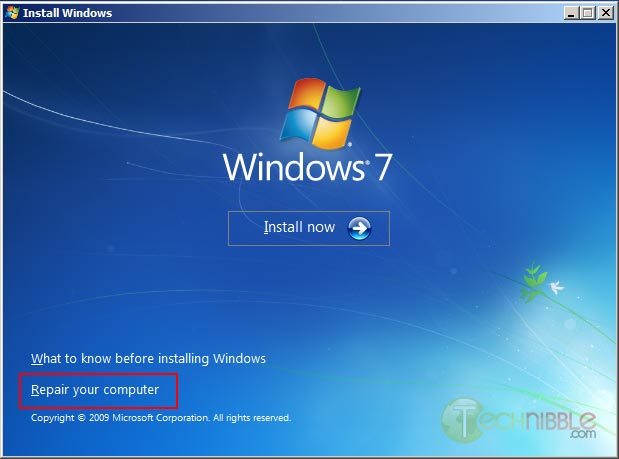
In this example we will be using the Windows 7 DVD. To begin, boot from your Windows 7 DVD and when you reach the first screen asking about the language, currency and keyboard format, Click Next.

On the next page, down in the lower left hand side, click on the “Repair your computer” link.


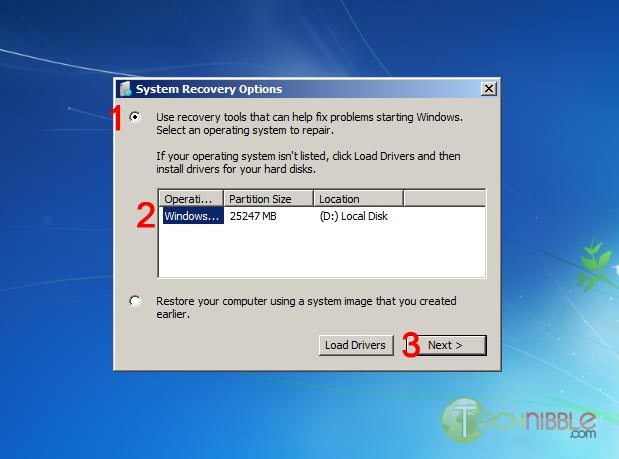
Next, select the “Use recovery tools that can help fix problems starting Windows. Select an operating system to repair” option, choose an operating system from the list and Click Next.


You will now have an option to “Choose a recovery tool”. Select Command Prompt.

You should now have a Command Prompt Window open. Type in the following commands:

C:\
cd windows\system32
ren utilman.exe utilman.exe.bak
copy cmd.exe utilman.exe

This will navigate to the system32 directory, rename utilman.exe to utilman.exe.bak, make a copy of cmd.exe and name it utilman.exe.

Remove the DVD and reboot the system.

Once the computer boots up normally, press the key combination Windows Key + U and you should get a Command Prompt. If the Command Prompt doesnt appear, press Alt+Tab as the Command Prompt may appear behind the Logon screen. From here, you can run many (if not all) of the commands you can normally use in Command Prompt.

Resetting an Existing Users Password

WARNING:
If you reset a users account password. This will permanently lose access to the users encrypted files. Be sure to back these up.

To reset an existing users password, we need type the text below. In this example, we will be changing JohnDoe’s password to “hunter2″.
net user JohnDoe hunter2

You should be able to log in with this new password straight away.

If you dont know what the username on the system actually is, you can see a list of the users by typing:
net user

Creating a New User Account

To create a new user account in the Command Prompt (Username: NewGuy. Password: abc123), and add them to the Administrators usergroup type:
net user NewGuy abc123 /add
net localgroup Administrators NewGuy /add

Again, you should be able to login straight away with this new account.

Reverting Changes

To restore utilman.exe, in the Command Prompt type in:
C:
cd windows\system32
del utilman.exe
ren utilman.exe.bak utilman.exe

Then reboot the system.

To remove the new user account you just created earlier, type in:
net user NewGuy /delete

That’s all there is to it.

Thanks to MobileTechie for mentioning this trick.

© Technibble – A Resource for Computer Technicians to start or improve their Computer Business
To get started with your own computer business, check out our Computer Business Kit.
image

Read more:

Tweaking.com Windows Repair – Fix Common Windows Problems

Authors: Bryce Whitty

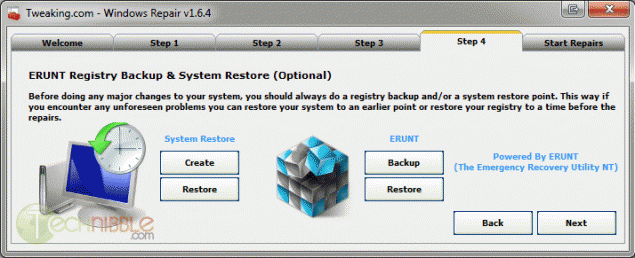
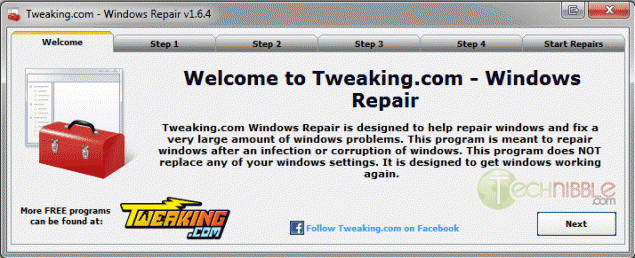
Tweaking.com Windows Repair is a small, portable and free all-in-one repair tool designed to help you fix common Windows problems. Dial-a-Fix used to be a great tool for this task but it does not work on Windows 7 and has not been updated for years. Windows Repair is a great alternative.

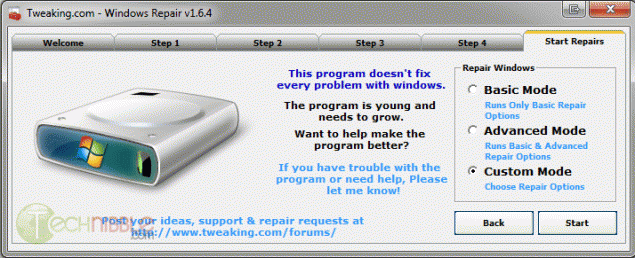
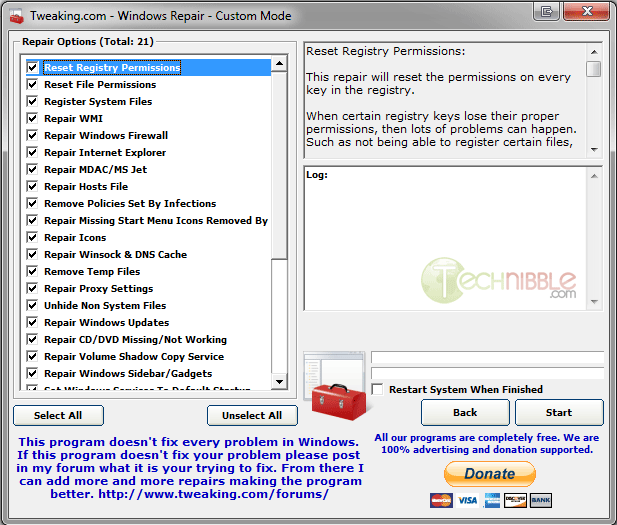
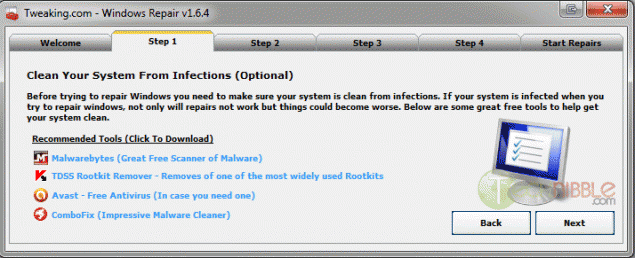
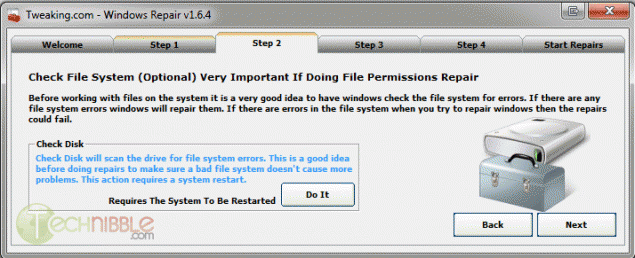
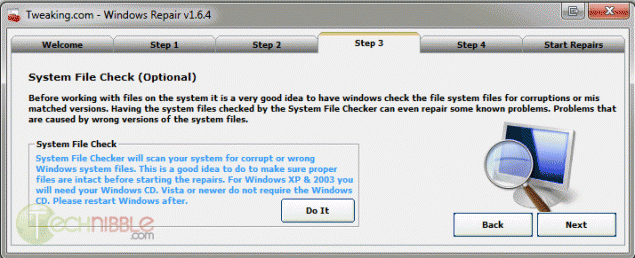
With its 5 step tabs telling you to run Checkdisk, System File Checker and Backup the Registry before you start using the main part, you can see it targets end users a bit more than Technicians but these steps are worth doing anyway. The real power is when you choose “Custom Mode” on the Start Repairs stage.

The following are the repair options you can choose:

  • Reset Registry Permissions
  • Reset File Permissions
  • Register System Files
  • Repair WMI
  • Repair Windows Firewall
  • Repair Internet Explorer
  • Repair MDAC & MS Jet
  • Repair Hosts File
  • Remove Policies Set By Infections
  • Missing Start Menu Icons
  • Repair Icons
  • Repair Winsock & DNS Cache
  • Remove Temp Files
  • Repair Proxy Settings
  • Unhide Non System Files
  • Repair Windows Updates
  • Repair CD/DVD Missing/Not Working
  • Repair Volume Shadow Copy Services
  • Repair Windows Sidebar/Gadgets
  • Set Windows Services to Default Setup
  • Repair MSI (Windows Installer)


Screenshot


Downloads:

Download from Official Site – 1.39mb

© Technibble – A Resource for Computer Technicians to start or improve their Computer Business
To get started with your own computer business, check out our Computer Business Kit. Tweaking.com Windows Repair – Fix Common Windows Problems
0 0

Read more:

Inside an Apple Technicians Toolkit

Authors: Bryce Whitty

Guest Post by Marco Rodi: Marco Rodi owns an IT Engineering university degree. He has his own computer repair business (OrdiRodi) that mainly does Apple Support.
There are a few articles here on Technibble about what is in a PC technicians toolkit. However, when you are an Apple Tech your bag is not quite the same. Whenever a client calls me for an emergency, these are the tools I always carry in my Apple technician toolkit, no matter what the problem is.

Lion/Snow Leopard Boot USB

Usually, when your client’s computer won’t boot into the OS the CD drive won’t work. Either a CD will be stuck inside and you can’t eject it, or you can’t insert a new CD as the system won’t recognize it. This is why I always bring a Bootable USB drive with either Snow Leopard of Lion on it. When you insert it in your client’s computer, you can hold the “Option” key (ALT key if you are using a non-Apple keyboard) while you boot the Mac and select your USB drive. To create this USB Key, you need your original Lion installation file or your Snow Leopard CD and use the Disk Utility application on your Mac. (http://www.cultofmac.com/105527/how-to-make-a-bootable-install-disk-of-mac-os-x-lion/)

Snow Leopard CD

I always bring the Snow Leopard CD. Sometimes you won’t need a USB drive as CD Drive will work just fine. If you install this version on your client’s Mac, you do not need a serial number.

Dust Blower

No matter what I do on my client’s computers, I always use the Dust Blower at the end of the job. It adds a professional touch to it and usually the client has never removed the dust. Here in Montreal, I always buy the DustOff Original Duster. You can buy a 10 pack of those for just $12.99.

Knopixx CD

Incredible tool that lets you boot in a complete Unix environment directly on the CD. You can access the hard drive and backup files. This is really helpful if the OS does not boot and you want to backup your client’s files. You simply need to insert this CD and an external drive to backup everything. (http://www.knoppix.net/)

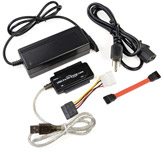
Universal Drive Adapter

This will let you repair your client hard drive directly from your computer. You remove the hard drive from your client’s computer, plug it into this device, and access it via usb from your machine. This tool is good to repair disk permissions, backup files and to completely clear a hard drive. It works perfectly on both Mac and Pc. You can buy this one here: http://www.ifixit.com/Apple-Parts/Universal-Drive-Adapter/IF107-108

ProTech Base Tool

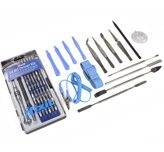
When you try to open your client’s Apple Computer and either change the RAM, remove the hard drive or change the motherboard, you will always have to deal with an unusual screw. Apple does it on purpose so nobody can open/fix their machine except them. You really need to bring all the tools necessary to remove all the pieces for your needs. I use this set of tool created by ifixit: http://www.ifixit.com/Tools/Pro-Tech-Base-Toolkit/IF145-072
It has everything you need to repair iMacs, Macbooks, MacPros, iPhone, iPod Touch etc.

RAM Memory

Sometimes, when you try to boot the computer and you hear one or two beeps, the RAM failed. I always bring extra RAM to test this issue and to sell it to my clients if this is the problem.

External USB Hard drive

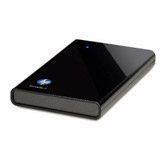
I bring my pocket 1TB external hard drive for backup. (model no. WDBACZ0010BBK-NESN). Usually your client won’t have another drive to back up his files. I like this HP drive because it is Mac/PC compatible and it supports USB 3.

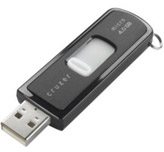
USB Key

I bring my 4gb USB key that includes all the free software Mac offers. I always install all of them on my client’s computer. I know this is personal but up until now, my clients love it! This usb key includes:

Suction Cups

The iMac is the most difficult machine in the world to change its hard drive. Why? Because you have to remove the huge front glass. The only way of doing it is with suction cups. I only bring those if my clients have a problem with an iMac. http://www.ifixit.com/Tools/Heavy-duty-Suction-Cups-Pair/IF145-023

Magnifying glass

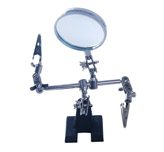
I usually use this on Macbook’s problems. When you have to change the trackpad, keyboard, motherboard etc. http://www.ifixit.com/Tools/Helping-Hands/IF145-082

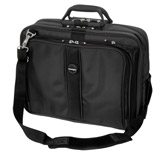
Kensington Contour Pro 17″ Nylon Laptop Case

I can easily fit all of those things in this bag. I also always bring my 15” Macbook pro in it. http://www.futureshop.ca/en-CA/product/kensington-contour-pro-17-nylon-laptop-case/10040886.aspx?path=28ee4468307abdf19cb8fdcfbaa5cd56en02


These are my main tools that usually cover everything I need. Whats in your Mac technician bag?

© Technibble – A Resource for Computer Technicians to start or improve their Computer Business
To get started with your own computer business, check out our Computer Business Kit. Inside an Apple Technicians Toolkit
2 2

Read more:

6 Reasons Why You Should Consider Remote Support

Authors: Bryce Whitty

Have you ever considered expanding your computer repair business by doing remote support? While it is unlikely to replace your physical computer repair work, it does allow you to save time with your current work and expand your service area. Here are some of the benefits of remote support that are worth considering.

Billable Hours

Many people scoff at the fact that a Computer Technician will charge in the range of $100 hour. Especially when a 9 to 5 office job will only earn in the range of $20-40 per hour. What these people dont understand is as business owners, we have to these charge prices because there is a large amount of unbillable hours where we still have to work, but cannot directly charge for. One of the biggest contributors to unbillable time is driving time (I know some techs DO charge for driving time/distance though).
With remote support, you can often cut out the driving time. In fact, you can pretty much start the moment you get the call.
If you are an onsite computer technician, think about how much time you spend driving around on a typical day. In my business, it was easily 3-5 hours depending on how many jobs I had lined up in the day.

Profit

On the topic of driving time, while you are running around town all day you are consuming fuel and slowly devaluing your vehicle as you rack up the miles/kilometers on the odometer. Of course, these are normal business expenses that you factor in but with remote support you can reduce these. Resulting in more overall profit.

Efficiency

Remote Support also allows you to work more efficiently. We all know about “loading bar time” where we cant do much more other than but sit there and watch the loading/installing bar slowly reach 100%. If you were working on a machine where you had to wait like this via remote support, you could use that time to work on another persons computer or do an in-office task – making better use of your time.

Access To Resources

We computer technicians cannot know what every single error message means and how to fix it, so we occasionally need to turn to the almighty Google. There is no shame in referring to Google but it doesnt always look good doing so in front of customers. With remote support, you have access to one of your own machines where you can research the clients problems and have access to a range of applications.

Geographic Location

This is an obvious benefit. Most onsite technicians have a “service area” where they limit the maximum distance they are willing to drive. With remote support, the geographics dont really matter anymore as long as the client has a good enough internet connection. Even with my own business, I look after my clients in my home city of Melbourne Australia even though I am currently living in London UK. Even though my clients are half a world away, the speeds are actually pretty good.

Proactive System Maintenance

If you are a computer technician who has maintenance contracts with their clients, keeping an eye on your clients systems is made much easier and more effective with remote support. For example, you can log into their systems and check the usual Windows/Antivirus updates and hardware statuses once every 2 weeks, and visit the clients physical location quarterly to check the physical state of the computer. Again, this saves you time driving around all the time to support your maintenance contracts.

Getting Started

If you are interested getting into remote support, I recommend you check out Lisa Hendricksons guide “Call That Girls Guide To Remote Support” which is now in its second edition.
Lisas book is not a technicial manual on how to do remote support but rather a remote support business operations manual. It includes setting your remote support rates, getting a ticketing system setup, marketing your remote support services, accepting payments remotely and up-selling.
It also talks about what to do if the clients internet doesnt work, dealing with issues you cannot fix remotely and how to deal with issues that make working remotely difficult.

Lisa’s guide is currently selling for $79 until December 24th, comes with a free copy of her “Computer Business Manual of Operations” and comes with a full refund policy if you find its not for you, so its completely risk free. You can check out the guide and what is in it by CLICKING HERE.

If you are looking for remote support software, ScreenConnect is picking up a lot of popularity on the Technibble forums. Their concurrent licenses start at $275 and once you purchase it you can use it forever. The software is self hosted giving you a bit more control over your product.
It comes with all the features you would expect from a good remote support package such as being crossplatform, has a Android/iOS app and is brandable. You can check out ScreenConnect HERE.

© Technibble – A Resource for Computer Technicians to start or improve their Computer Business
To get started with your own computer business, check out our Computer Business Kit. 6 Reasons Why You Should Consider Remote Support
image

Read more: