Skip to content

The Force Field Podcast
  • Home
  • News
    • Blogs
    • Rick Rant
  • Podcast
  • Forums
  • About Us
    • FAQs
    • Advertise With Us!
    • Contact Us
    • Press Room
  • Resources
    • Free Publications
    • Media Center
  • Home
  • News
    • Blogs
    • Rick Rant
  • Podcast
  • Forums
  • About Us
    • FAQs
    • Advertise With Us!
    • Contact Us
    • Press Room
  • Resources
    • Free Publications
    • Media Center

to

Inside an Apple Technicians Toolkit

November 28, 2011 by Rick

Authors: Bryce Whitty

Guest Post by Marco Rodi: Marco Rodi owns an IT Engineering university degree. He has his own computer repair business (OrdiRodi) that mainly does Apple Support.
There are a few articles here on Technibble about what is in a PC technicians toolkit. However, when you are an Apple Tech your bag is not quite the same. Whenever a client calls me for an emergency, these are the tools I always carry in my Apple technician toolkit, no matter what the problem is.

CommitCRM

Lion/Snow Leopard Boot USB

Usually, when your client’s computer won’t boot into the OS the CD drive won’t work. Either a CD will be stuck inside and you can’t eject it, or you can’t insert a new CD as the system won’t recognize it. This is why I always bring a Bootable USB drive with either Snow Leopard of Lion on it. When you insert it in your client’s computer, you can hold the “Option” key (ALT key if you are using a non-Apple keyboard) while you boot the Mac and select your USB drive. To create this USB Key, you need your original Lion installation file or your Snow Leopard CD and use the Disk Utility application on your Mac. (http://www.cultofmac.com/105527/how-to-make-a-bootable-install-disk-of-mac-os-x-lion/)

Snow Leopard CD

I always bring the Snow Leopard CD. Sometimes you won’t need a USB drive as CD Drive will work just fine. If you install this version on your client’s Mac, you do not need a serial number.

Dust Blower

No matter what I do on my client’s computers, I always use the Dust Blower at the end of the job. It adds a professional touch to it and usually the client has never removed the dust. Here in Montreal, I always buy the DustOff Original Duster. You can buy a 10 pack of those for just $12.99.

Knopixx CD

Incredible tool that lets you boot in a complete Unix environment directly on the CD. You can access the hard drive and backup files. This is really helpful if the OS does not boot and you want to backup your client’s files. You simply need to insert this CD and an external drive to backup everything. (http://www.knoppix.net/)

Universal Drive Adapter
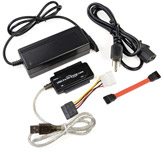
This will let you repair your client hard drive directly from your computer. You remove the hard drive from your client’s computer, plug it into this device, and access it via usb from your machine. This tool is good to repair disk permissions, backup files and to completely clear a hard drive. It works perfectly on both Mac and Pc. You can buy this one here: http://www.ifixit.com/Apple-Parts/Universal-Drive-Adapter/IF107-108

ProTech Base Tool
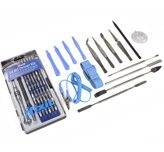
When you try to open your client’s Apple Computer and either change the RAM, remove the hard drive or change the motherboard, you will always have to deal with an unusual screw. Apple does it on purpose so nobody can open/fix their machine except them. You really need to bring all the tools necessary to remove all the pieces for your needs. I use this set of tool created by ifixit: http://www.ifixit.com/Tools/Pro-Tech-Base-Toolkit/IF145-072
It has everything you need to repair iMacs, Macbooks, MacPros, iPhone, iPod Touch etc.

RAM Memory

Sometimes, when you try to boot the computer and you hear one or two beeps, the RAM failed. I always bring extra RAM to test this issue and to sell it to my clients if this is the problem.

External USB Hard drive
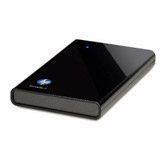
I bring my pocket 1TB external hard drive for backup. (model no. WDBACZ0010BBK-NESN). Usually your client won’t have another drive to back up his files. I like this HP drive because it is Mac/PC compatible and it supports USB 3.

USB Key

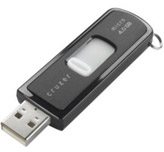
I bring my 4gb USB key that includes all the free software Mac offers. I always install all of them on my client’s computer. I know this is personal but up until now, my clients love it! This usb key includes:

  • Google Chrome
  • VLC
  • OpenOffice
  • AppCleaner
  • iStatPro

Suction Cups

The iMac is the most difficult machine in the world to change its hard drive. Why? Because you have to remove the huge front glass. The only way of doing it is with suction cups. I only bring those if my clients have a problem with an iMac. http://www.ifixit.com/Tools/Heavy-duty-Suction-Cups-Pair/IF145-023

Magnifying glass
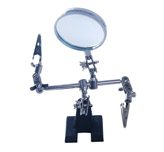
I usually use this on Macbook’s problems. When you have to change the trackpad, keyboard, motherboard etc. http://www.ifixit.com/Tools/Helping-Hands/IF145-082

Kensington Contour Pro 17″ Nylon Laptop Case
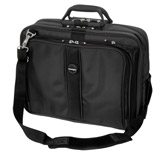
I can easily fit all of those things in this bag. I also always bring my 15” Macbook pro in it. http://www.futureshop.ca/en-CA/product/kensington-contour-pro-17-nylon-laptop-case/10040886.aspx?path=28ee4468307abdf19cb8fdcfbaa5cd56en02


These are my main tools that usually cover everything I need. Whats in your Mac technician bag?

© Technibble – A Resource for Computer Technicians to start or improve their Computer Business
To get started with your own computer business, check out our Computer Business Kit. Inside an Apple Technicians Toolkit

0 0 1 1

2 2

Read more:

Categories News Feeds Tags it, the, to, you, your Leave a comment

6 Reasons Why You Should Consider Remote Support

November 23, 2011 by Rick

Authors: Bryce Whitty

Have you ever considered expanding your computer repair business by doing remote support? While it is unlikely to replace your physical computer repair work, it does allow you to save time with your current work and expand your service area. Here are some of the benefits of remote support that are worth considering.

6 Reasons Why You Should Consider Remote Support

Billable Hours

Many people scoff at the fact that a Computer Technician will charge in the range of $100 hour. Especially when a 9 to 5 office job will only earn in the range of $20-40 per hour. What these people dont understand is as business owners, we have to these charge prices because there is a large amount of unbillable hours where we still have to work, but cannot directly charge for. One of the biggest contributors to unbillable time is driving time (I know some techs DO charge for driving time/distance though).
With remote support, you can often cut out the driving time. In fact, you can pretty much start the moment you get the call.
If you are an onsite computer technician, think about how much time you spend driving around on a typical day. In my business, it was easily 3-5 hours depending on how many jobs I had lined up in the day.

Profit

On the topic of driving time, while you are running around town all day you are consuming fuel and slowly devaluing your vehicle as you rack up the miles/kilometers on the odometer. Of course, these are normal business expenses that you factor in but with remote support you can reduce these. Resulting in more overall profit.

Efficiency

Remote Support also allows you to work more efficiently. We all know about “loading bar time” where we cant do much more other than but sit there and watch the loading/installing bar slowly reach 100%. If you were working on a machine where you had to wait like this via remote support, you could use that time to work on another persons computer or do an in-office task – making better use of your time.

Access To Resources

We computer technicians cannot know what every single error message means and how to fix it, so we occasionally need to turn to the almighty Google. There is no shame in referring to Google but it doesnt always look good doing so in front of customers. With remote support, you have access to one of your own machines where you can research the clients problems and have access to a range of applications.

Geographic Location

This is an obvious benefit. Most onsite technicians have a “service area” where they limit the maximum distance they are willing to drive. With remote support, the geographics dont really matter anymore as long as the client has a good enough internet connection. Even with my own business, I look after my clients in my home city of Melbourne Australia even though I am currently living in London UK. Even though my clients are half a world away, the speeds are actually pretty good.

Proactive System Maintenance

If you are a computer technician who has maintenance contracts with their clients, keeping an eye on your clients systems is made much easier and more effective with remote support. For example, you can log into their systems and check the usual Windows/Antivirus updates and hardware statuses once every 2 weeks, and visit the clients physical location quarterly to check the physical state of the computer. Again, this saves you time driving around all the time to support your maintenance contracts.

Getting Started

If you are interested getting into remote support, I recommend you check out Lisa Hendricksons guide “Call That Girls Guide To Remote Support” which is now in its second edition.
Lisas book is not a technicial manual on how to do remote support but rather a remote support business operations manual. It includes setting your remote support rates, getting a ticketing system setup, marketing your remote support services, accepting payments remotely and up-selling.
It also talks about what to do if the clients internet doesnt work, dealing with issues you cannot fix remotely and how to deal with issues that make working remotely difficult.

Lisa’s guide is currently selling for $79 until December 24th, comes with a free copy of her “Computer Business Manual of Operations” and comes with a full refund policy if you find its not for you, so its completely risk free. You can check out the guide and what is in it by CLICKING HERE.

If you are looking for remote support software, ScreenConnect is picking up a lot of popularity on the Technibble forums. Their concurrent licenses start at $275 and once you purchase it you can use it forever. The software is self hosted giving you a bit more control over your product.
It comes with all the features you would expect from a good remote support package such as being crossplatform, has a Android/iOS app and is brandable. You can check out ScreenConnect HERE.

© Technibble – A Resource for Computer Technicians to start or improve their Computer Business
To get started with your own computer business, check out our Computer Business Kit. 6 Reasons Why You Should Consider Remote Support

image image

image

Read more:

Categories News Feeds Tags a, support, the, to, you 1 Comment

System Restore Explorer – View, Delete and Browse Inside System Restore Points

November 18, 2011 by Rick

Authors: Bryce Whitty

System Restore Explorer is small, freeware tool that allows you to view and delete specific Windows system restore points. This is a handy way to clear up some disk space without wiping out all of the restore points since previously the only built in option we had was either all or none.

However, the best feature is that it allows browse and copy individual files inside the system restore points, without performing a full system restore.

CommitCRM


When you install System Restore Explorer, you see a list of all the available system restore points including the time and date of when they were taken. You can right click on any of these and you
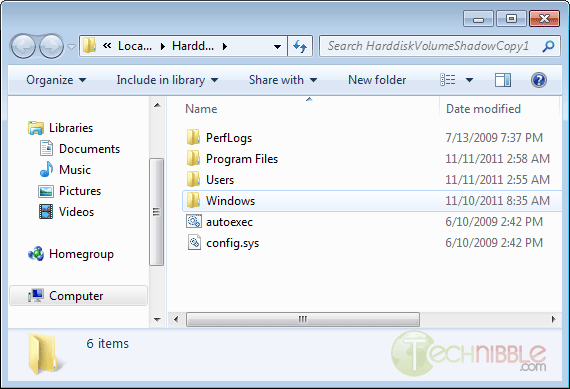
have the option to Mount, Unmount or Delete that specific restore point. If you Mount that restore point, it will show you the files inside that restore point in your standard Windows Explorer interface allowing you to manage the files inside it like you would any other file on your system.

This application only works in Windows Vista and Windows 7.

Screenshots

Viewing the list of available restore points to Mount or Delete.


Browsing inside a mounted restore point.


Download

Download from Official Site (search for “download it here”) – 840kb

Special thanks to the forum member Galdorf for recommending this one.

© Technibble – A Resource for Computer Technicians to start or improve their Computer Business
To get started with your own computer business, check out our Computer Business Kit. System Restore Explorer – View, Delete and Browse Inside System Restore Points

image image

image

Read more:

Categories News Feeds Tags and, restore, the, to, you Leave a comment

Seeking Computer Technicians To Interview

November 15, 2011 by Rick

Authors: Bryce Whitty

I am going to be interviewing fellow computer technicians via email so people can hear their stories, be inspired by them and learn something new.

What questions would you like me to ask them beyond the typical “Who you are and how did you start”? You can leave a comment below. (Or hit reply if you are reading this via Email)

If you consider yourself successful, whether a single guy in his bedroom always keeping busy, or someone with a shop and multiple employees, I would love to interview you via email. Shoot an email to tips@technibble.com, tell me a little bit about yourself, what about yourself you believe would be interesting to your fellow techies and I’ll get in touch with you.

Last but not least, if you know someone you would really love to have interviewed, send me their details to tips@technibble.com and I’ll do what I can.


© Technibble – A Resource for Computer Technicians to start or improve their Computer Business
To get started with your own computer business, check out our Computer Business Kit. Seeking Computer Technicians To Interview

image image

image

Read more:

Categories News Feeds Tags a, and, computer, to, you Leave a comment

Chief Counsel Praises the Repeal of Three Percent Withholding Requirement on Contractors

November 15, 2011 by Rick

Authors: Mitalis

Read more

Categories News Feeds Tags and, of, small, the, to Leave a comment

How To Perform a Perfect BackUp Reinstall with Apple Time Machine

November 14, 2011 by Rick

Authors: Bryce Whitty

Guest Post by Marco Rodi: Marco Rodi owns an IT Engineering university degree. He has his own computer repair business (OrdiRodi) that mainly does Apple Support.

So you receive a call from a client saying “My hard drive just crashed!!” or “I just bought a new Mac and I need to transfer all my information” or even “I want to clear my hard drive and do a clean installation”.

As a professional, you need to know exactly what to do to perform a perfect backup and reinstall. You don’t want to lose a client’s files or preferences. The client wants to have the exact same thing as before: their beautiful Mac, up and running again. They do not want to call you back and say: “Hey! I don’t have my music in my iTunes anymore!”, “Where are my bookmarks?” or “How come my icons are smaller?”.

Here are the steps to perform a perfect backup and reinstall on OSX using Time Machine.

CommitCRM


First of all, you need to backup everything. With Apple it’s easy.
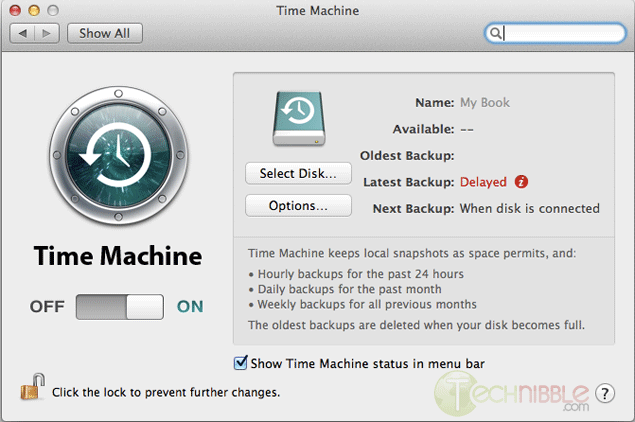
There is a built in application called Time Machine and you simply need to plug an empty external drive into the computer (Yes, it must be empty because it will wipe everything on it), and activate Time Machine.

To activate Time Machine, simply open your System Preferences. And click on the Time Machine icon.

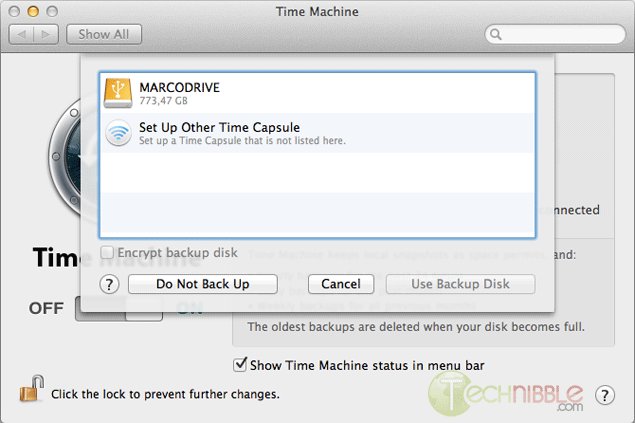
Click on “Select Disk”.

Choose your external drive and click on “Use Backup Disk”.

Time Machine will copy everything (OS, Software, Files, and Preferences) to the external hard drive. So when you will reinstall the OS, you can restore everything from that backup.

Once everything is backed up, we need to clear and format the new hard drive. To do so, you need to have a copy of the OS that you need to install (Snow Leopard or Lion). It can be on either CD or USB, it does not matter.

Shutdown the computer and insert your bootable device into the client’s Mac.

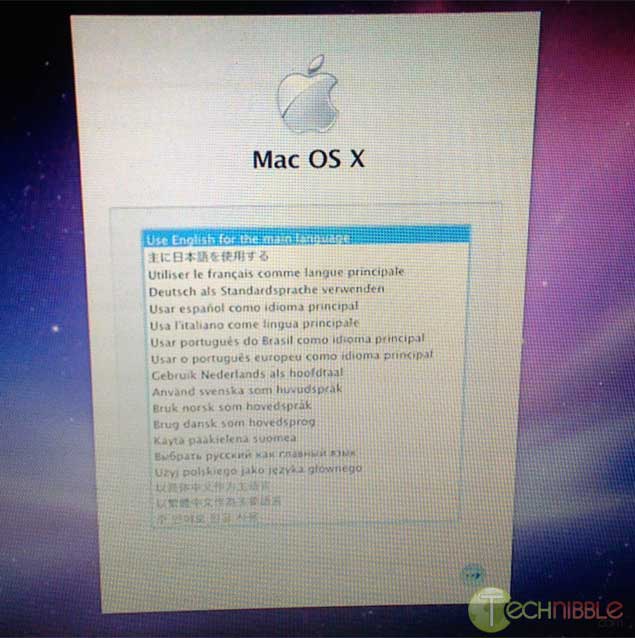
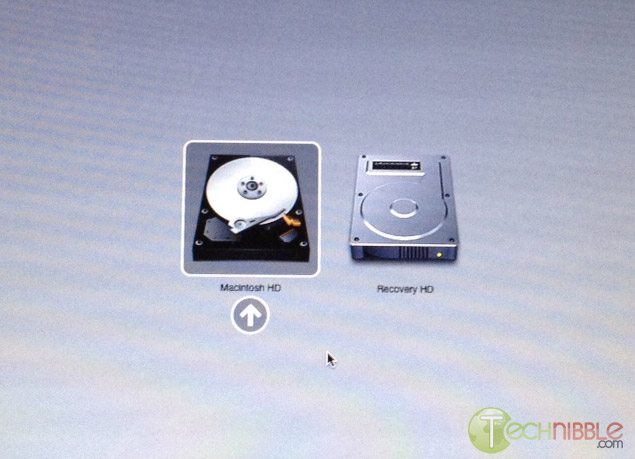
Boot the Mac while holding the “Option” key (ALT key if you are using a non-Apple keyboard). You will arrive on a window where you can choose a bootable device. Please choose your OS Installation (Either CD or USB).

You will then arrive at this window. Choose the language you want and press enter.

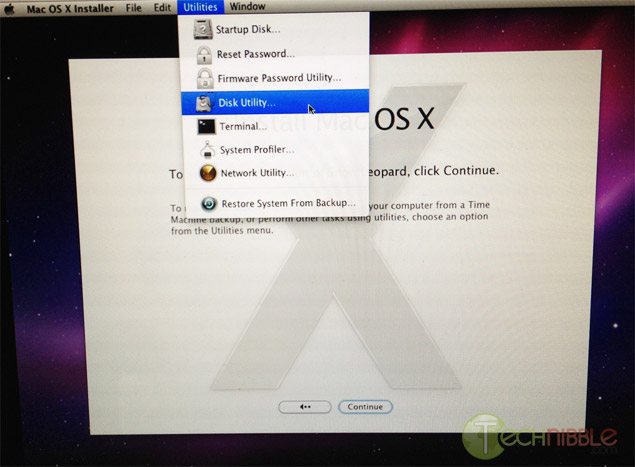
Click on Utilities and choose Disk Utility.

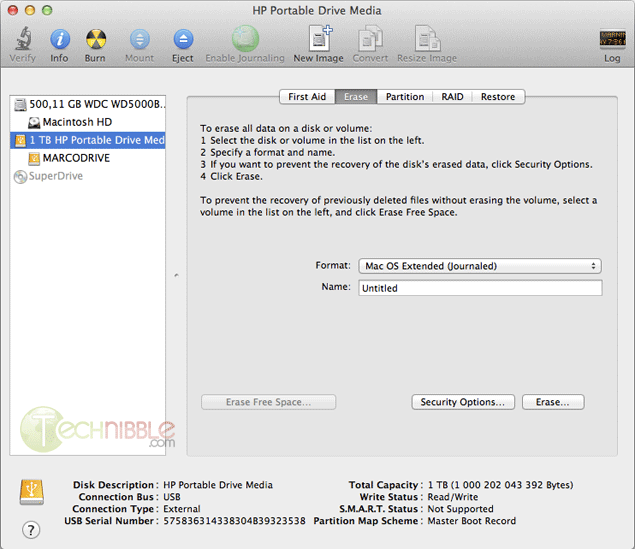
Select the drive you want to format to the left.

On the Erase Tab, use the “Format” Dropdown and choose “Mac OS Extended (Journaled)”.

Name your Hard Drive

Click the Erase Button.

It will then take some time to format the hard drive.

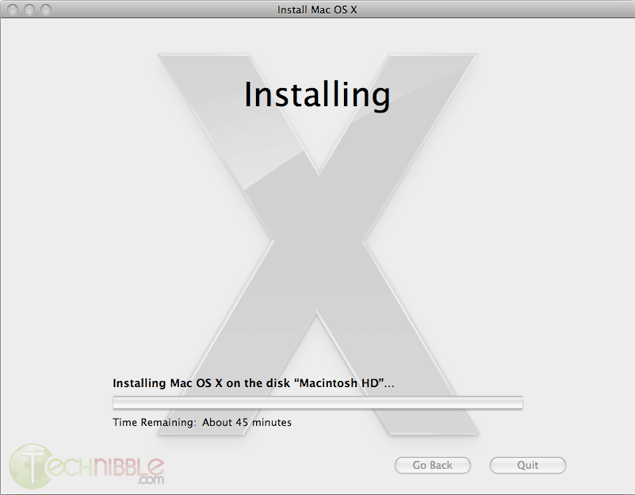
Once this is completed, you can close the Disk Utility window and start the installation. It will install the OS on your new hard drive.

Once the installation is complete, it will reboot and it will start from your newly installed OS.

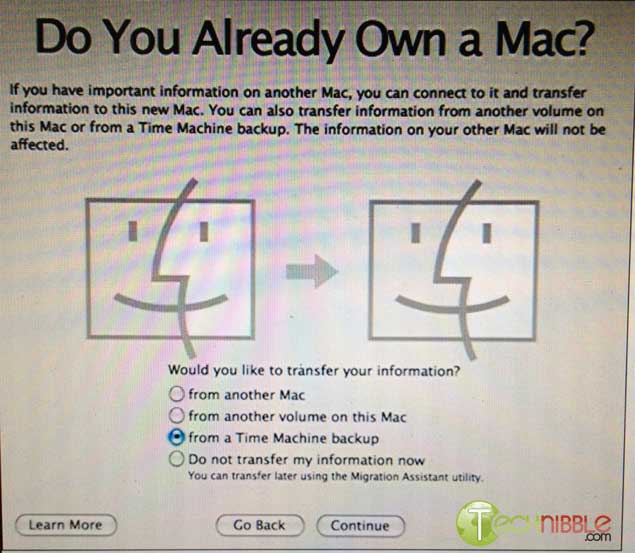
At the beginning, it will ask you if you want to transfer your information.

Plug your external device with the Time Machine backup and select “from a Time Machine backup” at the “Do You Already Own a Mac?” stage.

It will transfer all the files and settings that Time Machine made a backup of back onto the Mac.

So that is it. You can let your client test the computer and confirm that everything is back to normal.

© Technibble – A Resource for Computer Technicians to start or improve their Computer Business
To get started with your own computer business, check out our Computer Business Kit. How To Perform a Perfect BackUp & Reinstall with Apple Time Machine

image image

0 0

Read more:

Categories News Feeds Tags a, and, the, to, you Leave a comment

Google+ Pages for Computer Businesses – What You Need To Know

November 10, 2011 by Rick

Authors: Bryce Whitty

There is no doubt that social networking is here to stay. While some Computer Technicians may consider it just a new buzz word, other technicians are using it as their primary source of advertising. Google+ is newest major player in the social network game.

After several months, Google finally announced Google+ pages for local businesses, groups, brands and organisations. If you are familiar with Facebook pages, this is basically the Google+ equivalent. In this article, I’ll tell you why you should look into Google+ Pages and what you need to know before you claim your page.

CommitCRM

Why You Should Care

Google+ Pages, like Facebook Pages allows you to have a two way conversation with your clients. If they follow your page, your updates appear in their stream. This is an incredibly cheap way to advertise your business through discounts, specials and generally being on the front of your clients mind.

What If You Already Have a Google+ Account For Your Business?

I know of many Computer Businesses who have already have Google+ accounts for their business. However, it is actually against Google+’s terms to have a Google+ profile for a business. The account must be for an individual. The Google team will suspend accounts that break this rule.

From the Google+ Help Pages:
Your profile and name must represent one individual.
Google+ does not support profiles for couples or groups of people. Additionally, you cannot create a profile for a non-person entity such as a pet or business.

Violation examples: Jones Family, Jeremy & Mel Mason, Vegas the Dog, Brooklyn Bagels, Northern California Conservation Society

Google does plan to allow Google+ Business Profiles in time, but don’t hold your breath plus your account could get banned in the mean time.
If you have already done this, you can change your businesses Google+ account back to an individual (typically yourself). You can do this by going to your Google+ profile, click the “Edit Profile” button that is on the top right. Click on the name displayed up the top of the profile page. From there, you can type in a legitimate first name and last name. Then press save.

What You Need to Know Before You Claim Your Google+ Page

  • Contests, Sweepstakes, Offers, Coupons and Other Promotions From Your Page
    In Google+’s content and promotion policies page, it disallows you from running contests, sweepstakes, offers, coupons and other promotions DIRECTLY on your Google+ page. You may however, link to a separate site (such as your actual businesses site or blog) that contains the promotion.

    You may not run contests, sweepstakes, offers, coupons or other such promotions (“Promotion”) directly on your Google+ Page. You may display a link on your Google+ Page to a separate site where your Promotion is hosted so long as you (and not Google) are solely responsible for your Promotion and for compliance with all applicable federal, state and local laws, rules and regulations in the jurisdiction(s) where your Promotion is offered or promoted. Your Promotion must not be run or conducted in a way which conflicts with the +1 Button Policies, Google+ Privacy Policy or Google+ Pages Additional Terms of Service. Google has the right to remove your Promotion content from Google+ Page for any reason.

  • Linking your Personal Account To Your Business Page
    When you visit the Create Page link and create a page, the page will be associated with the account that is currently logged in. To access your page from your account, there will be a drop down next to your name saying “1 Page”. Make sure you are logged into the account you want to associate the page with. Unlike Facebook pages, you cannot currently add any additional administrators to your account.
  • Be Careful When Switching Between Linked Accounts
    When using a Google+ account or page, it is not always obvious which one you are currently using. You will want to double check every time you are about to post something as you will probably not want to send a personal message out to all your clients and vice versa.

Beautify Your G+ URL

Once you create a G+ page, you will find that its URL is pretty long. For example, Technibbles G+ page URL is: https://plus.google.com/b/111951375001480014041/
Obviously, you don’t want to have write that long URL on any advertising so you can shorten it with a G+ specific URL shortner. I recommend gplus.to

Using gplus.to, I can change Technibbles page URL to http://gplus.to/technibble

So What Now?

  • If you are new to Google Plus, you can signup here (under your own, non-business name): https://plus.google.com
  • Once you have done that, you can create a page for your business here: https://plus.google.com/pages/create
  • If you like, add Technibble’s page to your Circles: http://gplus.to/technibble

© Technibble – A Resource for Computer Technicians to start or improve their Computer Business
To get started with your own computer business, check out our Computer Business Kit. Google+ Pages for Computer Businesses – What You Need To Know

image image

image

Read more:

Categories News Feeds Tags a, the, to, you, your Leave a comment

Computer Technicians Guide To The Apple Mac Boot Shortcuts

November 7, 2011 by Rick

Authors: Bryce Whitty

Guest Post by Marco Rodi: Marco Rodi owns an IT Engineering university degree. He has his own computer repair business (OrdiRodi) that mainly does Apple Support.

In this article you will learn all the most important boot shortcuts on a Mac. We’ve all been there. The client is there, you boot their computer and the screen just hangs there. No OS. You sometimes see the grey apple logo, sometimes it’s all white and sometimes you see nothing at all. You absolutely need to know which key to press in order to repair the Mac. Enter the Apple Mac boot shortcuts.

Computer Technicians Guide To The Apple Mac Boot Shortcuts


First of all, you don’t have to use an Apple Keyboard to do these. Any regular USB PC keyboard will work as long as you keep in mind the following:
Option = ALT Key
Command = Windows Key

To make these boot shortcuts work, the computer needs to be shutdown and you need to press/hold these keys while booting the computer.

C

Sometimes, the Mac is not programmed to automatically boot from a CD. This allows you to boot directly from the CD.

Option

By far, the most useful shortcut that will tell if the computer has a hard drive failure or a motherboard corruption. When you hold option at start, it will detect all the bootable devices in the Mac such as the CD, Hard Drive, External USB and External FireWire. You can then choose which devices you want to boot from. This is perfect if you want to boot from an external USB/FireWire.


D

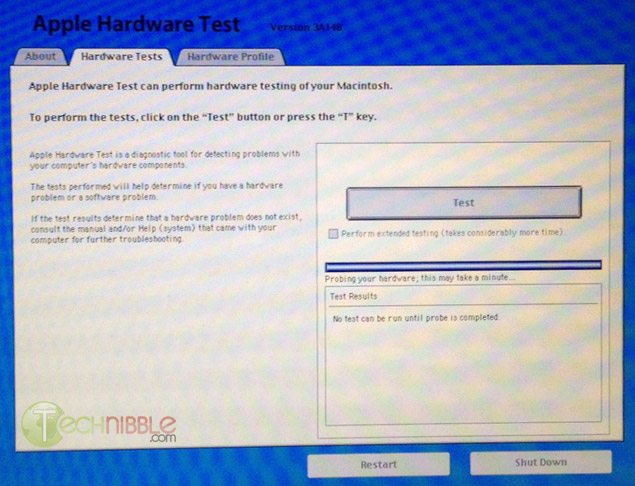
All Apple Computers come with an Hardware Test CD. When you hold D, the cd needs to be already inserted. It will boot Apple Hardware Test which is an incredible powerful tool that will make a precise diagnostic on your client’s computer about any form of hardware failure: RAM, hard drive, motherboard etc.


Option – Command – P – R

This combination will reset the NVRAM and PRAM of your client’s computer. What does it mean? It will reset all the default settings on the motherboard or built in features including: Serial Port Configuration, Clock, Volume, Double-Click time, Virtual Memory, RAM disk, Mouse Speed, Application Font, Alarm Clock, Monitor Color Depth, Startup Disk and Serial Printer location. This is often done if your client’s machine boots into a weird pink color. To do this NVRAM/PRAM reset, your need to hold the keys when you boot your client’s Mac. Hold down the keys until the computer restarts with the startup sound the second time.

Hold the mouse or trackpad button

This will eject all the removable media plugged to your Mac. (Cd, USB, Firewire etc.) This is perfect if the CD is stuck inside and the keyboard is not working or if the Mac tries to boot from an unknown external device.

Command-S

This will boot the machine in Single-User mode. It is a UNIX-like interface where you can enter many simple commands to troubleshoot the machine. This is mainly popular with the use of “fsck ” to check the computer disk permission.

Command-V

This starts the Mac in Verbose Mode. You will see all the descriptive text of all the boot steps, similar to Windows’s Safe Mode. If the computer freezes on startup, you can see where it will freeze.

T

This puts the Mac in Target Mode. It will transform the Mac into a giant Firewire external drive. You can access the files from another computer. Perfect if you need to repair a corrupted hard drive or backup files.


Shift

This will start the Mac on a safe boot. It will disable all the login items, all the non-default fonts, disable all the cache and it will force a directory check.

If you are still unable to enter the system or at least see the grey Apple logo at the beginning after using these shortcuts, the problem is most likely going to be a motherboard corruption.

Guest Post by Marco Rodi: Marco Rodi owns an IT Engineering university degree. He has his own computer repair business that mainly does Apple Support (OrdiRodi – http://www.ordirodi.com) located in Montreal. He works for Transat as an application support Engineer where he has to maintain all the software that makes the airplanes fly. He’s also an active bassist. (http://www.marcorodi.com)

© Technibble – A Resource for Computer Technicians to start or improve their Computer Business
To get started with your own computer business, check out our Computer Business Kit. Computer Technicians Guide To The Apple Mac Boot Shortcuts

image image

image

Read more:

Categories News Feeds Tags boot, the, to, will, you Leave a comment

A Peek At Other Computer Technicians Workbenches #3

October 28, 2011 by Rick

Authors: Bryce Whitty

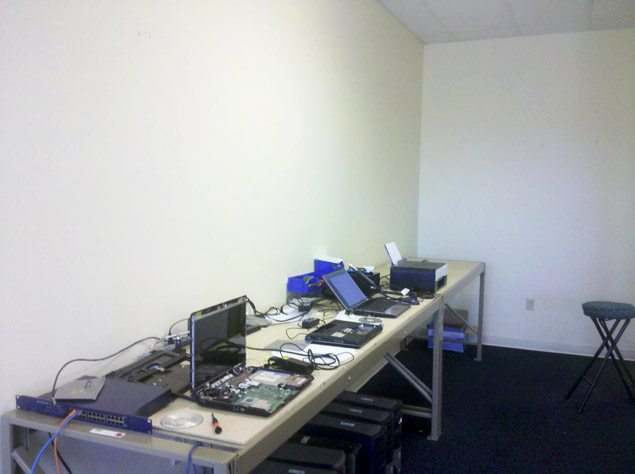
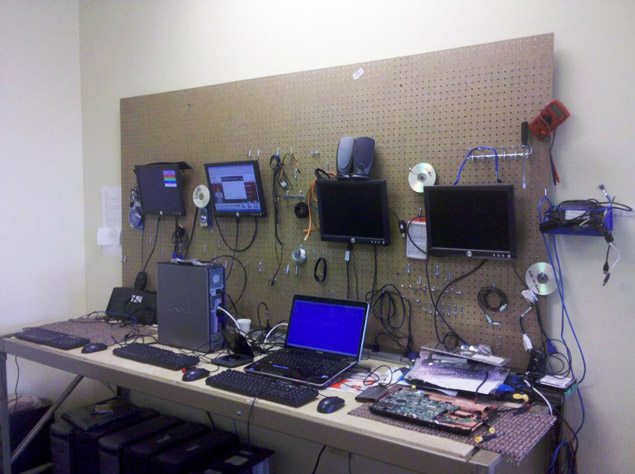
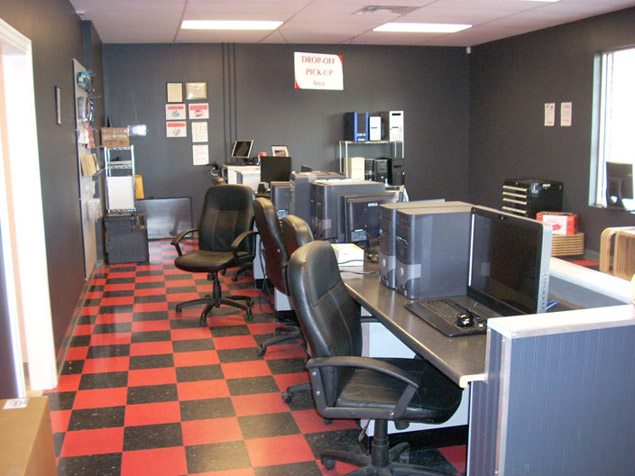
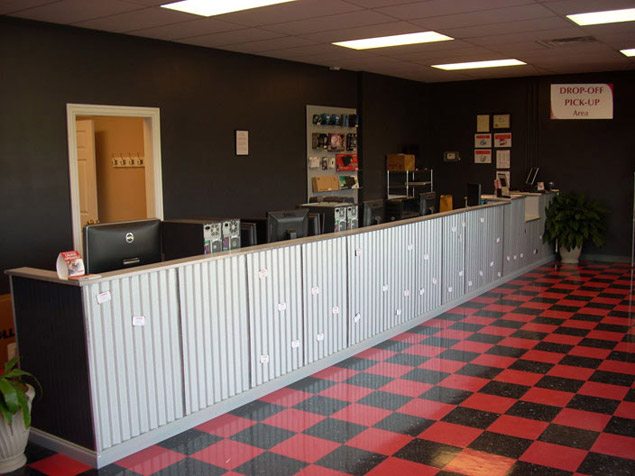
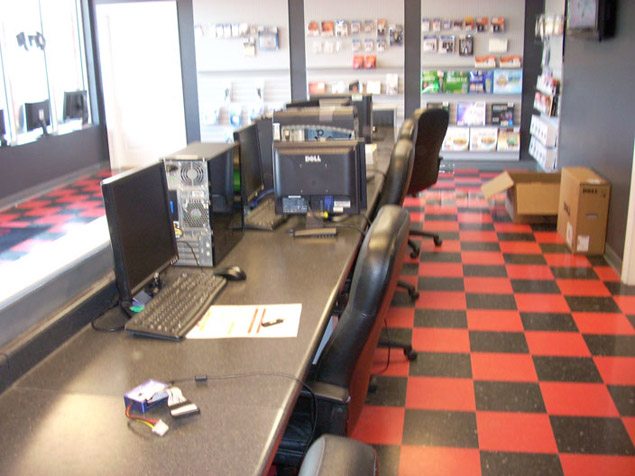
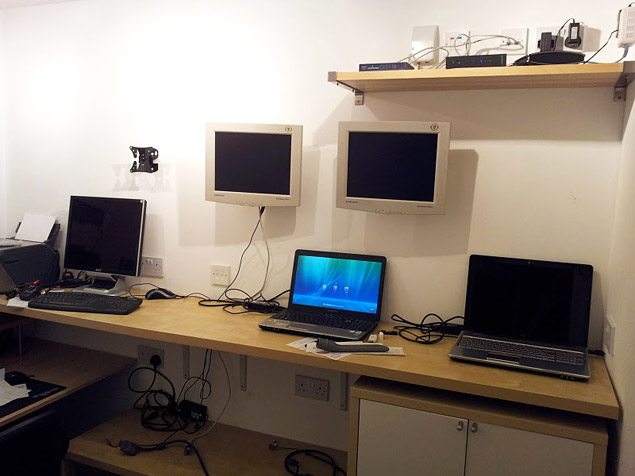
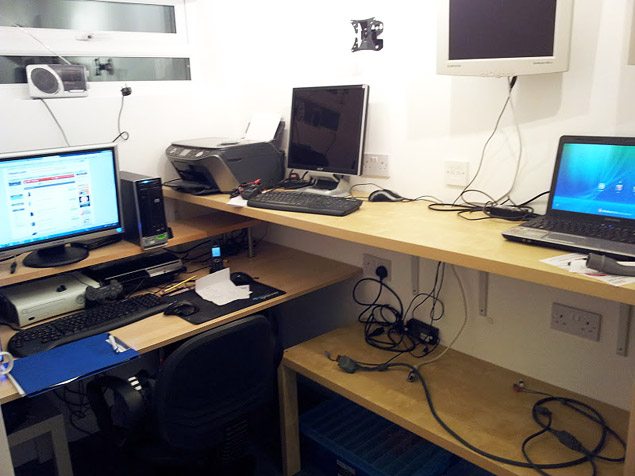
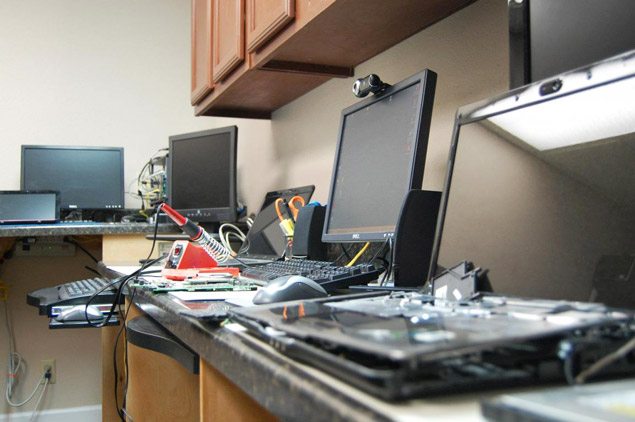
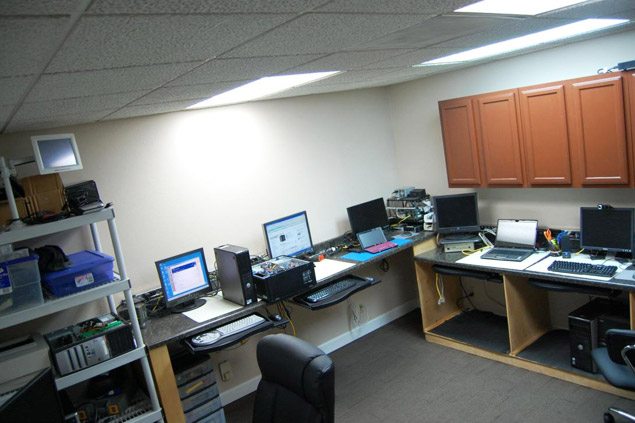
A work bench is something that most Computer Technicians will need and checking out other Computer Technicians workbenches is a great way to get inspiration for our own setups. Even if you have already completed your own workbench, it is nice to see how other technicians are doing it. We haven’t done one of these in a while (#1, #2) so it is time for #3 in our Computer Technicians workbenches series.

A Peek At Other Computer Technicians Workbenches #3


anth


Cain929

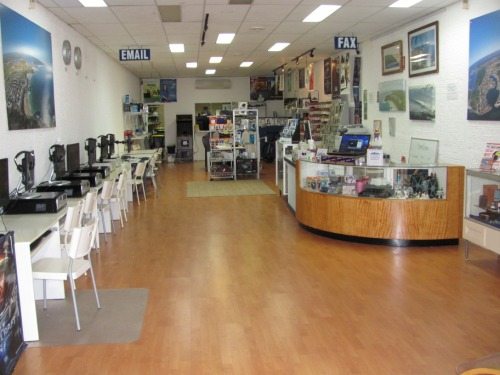
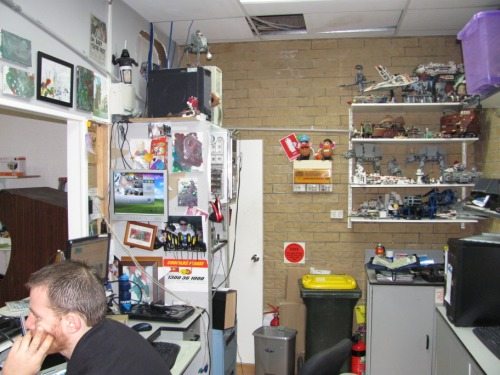
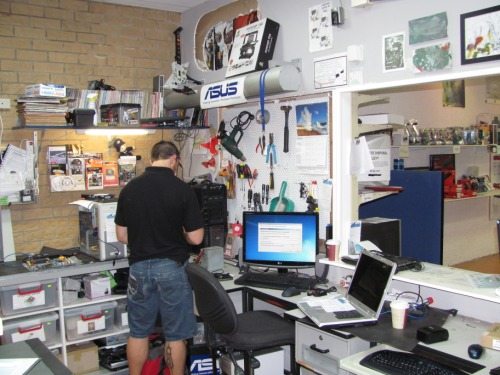
This is a few pictures of our shop… And yes before you ask that is the same stuff they use on metal roof tops. We cut it down and made it the front of the counter, the added benefit is that we put magnet backs on our cards and people just take them when they want them.. People love the fact they can see us working on their computers.


Fixedathome.com

I’ve always worked out of a spare bedroom in my house but 4 months ago my 2nd child was born and it was decided by my wife and I that the office should be given to my older son and turned back into a bedroom and the youngest have the older sons current bedroom.

In my garden I have a brick outhouse that has been used as a shed. It’s not the biggest space in the world (10 foot x 6 foot) but as the majority of my work is carried out on site I don’t need a huge area so I decided to have it converted to an office.

Before:


After:


Local Circuit

Moved to a new location this year, built it all the cabinets and benches, and put up some new signage. Getting ready to launch a new website at the end of the month as well.
0 0
1 1
2 2


Rob

3 3
4 4
5 5
6 6
7 7


If you would like to see more workbenches, check out our past articles:
A Peek At Other Computer Technicians Workbenches #1
A Peek At Other Computer Technicians Workbenches #2

A special thank you to all those who sent in pictures if their workbenches. If you would like to show off your own setup, please send the pictures to tips[at]technibble.com

© Technibble – A Resource for Computer Technicians to start or improve their Computer Business
To get started with your own computer business, check out our Computer Business Kit. A Peek At Other Computer Technicians Workbenches #3

8 8 9 9

0 0

Read more:

Categories News Feeds Tags a, and, computer, the, to Leave a comment

Ask The Readers: The One Piece of Advice You Wish You Could Have Told Your Past Self

October 18, 2011 by Rick

Authors: Bryce Whitty

Everyone has that one main piece of advice that changed their life/business that they wish they knew when they were first starting out. So, I want to ask the readers, What is that one piece of advice you wish you could have told your past self as a Tech/Business Owner?

CommitCRM


I’ll start. For me it is to never stop learning and never stop improving.
In any business it takes time for you to establish your systems and eventually you’ll reach a point where things will start to run really smoothly. You have a steady amount of clients and you can handle just about any problems that come your way. All you need to do is repeat this process to continue making money.

In my early years I got into a fairly comfortable position and as a result I wasn’t working ON my business, only IN my business keeping the wheels turning. A year or two went by and I started to improve my existing systems such as slipstreaming my Windows CDs, experimenting with different forms of advertising and tweaking my existing advertising.

With just a few simple tweaks I started making significantly more money by either working faster (allowing me to take on more jobs) or my advertising being more effective. Which made me wonder how much more money I was leaving on the table, so I continued improving and haven’t stopped since. I just wish I had done it sooner since there was a fair bit of money I missed out on by not improving earlier.

So, whats the one piece of advice you wish you could have told your past self?

For those of you reading this via email or RSS reader, head over to the site and drop us a comment. I would love to hear your piece of advice.

© Technibble – A Resource for Computer Technicians to start or improve their Computer Business
To get started with your own computer business, check out our Computer Business Kit. Ask The Readers: The One Piece of Advice You Wish You Could Have Told Your Past Self

image image

image

Read more:

Categories News Feeds Tags a, i, of, to, you Leave a comment
Older posts
Newer posts
← Previous Page1 … Page6 Page7 Page8 … Page14 Next →

Pages

  • About The Force Field
  • Advertise with us!
  • Contact Us
  • Posting Rules
  • Privacy Policy
  • Subscribe!
  • Terms of Use
  • Welcome
    • News Feeds

Subscribe to Podcast

Apple PodcastsAndroidby EmailRSSMore Subscribe Options

Archives

  • February 2015
  • January 2015
  • June 2014
  • May 2014
  • March 2014
  • February 2014
  • January 2014
  • November 2013
  • September 2013
  • June 2013
  • April 2013
  • March 2013
  • January 2013
  • November 2012
  • October 2012
  • September 2012
  • August 2012
  • July 2012
  • June 2012
  • May 2012
  • April 2012
  • March 2012
  • February 2012
  • January 2012
  • December 2011
  • November 2011
  • October 2011
  • September 2011
  • August 2011
  • July 2011
  • June 2011
  • May 2011
  • April 2011
  • March 2011
  • February 2011
  • January 2011
  • December 2010
  • November 2010
  • October 2010
  • September 2010
  • August 2010
  • July 2010
  • June 2010
  • May 2010
  • April 2010
  • March 2010
  • February 2010
  • January 2010
  • December 2009
  • November 2009
  • October 2009
  • September 2009
  • August 2009
  • July 2009
  • June 2009
  • May 2009
  • April 2009
  • March 2009
  • February 2009
  • January 2009
  • December 2008
  • November 2008
  • October 2008
  • September 2008
  • August 2008
  • July 2008
  • June 2008
  • May 2008
  • April 2008
  • March 2008
  • February 2008
  • January 2008
  • December 2007
  • November 2007
  • October 2007
  • September 2007
  • August 2007
  • May 2007
  • April 2007
  • January 2007
  • December 2006
  • November 2006
  • October 2006

Show Call-In Line

Skype Me™!

or call 407-278-5698 from any landline phone!

Get it On Your Phone!

Listen to Stitcher

Recent Posts

  • TFF-71 – How To Limit Liability In Your IT Business
  • TFF-70 – Customers Who Scam
  • The Force Field to carry LIVE coverage of CES 2015
  • Add Your Company!
  • TFF Episode 69 concludes interview with Computer Business book author

Recognition

Member Tech Podcast Network

[Valid RSS]

2013 Top 100 Podcast Badges

podcast 100

podcast 100

podcast 100

podcast 100

© 2026 theforcefield.net. All Rights Reserved. theforcefield.net™, The Force Field dot Net™ and The Force Field with Rick Savoia™ are trademarks of Savoia Media.