Skip to content

The Force Field Podcast
  • Home
  • News
    • Blogs
    • Rick Rant
  • Podcast
  • Forums
  • About Us
    • FAQs
    • Advertise With Us!
    • Contact Us
    • Press Room
  • Resources
    • Free Publications
    • Media Center
  • Home
  • News
    • Blogs
    • Rick Rant
  • Podcast
  • Forums
  • About Us
    • FAQs
    • Advertise With Us!
    • Contact Us
    • Press Room
  • Resources
    • Free Publications
    • Media Center

SOPA and Protect-IP: The Rise of Internet Censorship in America?

November 19, 2011 by Rick Savoia

I am not a political activist. I discuss business and technology, not politics. In fact, I usually go to great lengths to avoid politically charged discussions on this site. However, there are times when political issues encroach, effect and sometimes even dictate the course of events that take place in this industry and the industry itself. In this case, a political discussion becomes inevitable and unavoidable. Such is the case with a bill currently on a fast track to becoming law that will affect the Internet and the IT industry, the Stop Online Piracy Act (SOPA).

As a media writer, producer, IP and copyright owner myself, I certainly believe in and respect the rule of copyright law. However, the proposed legislation of SOPA is going way too far.

On the surface, SOPA seems to be a good thing. Piracy is wrong, and a law that proposes to fight it sounds very noble. But, as the saying goes, the road to hell is paved with good intentions. And if this bill passes, that is likely where the the Internet and the freedom of commerce, speech and expression that thrive on it, will go.

If you don’t know what SOPA is, read up on it now. I have, and it’s scary stuff. I encourage everyone to find out more about it and then call or write your representatives in Congress. You may be surprised to find out how much more informed you are about it than they are, since it is common knowledge that most of them vote according to to the influence of the lobbyists who buy them and seldom even read the bills for which they cast their votes.

PROTECT IP Act Breaks The Internet from Fight for the Future on Vimeo.

Categories Rick Rant Leave a comment

System Restore Explorer – View, Delete and Browse Inside System Restore Points

November 18, 2011 by Rick

Authors: Bryce Whitty

System Restore Explorer is small, freeware tool that allows you to view and delete specific Windows system restore points. This is a handy way to clear up some disk space without wiping out all of the restore points since previously the only built in option we had was either all or none.

However, the best feature is that it allows browse and copy individual files inside the system restore points, without performing a full system restore.

CommitCRM


When you install System Restore Explorer, you see a list of all the available system restore points including the time and date of when they were taken. You can right click on any of these and you
have the option to Mount, Unmount or Delete that specific restore point. If you Mount that restore point, it will show you the files inside that restore point in your standard Windows Explorer interface allowing you to manage the files inside it like you would any other file on your system.

This application only works in Windows Vista and Windows 7.

Screenshots

Viewing the list of available restore points to Mount or Delete.


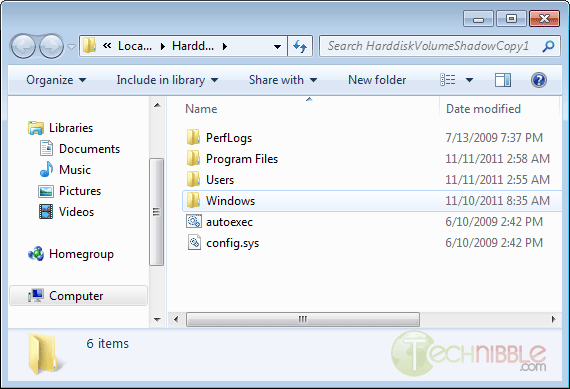
Browsing inside a mounted restore point.


Download

Download from Official Site (search for “download it here”) – 840kb

Special thanks to the forum member Galdorf for recommending this one.

© Technibble – A Resource for Computer Technicians to start or improve their Computer Business
To get started with your own computer business, check out our Computer Business Kit. System Restore Explorer – View, Delete and Browse Inside System Restore Points

image image

image

Read more:

Categories News Feeds Tags and, restore, the, to, you Leave a comment

Seeking Computer Technicians To Interview

November 15, 2011 by Rick

Authors: Bryce Whitty

I am going to be interviewing fellow computer technicians via email so people can hear their stories, be inspired by them and learn something new.

What questions would you like me to ask them beyond the typical “Who you are and how did you start”? You can leave a comment below. (Or hit reply if you are reading this via Email)

If you consider yourself successful, whether a single guy in his bedroom always keeping busy, or someone with a shop and multiple employees, I would love to interview you via email. Shoot an email to tips@technibble.com, tell me a little bit about yourself, what about yourself you believe would be interesting to your fellow techies and I’ll get in touch with you.

Last but not least, if you know someone you would really love to have interviewed, send me their details to tips@technibble.com and I’ll do what I can.


© Technibble – A Resource for Computer Technicians to start or improve their Computer Business
To get started with your own computer business, check out our Computer Business Kit. Seeking Computer Technicians To Interview

image image

image

Read more:

Categories News Feeds Tags a, and, computer, to, you Leave a comment

Chief Counsel Praises the Repeal of Three Percent Withholding Requirement on Contractors

November 15, 2011 by Rick

Authors: Mitalis

Read more

Categories News Feeds Tags and, of, small, the, to Leave a comment

Canon Resellers

November 15, 2011 by Rick

Canon Resellers have access to rebates, newsletter, banners, customized marketing programs, support, product images, presentations, videos, product documentation, product training and white papers.


Join online:


http://www.canonresellers.com

Categories Partner Programs Leave a comment

How To Perform a Perfect BackUp Reinstall with Apple Time Machine

November 14, 2011 by Rick

Authors: Bryce Whitty

Guest Post by Marco Rodi: Marco Rodi owns an IT Engineering university degree. He has his own computer repair business (OrdiRodi) that mainly does Apple Support.

So you receive a call from a client saying “My hard drive just crashed!!” or “I just bought a new Mac and I need to transfer all my information” or even “I want to clear my hard drive and do a clean installation”.

As a professional, you need to know exactly what to do to perform a perfect backup and reinstall. You don’t want to lose a client’s files or preferences. The client wants to have the exact same thing as before: their beautiful Mac, up and running again. They do not want to call you back and say: “Hey! I don’t have my music in my iTunes anymore!”, “Where are my bookmarks?” or “How come my icons are smaller?”.

Here are the steps to perform a perfect backup and reinstall on OSX using Time Machine.

CommitCRM


First of all, you need to backup everything. With Apple it’s easy.
There is a built in application called Time Machine and you simply need to plug an empty external drive into the computer (Yes, it must be empty because it will wipe everything on it), and activate Time Machine.

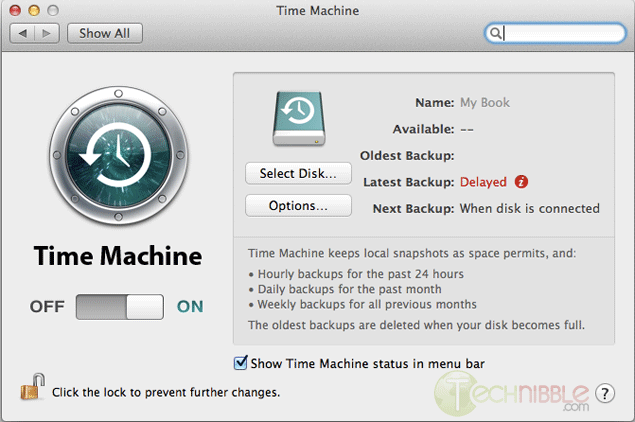
To activate Time Machine, simply open your System Preferences. And click on the Time Machine icon.

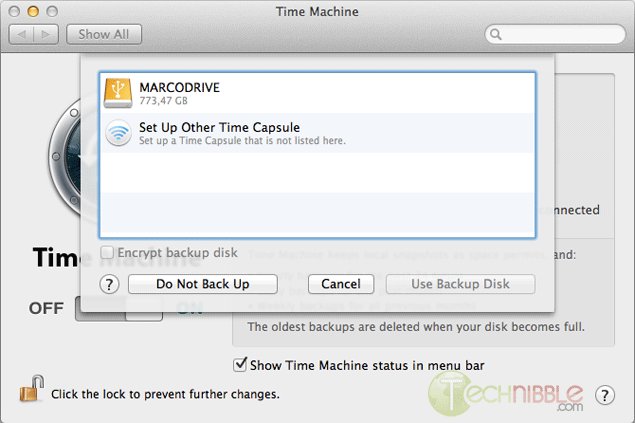
Click on “Select Disk”.

Choose your external drive and click on “Use Backup Disk”.

Time Machine will copy everything (OS, Software, Files, and Preferences) to the external hard drive. So when you will reinstall the OS, you can restore everything from that backup.

Once everything is backed up, we need to clear and format the new hard drive. To do so, you need to have a copy of the OS that you need to install (Snow Leopard or Lion). It can be on either CD or USB, it does not matter.

Shutdown the computer and insert your bootable device into the client’s Mac.

Boot the Mac while holding the “Option” key (ALT key if you are using a non-Apple keyboard). You will arrive on a window where you can choose a bootable device. Please choose your OS Installation (Either CD or USB).

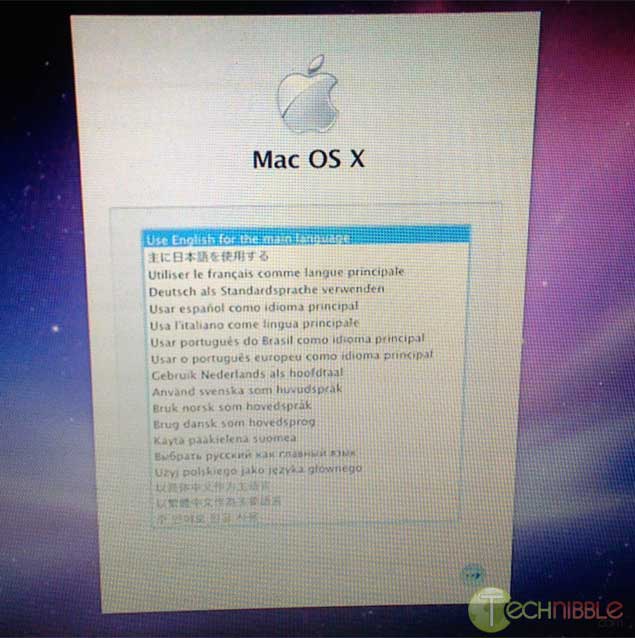
You will then arrive at this window. Choose the language you want and press enter.

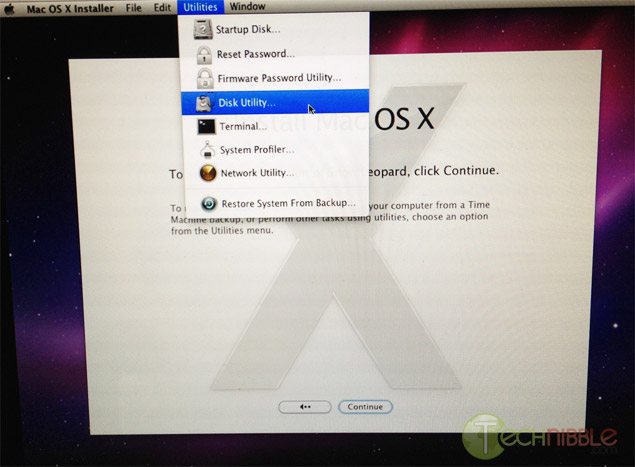
Click on Utilities and choose Disk Utility.

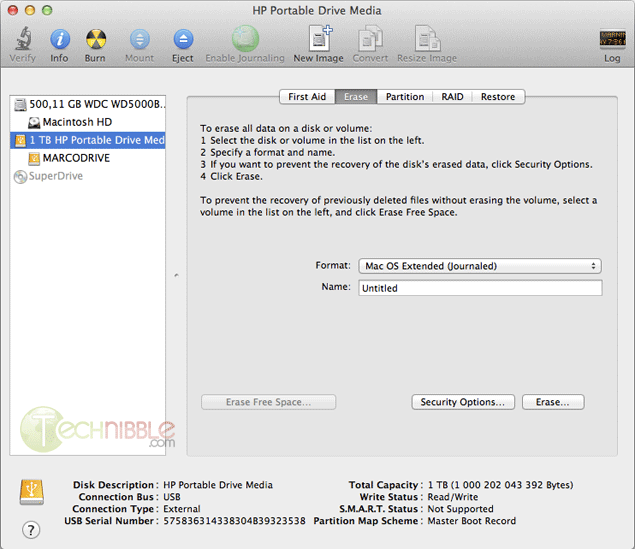
Select the drive you want to format to the left.

On the Erase Tab, use the “Format” Dropdown and choose “Mac OS Extended (Journaled)”.

Name your Hard Drive

Click the Erase Button.

It will then take some time to format the hard drive.

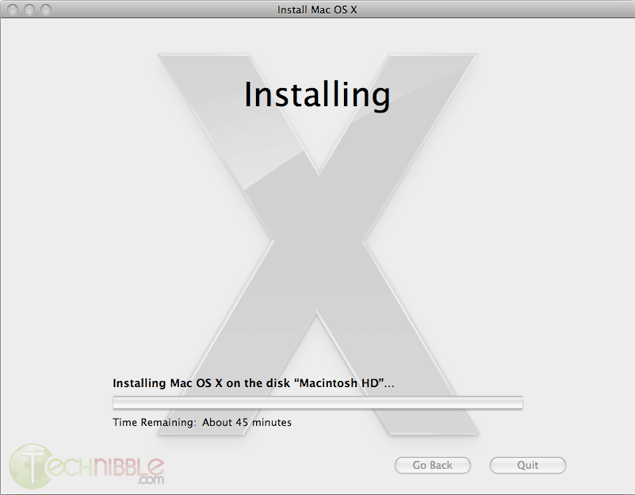
Once this is completed, you can close the Disk Utility window and start the installation. It will install the OS on your new hard drive.

Once the installation is complete, it will reboot and it will start from your newly installed OS.

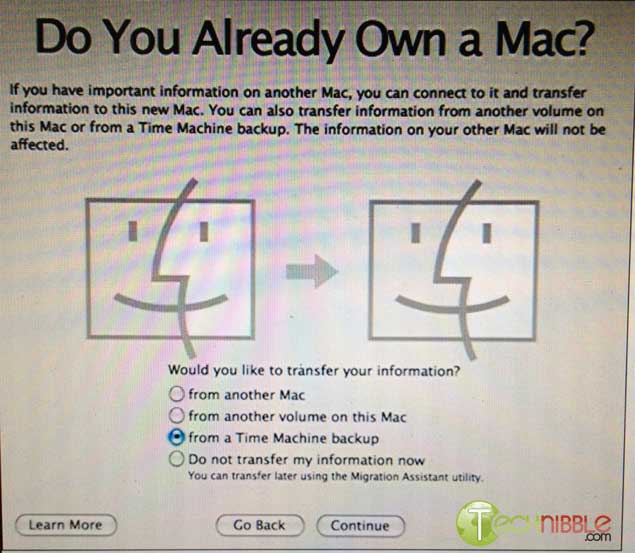
At the beginning, it will ask you if you want to transfer your information.

Plug your external device with the Time Machine backup and select “from a Time Machine backup” at the “Do You Already Own a Mac?” stage.

It will transfer all the files and settings that Time Machine made a backup of back onto the Mac.

So that is it. You can let your client test the computer and confirm that everything is back to normal.

© Technibble – A Resource for Computer Technicians to start or improve their Computer Business
To get started with your own computer business, check out our Computer Business Kit. How To Perform a Perfect BackUp & Reinstall with Apple Time Machine

image image

0 0

Read more:

Categories News Feeds Tags a, and, the, to, you Leave a comment

Labtech Software

November 11, 2011 by Rick

Labtech Software offers a remote monitoring and management (RMM) solution to IT service providers for their clients. According to the company, Labtech was designed by working IT service professionals with actual experience in the industry. Labtech offers a fully functional FREE trial download .


Contact:


LabTech Software
2805 W. Busch Blvd.
Suite 102
Tampa, FL 33618
United States

1-877-522-8323
1-813-397-4600

e-mail: sales@labtechsoftware.com

http://www.labtechsoftware.com/


Categories Managed Services Leave a comment

Eaton PowerAdvantage® Partner Program

November 11, 2011 by Rick

Eaton provides power quality and backup power management solutions. According to Eaton, their partner program was designed VAR community. It includes two tiers – Authorized and Certified.


Benefits of the partner program include:

  • Instant Rebates Up to 9%
    Dedicated Pre and Post sales support
    Deal Registration
    Marketing Development Funds
    Training and Certifications
    Lead Generation
    Sales & marketing tools and collateral
    Special deal pricing program
    Demo Unit Program


Contact:


http://www.poweradvantage.eaton.com/

Categories Partner Programs Leave a comment

Google+ Pages for Computer Businesses – What You Need To Know

November 10, 2011 by Rick

Authors: Bryce Whitty

There is no doubt that social networking is here to stay. While some Computer Technicians may consider it just a new buzz word, other technicians are using it as their primary source of advertising. Google+ is newest major player in the social network game.

After several months, Google finally announced Google+ pages for local businesses, groups, brands and organisations. If you are familiar with Facebook pages, this is basically the Google+ equivalent. In this article, I’ll tell you why you should look into Google+ Pages and what you need to know before you claim your page.

CommitCRM

Why You Should Care

Google+ Pages, like Facebook Pages allows you to have a two way conversation with your clients. If they follow your page, your updates appear in their stream. This is an incredibly cheap way to advertise your business through discounts, specials and generally being on the front of your clients mind.

What If You Already Have a Google+ Account For Your Business?

I know of many Computer Businesses who have already have Google+ accounts for their business. However, it is actually against Google+’s terms to have a Google+ profile for a business. The account must be for an individual. The Google team will suspend accounts that break this rule.

From the Google+ Help Pages:
Your profile and name must represent one individual.
Google+ does not support profiles for couples or groups of people. Additionally, you cannot create a profile for a non-person entity such as a pet or business.

Violation examples: Jones Family, Jeremy & Mel Mason, Vegas the Dog, Brooklyn Bagels, Northern California Conservation Society

Google does plan to allow Google+ Business Profiles in time, but don’t hold your breath plus your account could get banned in the mean time.
If you have already done this, you can change your businesses Google+ account back to an individual (typically yourself). You can do this by going to your Google+ profile, click the “Edit Profile” button that is on the top right. Click on the name displayed up the top of the profile page. From there, you can type in a legitimate first name and last name. Then press save.

What You Need to Know Before You Claim Your Google+ Page

  • Contests, Sweepstakes, Offers, Coupons and Other Promotions From Your Page
    In Google+’s content and promotion policies page, it disallows you from running contests, sweepstakes, offers, coupons and other promotions DIRECTLY on your Google+ page. You may however, link to a separate site (such as your actual businesses site or blog) that contains the promotion.

    You may not run contests, sweepstakes, offers, coupons or other such promotions (“Promotion”) directly on your Google+ Page. You may display a link on your Google+ Page to a separate site where your Promotion is hosted so long as you (and not Google) are solely responsible for your Promotion and for compliance with all applicable federal, state and local laws, rules and regulations in the jurisdiction(s) where your Promotion is offered or promoted. Your Promotion must not be run or conducted in a way which conflicts with the +1 Button Policies, Google+ Privacy Policy or Google+ Pages Additional Terms of Service. Google has the right to remove your Promotion content from Google+ Page for any reason.

  • Linking your Personal Account To Your Business Page
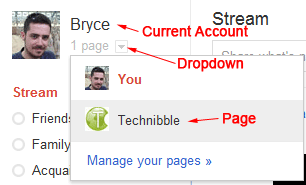
    When you visit the Create Page link and create a page, the page will be associated with the account that is currently logged in. To access your page from your account, there will be a drop down next to your name saying “1 Page”. Make sure you are logged into the account you want to associate the page with. Unlike Facebook pages, you cannot currently add any additional administrators to your account.
  • Be Careful When Switching Between Linked Accounts
    When using a Google+ account or page, it is not always obvious which one you are currently using. You will want to double check every time you are about to post something as you will probably not want to send a personal message out to all your clients and vice versa.

Beautify Your G+ URL

Once you create a G+ page, you will find that its URL is pretty long. For example, Technibbles G+ page URL is: https://plus.google.com/b/111951375001480014041/
Obviously, you don’t want to have write that long URL on any advertising so you can shorten it with a G+ specific URL shortner. I recommend gplus.to

Using gplus.to, I can change Technibbles page URL to http://gplus.to/technibble

So What Now?

  • If you are new to Google Plus, you can signup here (under your own, non-business name): https://plus.google.com
  • Once you have done that, you can create a page for your business here: https://plus.google.com/pages/create
  • If you like, add Technibble’s page to your Circles: http://gplus.to/technibble

© Technibble – A Resource for Computer Technicians to start or improve their Computer Business
To get started with your own computer business, check out our Computer Business Kit. Google+ Pages for Computer Businesses – What You Need To Know

image image

image

Read more:

Categories News Feeds Tags a, the, to, you, your Leave a comment

Computer Technicians Guide To The Apple Mac Boot Shortcuts

November 7, 2011 by Rick

Authors: Bryce Whitty

Guest Post by Marco Rodi: Marco Rodi owns an IT Engineering university degree. He has his own computer repair business (OrdiRodi) that mainly does Apple Support.

In this article you will learn all the most important boot shortcuts on a Mac. We’ve all been there. The client is there, you boot their computer and the screen just hangs there. No OS. You sometimes see the grey apple logo, sometimes it’s all white and sometimes you see nothing at all. You absolutely need to know which key to press in order to repair the Mac. Enter the Apple Mac boot shortcuts.

Computer Technicians Guide To The Apple Mac Boot Shortcuts


First of all, you don’t have to use an Apple Keyboard to do these. Any regular USB PC keyboard will work as long as you keep in mind the following:
Option = ALT Key
Command = Windows Key

To make these boot shortcuts work, the computer needs to be shutdown and you need to press/hold these keys while booting the computer.

C

Sometimes, the Mac is not programmed to automatically boot from a CD. This allows you to boot directly from the CD.

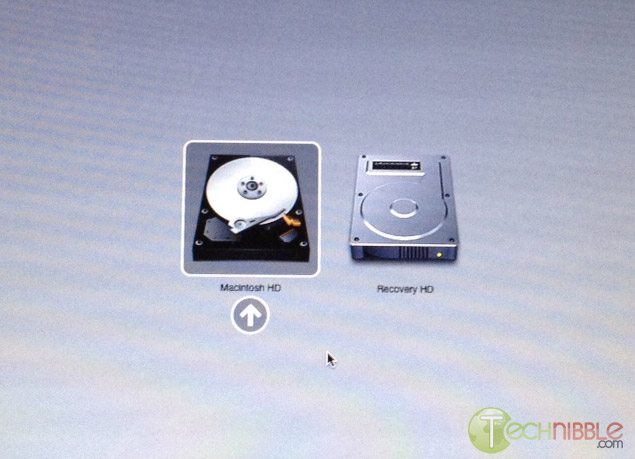
Option

By far, the most useful shortcut that will tell if the computer has a hard drive failure or a motherboard corruption. When you hold option at start, it will detect all the bootable devices in the Mac such as the CD, Hard Drive, External USB and External FireWire. You can then choose which devices you want to boot from. This is perfect if you want to boot from an external USB/FireWire.
 

D

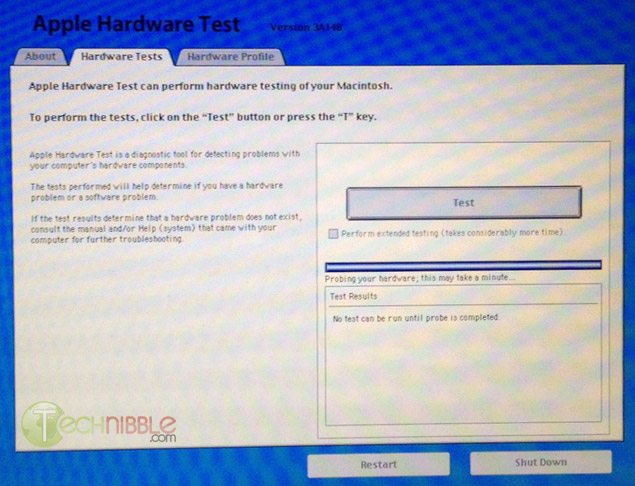
All Apple Computers come with an Hardware Test CD. When you hold D, the cd needs to be already inserted. It will boot Apple Hardware Test which is an incredible powerful tool that will make a precise diagnostic on your client’s computer about any form of hardware failure: RAM, hard drive, motherboard etc.
 

Option – Command – P – R

This combination will reset the NVRAM and PRAM of your client’s computer. What does it mean? It will reset all the default settings on the motherboard or built in features including: Serial Port Configuration, Clock, Volume, Double-Click time, Virtual Memory, RAM disk, Mouse Speed, Application Font, Alarm Clock, Monitor Color Depth, Startup Disk and Serial Printer location. This is often done if your client’s machine boots into a weird pink color. To do this NVRAM/PRAM reset, your need to hold the keys when you boot your client’s Mac. Hold down the keys until the computer restarts with the startup sound the second time.

Hold the mouse or trackpad button

This will eject all the removable media plugged to your Mac. (Cd, USB, Firewire etc.) This is perfect if the CD is stuck inside and the keyboard is not working or if the Mac tries to boot from an unknown external device.

Command-S

This will boot the machine in Single-User mode. It is a UNIX-like interface where you can enter many simple commands to troubleshoot the machine. This is mainly popular with the use of “fsck ” to check the computer disk permission.

Command-V

This starts the Mac in Verbose Mode. You will see all the descriptive text of all the boot steps, similar to Windows’s Safe Mode. If the computer freezes on startup, you can see where it will freeze.

T

This puts the Mac in Target Mode. It will transform the Mac into a giant Firewire external drive. You can access the files from another computer. Perfect if you need to repair a corrupted hard drive or backup files.


Shift

This will start the Mac on a safe boot. It will disable all the login items, all the non-default fonts, disable all the cache and it will force a directory check.

If you are still unable to enter the system or at least see the grey Apple logo at the beginning after using these shortcuts, the problem is most likely going to be a motherboard corruption.

Guest Post by Marco Rodi: Marco Rodi owns an IT Engineering university degree. He has his own computer repair business that mainly does Apple Support (OrdiRodi – http://www.ordirodi.com) located in Montreal. He works for Transat as an application support Engineer where he has to maintain all the software that makes the airplanes fly. He’s also an active bassist. (http://www.marcorodi.com)

© Technibble – A Resource for Computer Technicians to start or improve their Computer Business
To get started with your own computer business, check out our Computer Business Kit. Computer Technicians Guide To The Apple Mac Boot Shortcuts


image image

image

Read more:

Categories News Feeds Tags boot, the, to, will, you Leave a comment
Older posts
Newer posts
← Previous Page1 … Page14 Page15 Page16 … Page122 Next →

Pages

  • About The Force Field
  • Advertise with us!
  • Contact Us
  • Posting Rules
  • Privacy Policy
  • Subscribe!
  • Terms of Use
  • Welcome
    • News Feeds

Subscribe to Podcast

Apple PodcastsAndroidby EmailRSSMore Subscribe Options

Archives

  • February 2015
  • January 2015
  • June 2014
  • May 2014
  • March 2014
  • February 2014
  • January 2014
  • November 2013
  • September 2013
  • June 2013
  • April 2013
  • March 2013
  • January 2013
  • November 2012
  • October 2012
  • September 2012
  • August 2012
  • July 2012
  • June 2012
  • May 2012
  • April 2012
  • March 2012
  • February 2012
  • January 2012
  • December 2011
  • November 2011
  • October 2011
  • September 2011
  • August 2011
  • July 2011
  • June 2011
  • May 2011
  • April 2011
  • March 2011
  • February 2011
  • January 2011
  • December 2010
  • November 2010
  • October 2010
  • September 2010
  • August 2010
  • July 2010
  • June 2010
  • May 2010
  • April 2010
  • March 2010
  • February 2010
  • January 2010
  • December 2009
  • November 2009
  • October 2009
  • September 2009
  • August 2009
  • July 2009
  • June 2009
  • May 2009
  • April 2009
  • March 2009
  • February 2009
  • January 2009
  • December 2008
  • November 2008
  • October 2008
  • September 2008
  • August 2008
  • July 2008
  • June 2008
  • May 2008
  • April 2008
  • March 2008
  • February 2008
  • January 2008
  • December 2007
  • November 2007
  • October 2007
  • September 2007
  • August 2007
  • May 2007
  • April 2007
  • January 2007
  • December 2006
  • November 2006
  • October 2006

Show Call-In Line

Skype Me™!

or call 407-278-5698 from any landline phone!

Get it On Your Phone!

Listen to Stitcher

Recent Posts

  • TFF-71 – How To Limit Liability In Your IT Business
  • TFF-70 – Customers Who Scam
  • The Force Field to carry LIVE coverage of CES 2015
  • Add Your Company!
  • TFF Episode 69 concludes interview with Computer Business book author

Recognition

Member Tech Podcast Network

[Valid RSS]

2013 Top 100 Podcast Badges

podcast 100

podcast 100

podcast 100

podcast 100

© 2026 theforcefield.net. All Rights Reserved. theforcefield.net™, The Force Field dot Net™ and The Force Field with Rick Savoia™ are trademarks of Savoia Media.