
Automating Your Computer Business For Profit

Authors: Guest Writer

Guest Post by Chris Michalec:
You are sitting up late at night working to finish up the computers on your bench. You’ve been running around all day, and you are exhausted. How do you create more hours in the day? Through automation! Automating the common tasks you do every day gives your business something the high priced consultants call “leverage.” That means bigger profits for you while spending less time working in your business.

I’m a little late to the automation game. Shockingly, despite working at 3 computer stores over a 10 year period, I never had anyone use automation to any great extent. No scripting, no slipstreamed Windows installs, no nothing. However, since I have begun doing my homework, and a big thanks to those on the Technibble forums, I’ve found automation cuts the time I spend actually standing at a computer by as much as 90%! If you want to grow your computer repair business, you can’t afford not to automate.

There are a ton of ways to automate, but let’s look at some of the most popular ones.


1. D7 – I have to say that Nick, aka FoolishTech, has created an awesome tool. That is why I am putting it first. Unlike other options on this list, D7 is easy to learn and quick to setup and use. For those of us who don’t want to or can’t spend hours scripting every little thing, Nick has created a turnkey product to perform your most common tasks. Using D7, we can perform our “PC tune ups” and malware removals in a very short amount of time, and do it the same every time. If you aren’t using D7 I’m going to make a bold statement – you are holding your business back.

2. RMM Scripting – This one is for you managed services providers out there. The RMM (remote management & monitoring) software you use can be very powerful when used with some basic scripts. For example, we have every one of our weekly and monthly maintenance tasks scripted. They go out on a set schedule, and we only need to “touch” the system when the script fails. This means that we can deliver our service at a lower price and still have a higher profit margin (remember that from my last article?).

3. Windows Automated Installs – This next one has cut the time it takes us to install Windows from hours to about an hour. With one USB flash drive and a couple of clicks at the start, we can install Windows XP, Vista, or 7 with all the drivers, updates, and usual software. I can’t tell you how nice it is to insert a USB flash drive into a computer, boot from it, confirm the install, and then wait about an hour to be at the desktop and activate Windows. Creating these automated installs can take some time to initially setup and get the kinks worked out, but software like nLite and Microsoft’s Deployment Toolkit make it much easier. While the learning curve can be steep, it is worth it in the end.

4. Automating Software Installs – If you find yourself installing the same software over and over again, you can use a service like Ninite to automate these installs. Ninite is a website where you choose what popular software to install and will then give you a single executable to download. This executable downloads and install all the software you previously chose with one click as well as opting out of any toolbars and other nasties that tend to get packaged with software installs.

The Pro version of Ninite now supports Active Directory where you can easily manage software over an entire domain.

5. PXE server – Using a PXE server (Preboot Execution Environment) in your shop can mean you never have to mess with booting from CDs, DVDs, or even USB flash drives. You can store and update operating system images on a centralized server, and never have to wait to copy a CD or update a USB flash drive. I haven’t setup a PXE server yet, so I’m not going to delve into this topic further. The Technibble forums are your friend for learning more about this.

6. Bench Computers – Having a computer or two that you just use for testing and repair procedures is a great idea that can save you hours on repairs. Have a slow PC that you need to scan for viruses? Take out the hard drive and hook it up to your bench computer for a rapid scan. Even better is that you can usually do scans and tests on multiple hard drives using just one computer. We did use bench computers extensively in my previous jobs, and I rely on them in my own business. If you don’t have the money to put together a new one, just use the parts you have lying around. Whether running tests or scans, bench computers make things easy.

7. Your Business – You shouldn’t stop at automating your technical work. Why not automate your billing, marketing, and other common, repeatable tasks? There are a ton of services that can help you do this, making even one person businesses look like they have a large team. We have automated our billing, and this means that our service agreement invoices go out each month automatically to our clients’ email. Even many of our payments are directly debited from our clients’ accounts now. Can you imagine? No more chasing down a slow player!

The most important thing you can do is, once you find an automation method that works, add that to your procedures manual. You don’t want to hire someone and have them make the same mistakes that you did when you first learned how to automate Windows installs! Make sure to document what works. You would be surprised how much even you will forget, since you won’t be updating these automation routines every day.

It is all about making the best use of your time and maximizing your profits. Time spent at your work bench takes time away from marketing, networking, & learning. With automation you can work on more computers simultaneously and this means bigger profits for your business. Automation is worth the time you will invest in learning how to do it right. That feeling that comes from finishing a Windows install in an hour, and you only spent 5 minutes of your time on it, is incredible!

Guest Post by Chris Michalec: Chris is the owner of Parkway Technology Solutions, a managed services provider serving small businesses with 1-15 employees in Winston-Salem, North Carolina. He started Parkway Tech in 2008 after 10 years of working for several computer repair shops as a technician and manager.

© Technibble – A Resource for Computer Technicians to start or improve their Computer Business
To get started with your own computer business, check out our Computer Business Kit.

image

Read more:

Pricing In Your Computer Business – Why Margin Matters

Authors: Guest Writer

Guest Post by Chris Michalec:
How do you measure success in your computer business? Is it the number of customers you have? Maybe how much profit you make each month? Or maybe you go by the revenue you bring in. Properly defining success in your business is critical for sustainable growth and a very profitable business that will support more than just you. If you never grow out of a one person business, then you haven’t created a business; you have just created a job for yourself.

Another question that frequently comes up, whether you are just starting out or launching a new service, is how to price it. Obviously you want to look at what others in your area are charging, but this shouldn’t be the only way you determine what to charge. Let me give you the one way to measure success that will also help you competitively price your services every time and give your business room to grow – margin!


Having the right margin, also called profit margin, is the difference between success and failure in business. Let me give you a real world example. Right now, there are several different mobile phone manufacturers. The big players are Nokia, HTC, Samsung, & Apple, at least with smartphones. Apple has the largest share of profit by far, with Samsung coming in second. HTC sells a lot of phones, but isn’t making any money. Now, if you judged by revenue or number of customers, HTC might rank high. However, which business would you rather have? Apple or Samsung’s, right? HTC isn’t a profitable business right now, so who cares about their revenue or number of customers. You are in business to serve your customers, but also to make money!

Now, you might be saying that profit is the best way to judge. However, you probably have several services, and in terms of the dollar amount they provide, very different numbers. Your actual dollar profit isn’t always the best way to judge success. You want that to grow, but $5,000 profit working 80 hours versus $2,500 profit working 10 hours is a big difference. Your margin is higher on the $2,500 because you are working fewer hours, and therefore have lower costs. You don’t want to work yourself to death. All profit isn’t created equal.

When you are setting prices for something new, margin is a great way to figure out what you should be charging. For example, we have some of our cloud services that in actual dollars, don’t bring in as much profit as our managed services. However, our margins are very healthy on our cloud services so I know that I have priced them right. If I set my prices on pure dollars, I would price myself out of the market. Instead, I make good margins and plan to make up the rest on volume.

Calculating your margin isn’t difficult at all. All you have to do is take your revenue, whether it is on a customer, service, or your business as a whole, and subtract your costs. Then divide that by that same revenue number. Convert that to a percentage, and you now have your margin. For an example, let’s say that you sell a service at $150. Delivering this service costs you $50. You would have a 67% gross margin. Here is how the formula would work.

$150 – $50 = $100
$100 / $150 = .67
.67 x 100% = 67%

Knowing your gross margin (just the costs for delivering the service) and your net margin (all your costs included) is very important. When pricing your services, you want to focus on gross margin. But looking at your business as a whole, don’t forget net margin. Net margin will include rent, utilities, salaries, insurance, etc. Your gross margin is just going to include the actual costs of delivering that particular service or providing service to a specific customer. For example, for managed services, you would include your RMM tool costs and anything else, like antivirus software, that you include in your managed services plan.


In order to grow your business, you need sufficient margin. Otherwise, you won’t be able to afford advertising, to hire employees, or even to move to a bigger office. I like to keep my gross margin around 60%-70% for most of our services, with some having to be lower due to market prices. In our market, I have found that this keeps us nicely profitable, but still very competitive on deals. My margin also varies based on how complex it is for me to deliver the service.

When you are judging your business success, remember that not all growth is good growth. Margin matters; and, when you get it right, you’ll have plenty of cash in the bank with which to grow your business.

How are you measuring your success, and what margin do you aim for? Let me know in the comments.

Guest Post by Chris Michalec: Chris is the owner of Parkway Technology Solutions, a managed services provider serving small businesses with 1-15 employees in Winston-Salem, North Carolina. He started Parkway Tech in 2008 after 10 years of working for several computer repair shops as a technician and manager.

© Technibble – A Resource for Computer Technicians to start or improve their Computer Business
To get started with your own computer business, check out our Computer Business Kit.
image

Read more:

What Computer Repair Techs Need to Know About Migration of Data and Programs on Windows Operating Systems

Authors: Guest Writer

Guest Post by Micah Lahren:
The old computer just won’t perform anymore, and your client needs a new machine. Thankfully, they followed your advice about backing up all their data, in case it failed completely, but they steadfastly refused to get a new machine for years. Now they want all their old programs, pictures, documents, music, and other data to be available and functional on a new machine.

Hopefully they haven’t gone out on their own and purchased one already, as many new machines are equipped with 64 bit operating systems, and those old 32 bit programs may not function at all, even with the so-called ‘compatibility mode’ of Windows operating systems. Even between operating system versions, you will find many programs that simply will not function on a different version than the OS that was intended for them.

Before rushing them into a new computer, find out what they need, and you’ll be in a better position to ensure they won’t regret moving from that old dinosaur to something new. Just grabbing any migration software and setting it to work could be a big mistake. There are many factors to take into consideration such as 32 bit/64 bit, program compatibility, hardware compatibility, and more. I’d recommend following some basic steps to ensure the best results, and client satisfaction, to say nothing of headache prevention for you, the Tech.

1. Get a list of absolutely everything they use on their computer, even simple games like Hover from ’95. It may also be helpful to implement a scale of importance for each program, such as 1-10 for importance. I’ve mentioned this before, but the CBK from Technibble has an excellent list of forms for just this situation, and it merits serious consideration if you want to cover all your bases as far as handling client data.

Of course, you’ll need them to list locations of where the data is stored on their computer that they will want to migrate, such as documents and pictures. If they’re not sure, offer to sit down with them and work it out together. It’s amazing where some old programs attempt to save program-related files. Note down all configurations you’ll need to recreate, taking detailed screen shots if you need to.

2. Find out what operating systems those programs are supported on through research and testing. Virtual machines can be an quick hassle-free way to get some of this done, but don’t rule something out if it doesn’t work on a VM, as it’s not completely foolproof. The internet can be a great resource for finding out what problems have been encountered using different programs on varying operating systems, and workarounds if there were any issues. Notify the client of the results of your investigation, and suggest new machine specifications accordingly. Depending on the importance of the old programs they wish to use, they may decide to just drop some of them and find alternatives, and you can also help them with that.

3. Depending on what they choose to do, or have already done, there’s nearly always a solution or a workaround if you try hard enough. If they’ve already bought a machine, the OS of which just won’t run some of those old programs, even with ‘compatibility mode’, try a VM such as VirtualBox, install their old OS in it, and use their old key to activate it. They may spend all their computing time inside that VM, and you’ll be their hero for resurrecting their old operating system on a faster machine.

For some of the older operating systems, you’ll need to jump through a few hoops to get them installed on a VM, but it’s not that much trouble, and it’s better than not having those programs they need. If all else fails, and there’s no way those old programs are going to work again due to one thing or another, in a worst-case scenario, you can always demonstrate newer similar applications that perform the same task faster, and in many cases, much better. As a case in point, there’s a plethora of reasons why audio cassettes and older media types aren’t popular anymore.

4. Migrate the data and programs carefully. I’m extremely hesitant to recommend any ‘migration’ software after unpleasant experiences with a few popular products that claim to be ‘hassle-free’. If you encounter proprietary software, including business software that connects to remote data sources during it’s operation, you’ll find some migration software will fail completely at attempting to reinstall the proper configurations. In addition, to ‘undo’ a failed migration, it will take additional time, in addition to the time it will take for another attempt. My recommendation is to find the original installation media (or locate it on the internet) and install everything and reconfigure it manually.

You’ll find in many cases, it will save you a lot of time compared to using a commercial ‘migration’ product. Many migration products refuse to transfer drivers, which automatically means you won’t be able to transfer that ‘all in one’ printer software they have installed on their old machine. If you’ve installed everything else manually, and simply can’t find the installation media for a specific program anywhere, perhaps that is the time when you’ll absolutely need a migration software solution. If you intend to use migration software from the start anyway, do yourself a favor and read the fine print, if you haven’t used it before. It may do the job quickly and effectively in simple cases, but cause nothing but problems in other, more complex scenarios.

5. Reacquaint the client with the new machine. If you used a VM to install some programs, show them how to use it. Show them how to access their old data, and if any workarounds needed to be effected in order for some programs to function, make sure they’re all in working order and that the client knows exactly how to perform them. As I mentioned before, be sure to complete all the paperwork for the task, and ensure their satisfaction with the migration.

If you at least follow the basic steps and make the migration as painless as possible for them, they’ll be much less hesitant to upgrade to the next version of their operating system the next time they need it, which will make your job that much easier. There’s also a very good chance they’ll refer their friends to you if anyone asks for an expert on ‘computer upgrades’.

Guest Post by Micah Lahren – Micah covers a wide spectrum of the tech industry, including PC repair, front-end development, WIMAX networking and installation, and more. He currently works with an ISP in Texas that also provides web hosting/design and computer repair, although he’s been tinkering with computers since he was 6 and eventually turned it into a career. He also enjoys traveling and doing volunteer missions in other countries.

© Technibble – A Resource for Computer Technicians to start or improve their Computer Business
To get started with your own computer business, check out our Computer Business Kit.

image

Read more:

Why Have Everything in Writing When it Comes to Invoicing?

Authors: Guest Writer

Guest Post by Micah Lahren:
I’m sure we’ve all been there before. We’re called in to migrate applications and data from an old machine to a new one, which may or may not include proprietary software from obscure companies who only do business with a limited industry sector. You’ve arrived, and get down to it. You start going through the checklist of items on the old machine, asking the client or the client’s employees exactly what they use on the computer, and what other data will need to be transferred. Meanwhile, they’re more interested in listening to the latest album of their favorite band on their MP3 player than answering your questions. The answers you get?

"I don’t know if we use that or not…"

"Well, I don’t think we use that one…"

"Steve’s out of the office, he knows all that stuff…"

You’ve possibly driven an hour or more to take care of this client, but the individuals left in charge of the office aren’t knowledgeable enough to answer your questions. Perhaps they were only hired a few months ago and aren’t completely familiar with all the operations performed by the company. Just to be safe, you include the programs the client wasn’t sure if they needed or not, and perform the transfer. Upon completion of the transfer, it’s discovered that some of the applications refuse to perform correctly, or worse, fail to launch at all. Upon further inquiry, you discover that the individual you’re dealing with doesn’t actually possess the installation media in any form, and also doesn’t know where to obtain it.

A routine data transfer has more or less turned into a circus act, minus the screaming monkeys. On the other hand, maybe you’re the one screaming like a monkey now. After you do some technical detective work and track down the companies responsible for the inoperable software, you finally get everything installed and working correctly. All the network drives have been remapped, and everything is how it should be. The printers, scanners, fax machines, and other pieces of hardware have all been reinstalled and are operational. Convincing the client to drop their MP3 player just for 10 minutes, you reboot the system and inquire as to whether everything they need is working as it should. Upon final testing, everything seems to be finished.

After several hours of jumping through fiery hoops trying to locate proprietary software sources and obscure business application companies, downloading hundreds of megabytes of printer software and drivers because original media was missing, and final testing to ensure absolutely everything is working, you leave the premises and return to other service calls. The next day, the client calls you back. “Nothing is working! You took too long to do it anyway! We’re not paying you, and we’re calling someone else!”

Have Everything in Writing Before and After the Work

Routine service calls such as malware removal or simple hardware installation rarely turn messy like the scenario mentioned earlier. You usually deal with the individual who is most knowledgeable about the system you’re working on, and they generally care enough to know what they need done. But occasionally you’ll run into scenarios where you’re dealing with employees of a company who sometimes couldn’t care less what happens to their computer until they are under pressure to complete tasks that require them to use that computer.

In situations like that, you need to have everything in writing beforehand. Two basic steps will save you a lot of headaches, and possibly much more, including your reputation as an experienced Tech. If you already have the CBK from Technibble, which I will talk about in a bit, you’ve already got all these bases covered with the plethora of forms available to you in the kit, but if you don’t, you’ll need to implement the following steps below with your own forms.

1. Do investigative work and use preparation techniques. Write/Type out everything you’ll be doing, and require their signature or written consent to perform it. If this involves migration of data and applications, require a list of all data locations and applications that will need to be transferred to be given to you via email or fax, before you do the work. This requires the client (or the client’s employees, if the client isn’t knowledgeable about the systems being used) to be at least marginally knowledgeable about what they actually use on their computer. Require that all installation media for the applications be available, and when media is missing, require contact details for the companies responsible for the software you will be dealing with.

Most companies have this kind of information easily available in a filing system for future reference. For other service calls of a less detailed nature, simple notation of what work you’re about to perform should be sufficient, along with their signature or initials for confirmation. You should also have some information regarding what liability you will or will not have depending on what issue may resurface after your work is done, such as a warranty limitation or exclusions. This may seem like overkill, but in many cases, it will protect you and your reputation in the long run.

2. After the work has been completed, pull out that paperwork you prepared, with a space for them to add their signature with a note that all work was completed to their satisfaction, and that all programs and applications are completely operational. Any issues that may pop up later, due to the incompetence of the computer user, cannot be traced back to your previous work, as all work was noted as being completed to their complete satisfaction, with their signature. In the case of routine service calls such as malware removal, this will also negate the possibility of individuals complaining that you didn’t actually remove the malware, when in all actuality, you did remove it, but they inadvertently repeated the bad move that put the malware on their system in the first place.

This kind of paperwork requires that you be absolutely sure beyond a shadow of a doubt that you have completed all requested work. For basic examples, the malware was completely eliminated with no traces left, or you tested all applications you transferred to ensure compatibility and operational status, or you located all the data you transferred and ensured there was nothing missing.

As I mentioned, this may sound like overkill to many, but I vividly remember experiences where this kind of paperwork could have saved me many headaches, but I had not yet implemented my paperwork strategy to that level of effectiveness. Most of us love working with tech, and I speak for myself when I say sometimes the paperwork aspect can suffer as a result of being focused on the work more than the paperwork. Perhaps you don’t feel you have the time, energy, motivation, or creativity you need to effectively create the forms that would be indispensable in situations where having things in writing is imperative. You don’t have to create them yourself. They’re already available in Technibble’s CBK, the Computer Business Kit.

In the CBK, you’ll have access to forms such as the Data Backup Checklist, which outlines exactly what data you’ll be backing up, and has slots for the client to list exactly what applications they’ll require along with keys or serial numbers for those applications. Browsers and browser data are also included in the information gathered beforehand. You’ll also find the Engagement Forms, which detail such things as liability in the case of data loss or other situations, along with information regarding liability in the scenario of incomplete or inaccurate information supplied by the client, which is a successful prevention method of severe complications and many headaches.

You’ll also find the handy ‘Work Order’ form, which includes warranty information regarding your work, along with exclusions designed to protect you from such things as user error or user inflicted infection of the computer you just finished working on. All of these forms are easily modified to fit the specific situation you may find yourself in, so I really recommend getting the CBK. I’ve only touched the tip of the iceberg, you might say, in the way of the amount and variety of forms encompassed in the kit, as I’ve only mentioned a few. You’ll most likely also find the maintenance forms useful as well, as most of us do regular maintenance for companies who rely on their machines 24/7.

In conclusion, I’d just like to reiterate the importance of having everything in writing. You never know when you’ll be asked to do work around the lines of the scenario mentioned at the start. It will happen, sooner or later, and with the Computer Business Kit under your arm, you’re well prepared for any similar situation. I’m sure you’d agree that your reputation, time, money, and sanity are worth the paperwork involved in having those work forms filled out and signed by the client. In addition, you’re much less likely to put on a screaming monkey act when things go awry.

Guest Post by Micah Lahren – Micah covers a wide spectrum of the tech industry, including PC repair, front-end development, WIMAX networking and installation, and more. He currently works with an ISP in Texas that also provides web hosting/design and computer repair, although he’s been tinkering with computers since he was 6 and eventually turned it into a career. He also enjoys traveling and doing volunteer missions in other countries.

© Technibble – A Resource for Computer Technicians to start or improve their Computer Business
To get started with your own computer business, check out our Computer Business Kit.

image

Read more:

Marketing a Computer Business In A Small Town

Authors: Guest Writer

Guest Post by Adam Sewell:
Let me introduce myself. My name is Adam Sewell, and I run a technology services business in a small town of 20,000. MyGeek Computer Services has been around for a little over two years now, and I’ve had a hard time making my business known in the community, even though I grew up here. I found that marketing my business using conventional advertising methods was ineffective. Yellow Pages, Google Ads, Facebook ads, and other advertisements just didn’t produce the results that I expected. After about a year of failed marketing attempts, I realized something important. My small town reacts differently to marketing compared to a large city. In this article, I will detail what I did, how I did it, and what proved successful.

As I mentioned, my small town has about 20,000 residents. The population is composed of ex-textile workers, small business owners, and a good selection of affluent individuals. Our town is best known for its pork barbeque, and a nearby lake is popular for recreational activities. We are nestled in the middle of a triangle of three of the largest cities in the state, all within an hours drive. Like many other small southern cities, there is a very strong network of ‘good ol’ boys’. There are several other computer repair shops in the area – some mobile, some with physical shops, and some working out of their homes. Most of these do no advertising at all.

In today’s digital world, you might expect most people to search the internet for new businesses, or to read reviews of existing businesses, especially when it comes to computer services. That may be true in your city, but in mine, it’s a different matter. I will concede that those in the 18-30 age bracket utilise the Internet to locate possible service providers more than the previous generation, but still not as much as you might expect.

A few times over the past two years I’ve run Internet marketing campaigns, including Google Ads and Facebook Ads. With Google I averaged about 1 or 2 clicks per week – yes, per week. I’m not claiming to be an expert with Google Ads, but I did spend a considerable amount of time reading up on the subject.
With Facebook Ads I had more success. I averaged about 1 or 2 ‘likes’ per day. But the interesting thing was that they were all from out of town! I set the radius to target my county, which bled over into a larger city to the north. Nearly all my new ‘likes’ were from this larger city. But even with that limited activity, I received no phone calls from the Facebook traffic. So I’ve eliminated those methods from my marketing plan for now.

I next looked into Yellow Book. Yellow Book has a reputation for being on the expensive side, but it’s almost a necessity, especially if you are targeting residential clients. I sat down with the representative from the company, and he proceeded to give me a demographic summary. Most of what he said wasn’t new to me, as I had done my own research. However, he confirmed my suspicion that the residents of my county respond poorly to internet marketing compared to residents of other counties.

Newspaper advertising is another traditional way to get your business name out in a small town, but from my experience, it was expensive and seemed ineffective as well. I ran several ads in the local newspaper and received no calls from them. However, I was able to get a decent response from a couple of articles they ran about my business. One of the articles was a grand opening article that I personally wrote, which they edited before publishing. I also wrote a few articles for the newspaper detailing some tech help items. While the expensive advertising yielded nothing, the articles were actually worthwhile.

Internet marketing was ineffective, Yellow Book was expensive and didn’t have the focus towards business that I needed, and newspaper ads were expensive and produced very little response. What’s next? What about ‘word of mouth’?
I have actually received most of my business from referrals and hitting the pavement. It all started with my CPA. I worked out a deal with the CPA to maintain their network. He felt I did such a good job that he referred me to some of his clients, who then referred me to other businesses they had relationships with. I also joined a networking group that meets weekly, Business Networking International, which has been great for my business.

By getting into this closed network of ‘good ol’ boys’, striking deals, and getting referrals, I was able to kickstart my business. Word of mouth is the most important form of advertising, and by using a network like BNI you are able to extend your salesforce out into the community through people the community already trusts. People trust their friends and family before they would trust an advertisement in the newspaper or on the radio.
In the end, you just need to get your business in the public eye, whether that means going door to door introducing yourself or joining a networking group. Regardless, it may take some trial and error to find out what works for your business in your community. Most importantly, ask your friends or family members where they go to find services they need, such as a plumber or electrician. Wherever they are looking, that’s where you need to be seen.

Guest Post by Adam Sewell: Adam is a technology professional with over 10 years of experience. Classically trained in Information Technology but passionate about open source software such as WordPress and Linux. Other interest include politics, religion, and anything else you’re not suppose to talk about in polite company.

© Technibble – A Resource for Computer Technicians to start or improve their Computer Business
To get started with your own computer business, check out our Computer Business Kit.

image

Read more:

Massive Discounts For Computer Technician Software – Get Them While You Can

Authors: Bryce Whitty

I have noticed that 4 fantastic Computer Technician products have recently gone on sale that are well worth getting. In fact, are the deepest discounts I have ever seen these products. Up to 50% OFF!
All four of these products should be no stranger to the Technibble readers as I have talked about them a few times before and they are often mentioned on the Technibble forums.

The products that have recently gone on sale are:


I dont know how long these are going to remain on sale so get them while you can. I have written about each of these here on Technibble in the past, a few of them being product reviews. Read on for a little bit more information about these products and the links to my past writeups & reviews about these products. Be sure to use the links above as the links in the writeups and reviews are not the discounted ones.

Fabs Autobackup 4 Tech

Fabs Autobackup is a small, portable application that makes backing up and restoring your clients data incredibly easy.
It will backup pretty much anything your client would want backed up such as their My Documents folder, browser favorites, emails, address books and more to a location of your choice. I personally use it to back up my clients data to a USB hard drive, plug it into the new machine, hit restore and all the data and settings are back where they should be without all the manual work. It works on Windows XP, Windows Vista and Windows 7.
[Technibble Writeup]

Laptop Repair Videos

Laptop repair can be tricky. There are hidden screws all over the place, a certain order you have to pull it apart and sometimes the spare parts are hard to find. Laptops are also prone to damage that a desktop wouldnt normally have such as being dropped or having a damaged DC jack.
Steve Cherubino, who was computer technician until he went full time podcasting has worked on thousands of laptop computers in his shop and would now like to share his laptop repair knowledge with you in the form of high definition, narrated, downloadable videos.

Podnutz Tech Site Builder

The package contains 20 high resolution videos show you how to customize, get a professional looking website online within a couple of hours and includes all of the files and software you need in order to do it. Check out the Technibble Review of Tech Site Builder.

Linux For The Rest Of Us

Linux is something that isn’t going away any time soon. Servers use it, Smart Phones use it and even devices like TiVo use it. In fact, we should be seeing much more of it in the future as Linux acceptance increases. In the computer repair world, Computer Technicians are using Linux builds to remove viruses, resize partitions and recover data. Many computer technicians are also installing lightweight Linux builds to give old computers a new lease on life. It pays to know at least a little bit of Linux in the computer repair world.
Steve Mclaughlin (aka DoorToDoor Geek), a regular on the Podnutz show has created a series of Linux training videos videos called “Linux For The Rest Of Us” to help people learn the basics of the Linux flavor “Ubuntu”. Check out the Technibble review of Linux For The Rest Of Us.

As always, all 4 have a refund policy to get your money back if you find the product is not for you. So it really is risk free.

© Technibble – A Resource for Computer Technicians to start or improve their Computer Business
To get started with your own computer business, check out our Computer Business Kit.

image

Read more:

5 Great Ways to Re-Purpose Old PCs for Customers

Authors: Derrick Wlodarz

Any computer repair technician should be able to properly recycle an old customer PC after wiping it effectively. But this shouldn’t be the only course of action to recommend to customers. Perhaps a client is looking to make use of a still-capable system in some other manner. Having a few tricks up your sleeve never hurts, which is why I wanted to show some of the ways which my company FireLogic has internally “recycled” older PCs to fit niche functions for customers. All of the options described below entail free or open-source software, and usually require no further upgrades of the hardware inside of the machine in question. If a hardware upgrade is recommended, I make note of it for you.

Before I go over these 5 neat feats of PC re-purposing, I’d like to tackle how these mini projects serve both the customer and your own business in a positive manner. First off, the customer will fully appreciate that you aren’t pushing new hardware on them to fit newfound needs. Saving customers money is what we need to be mindful of whenever we are consulting on projects. Likewise, this will also help us keep hardware out of the recycling centers and put it to good use.

I’m not going to say than an old PC is ALWAYS the best fit for any of the projects described below, so use good judgement. Trying to re-purpose a Windows 2000 system to run as a file server? Probably best to invest in a NAS-box for the customer instead of sipping hundreds of watts of energy to power a dinosaur of a system. But most of all, these are all great ways to provide some extra income from systems that would otherwise be saying hello to the recycling bin.

Without any hesitation, here are my top 5 ways to re-purpose old PCs for your customers:

5) Setup a Free Open Source PBX Phone System on Asterisk

This particular scenario involves a little more Linux than some may be comfortable with, but luckily there are already pre-built distributions available that do most of the legwork for you. My personal favorite happens to be AsteriskNOW which includes the open source Asterisk PBX software configured on top of a ready to go Linux installation. But there are a few other choices out there – and if you are Linux-proficient, you can even install Asterisk on the distro of your choice.

What can you do with Asterisk? I won’t go over all of the many uses, but to sum it up, it’s pretty much an all-out PBX phone system for your home or office (for free). There are no catches to it. As long as you can follow a simple guide, like this one put together by the folks at Maximum PC, then you can provide your customers with a completely free phone system like the big boys use.

The above guide goes into tying Google Voice to your Asterisk system for a truly 100% free in/out calling setup, but this may be a bit of a stretch for some businesses. I suggest you play with such a setup first before recommending and installing this for customers. The Asterisk website has a full archive of excellent help videos for first time users in getting setup, configuring IP phones, and much more.

4) Configure an Open Source FOG-based Cloning Server

If you thought Symantec Ghost or Microsoft System Center were the only players in the IT management market, think again. A wonderful free and open source alternative is available now by the name of FOG. The name is short for Free Open Source Ghost which is a full blown PC management server utility that replicates much of the functionality of a suite like Symantec’s Ghost platform. Any old PC a customer may have can be turned into a Linux box and have FOG installed on top of it, in essence becoming a central management point for all of the systems in a company’s network.

Keep in mind that the follow through on getting this setup properly is what counts, and an effective rollout of a FOG-based managed network takes time. One of the caveats in order to utilize FOG fully is that your client PCs all have to support PXE boot and you need to be able to place PXE into the first spot of the boot order. Many OEM systems do not offer this capability yet, but it is definitely growing. However, if a prospective customer does meet these requirements, then you can deploy a FOG server and offer things like centralized system imaging, virus scanning, disk wiping, and even patch management. The best part about FOG? It requires no client software to be installed. How about that!

You can download the latest version of FOG anytime.

3) Turn an Old PC Into a High End Open Source Firewall with IPCop

Nothing beats a standalone quality hardware firewall, except for one that happens to be open source and replicates most of what the big players do for the price of free. If one of your customers is looking to filter out traffic or particular websites, look no further than IPCop. This all-in-one Linux distro with powerful firewall functionality can be easily deployed onto an aging system that can likewise be turned into the primary firewall of a small business (or mid-size business, if you so wish.)

While this nifty system is quite powerful, it does require some re-architecture of a company’s network, so you will need to plan your downtime and installation path appropriately. A great overview of the layout of an IPCop protected network can be found on their installation guide. One of the other requirements you will need to be mindful of is that each “logical network” you want to configure within IPCop will require an additional network card with patch cord tying back into the physical infrastructure. This may be a challenge for PCs that may have only 1-2 PCI slots that are full. A system best suited for running IPCop will likely be a mid-tower to full-tower ATX system due to the hardware requirements.

Feel free to download the IPCop Linux distro for evaluation and see if it will work for your customers.

2) Ditch the Old Fax Machine and Setup a Windows-based Fax Server

I hate the word “fax” just as much as the next tech. In the year 2012, email should have taken over faxing of all forms by now. Unfortunately, many businesses (and home offices) still rely on faxing for one reason or another. Instead of trying to coerce customers to ditch the technology altogether, offer them a cost-saving solution: turn an old Windows PC into a fax server. They can easily add up all of the electricity, toner, paper, and upkeep costs that are going into the old 14.4 fax machine year after year.

Many techs may not know it, but Microsoft has been supporting native faxing in Windows since before Windows 2000. For the sake of brevity, I’m going to only touch on this native capability of all the recent common Microsoft operating systems including Windows XP, Windows Vista, and Windows 7. The steps to get faxing setup and working differ slightly in each version, but the notion is the same. Windows can easily take any run of the mill fax modem card and turn it into a full blown fax server for any phone line. Windows will then take incoming faxes and save them into a centralized fax console. Users with access to the system can then take the faxes and export them or print them. I’ve setup numerous businesses with this free functionality and they have been running marvelously ever since. Look – no more fax toner needed!

1) Convert an Old PC Into an Open Source Storage Server with FreeNAS

I’ve long been a proponent of cutting down on overspending in small business IT, namely in the form of full-blown Windows servers (my company decommissions old and overkill servers on a monthly basis.) Most small businesses don’t need them, and are paying dearly for keeping all aspects of such a server running including licensing, electricity, upkeep, AV protection, and so on. I’ve previously penned about my love of QNAP NAS (Network Attached Storage) boxes for SOHO and small businesses, but if your customers are on the budget-conscious side, they may prefer the “re-use” route instead.

A great piece of free software is thankfully available in the form of FreeNAS. Like some of the other solutions I mentioned earlier, this open-source Linux distribution is geared towards users who are newer to Linux and may need some hand-holding in the process of getting a box configured. FreeNAS is very powerful in that it supports all of the advanced technologies that the expensive NAS appliances do like ZFS support, spanning volumes, RAID 0, RAID 1, RAID 3, and full sharing support for Apple Microsoft and Linux machines, just to name a few features.

The system requirements on FreeNAS are a tad higher than some of the other uses I mentioned, but trust me, you will be pleased to see what this system can provide. For the cost of a used PC, an extra stick of RAM, and a few hard disks, you can put together the equivalent of a $2000 Windows Server box for a few bucks. And the best part is that the entire box can be managed remotely over a web interface, meaning you don’t have to wade through dialog boxes like in a traditional server environment. It’s worth a shot.

You can download FreeNAS in x86 or x64 flavors right off their home page, and learn more about the product off their excellent installation guide WIKI page.

Have other great uses for retired PCs that are otherwise hitting the recycling bin? Post them in the comments section below!

© Technibble – A Resource for Computer Technicians to start or improve their Computer Business
To get started with your own computer business, check out our Computer Business Kit.

image

Read more:

6 Reasons Why I Hesitate to Make Recommendations to Clients

Authors: Guest Writer

Guest Post by Ronn Hanley:
I have never refused to answer a direct question from a client, but I have been known to cringe a bit when I’m asked for recommendations about specific computer equipment, software or technology purchases.

It’s a lesson that I’ve learned the hard way through trial and error (mostly error…). If you’re in the process of starting any kind of technology based business or even just helping out a friend, it’s important to realize that choices you make for yourself won’t always match your client’s needs.

Here are my six top reasons to always think twice when offering advice or answers to clients about technology choices.

1. Recommendations can blow up in your face

Your clients need computers or other technology devices to do specific tasks for them. Trouble is, they may only have a vague idea of what they want to do based on some Microsoft commercial that talks about how amazing the ‘cloud’ is. Once they ask you, the problem becomes yours to solve.

If you’re at all conscientious, you’ll approach the question from the standpoint of reliability, functionality, and ease of use. The biggest thing you want to do is be honest about the technology since you know that it has its upsides and downsides. As a matter of fact, a lot of what you might say to them is based on your own biases, there isn’t much you can do about that, if you been working in the field for any length of time you will have developed specific likes and dislikes.

Here’s where it gets difficult, your clients needs and your dislikes or likes aren’t going to agree. You’ve developed your skills along a specific path, usually due to trial and error. When they ask about a specific computer brand, that’s where the inclination to steer them away or towards a brand comes from.

It’s very possible, even with the knowledge you possess, the product you ‘recommend’ might not suit their needs. There are many reasons for this, but ultimately if things don’t work out, it becomes your problem for recommending the product in the first place. I’m not saying this happens every time, but its well within human nature to blame the person who made the recommendation.

2. There might be too hard or too long of a learning curve

Your clients are busy people. They have a business to run and they don’t intend to spend a lot of time learning new software or hardware. Businesses are all about making money. They aren’t making money if their staff are taking time learning the newest app or hardware gadget.

I’ll be totally honest, they don’t really care about new whiz-bang stuff like that. They want it to work right out of the box. They don’t want long winded explanations and they certainly don’t want a lot of techno babble doublespeak.

I realize this sounds harsh, but remember, you didn’t get into this business to be coddled.

3. The client will have to change too much to make the software/hardware work

Sounds trite, but clients are people and people generally avoid changing how they do things. It doesn’t matter that you ‘know’ what you are proposing will work better, that’s never the point. You must to be prepared to handle this mindset. Don’t believe me? Ask an older tech, I bet they’ll tell you the same thing. Business owners are slow to change from what has worked for them in the past.

It’s not a bad thing, it’s just something you have to factor in when making recommendations and one reason that I will make sure I ask a billion questions of my client before they ever get even a small recommendation from me. I’ve run into clients who are upset that what I offer actually works better than their current pet machine or product. You are messing with people’s ideas and emotions when you make a recommendation, be prepared for that.

4. The software/hardware solution may not work for them depending on how they try to use it

Every office runs different. If you want to see push-back, try introducing Open Office in a Windows or Microsoft Office environment. It doesn’t matter that OO if free and pretty much works the same. Your clients are only worried that their documents are readable by the receiving end. And there is that pesky learning curve to consider. It’s very possible that the recommendation you offer, be it hardware or software will simply not work based on how the client does business.

Internet Explorer has been the standard browser for more than 20 years. MANY Citrix, Electronic Discovery or SharePoint applications simply will not work in Firefox, Opera or even Chrome (To be perfectly honest, a lot of them won’t work in IE9…). It’s not your fault, it’s the way the system works, so you have to be careful about any recommendations you make in this regard. And you also need to be prepared to make corrections on the fly when something doesn’t work properly.

Yes, it’s true that many companies are changing their back office systems, but Windows is the largest out there and that’s not going to change any time soon.

5. All recommendations are subjective

Just because you had a good experience with a certain hardware or software solution doesn’t mean that your clients will. It’s no different than movies or food, your tastes aren’t always going to be in alignment with your clients. I’ve had friend who swore by a certain cable company, and I’ve also had friend who wants to find medieval ways to destroy the same cable company.

Any recommendation you make is completely subjective, which sucks since you are just trying to do your best for your client. Be aware that your job is to think things through after asking questions. Get to know your client well before you offer anything. It’s a policy I’ve learned the hard way and I won’t change it no matter how ‘simple’ it might make me seem to a new client.

Trust and believe that when you get to know your clients and how they do business, you become a valued member of the team, not just some guy or girl who fixes stuff when it breaks (this is both good and bad, but I’ll save that for another article). Your recommendations will still be subjective, but at least they will be flavored with solid knowledge about what works for particular clients.

6. You very seriously run the risk of losing customers

Losing customers is never a joke. It’s hard on you, it’s hard on them, and its hard on your bottom line.

The problem is, you can never please everyone. Think about it this way, even the worst client contact usually is nothing personal. You are a vendor, they are a client and they need you to do a job. Your recommendations need to follow the same concept. You aren’t helping a friend (even if it is a friend), you’re helping a client solve a problem. Treat them all as serious – I’ll bet you dollars to donuts that your clients are.

Ultimately you have to determine the risks

In the end it’s up to you whether or not you want to offer advice or recommendations. You know your clients and you know their way of thinking. The best advice I can offer is to be honest in your appraisals of their questions. If you don’t know about something, SAY SO. A good client doesn’t expect you to know everything, and if someone does, then that’s not a person you need to be working for anyway.

Guest Post by Ronn Hanley: Ronn is a technology enthusiast from way back, during the dark ages of the Arpanet and the Purple monochrome monitor screens. His first computer was a Commodore PET and his first laptop was the size of a suitcase. Despite that, he loves computers and technology to distraction and has been working in the tech world for almost 10 years full time, currently as the owner of a Desktop and Network support company in Atlanta, Georgia.

© Technibble – A Resource for Computer Technicians to start or improve their Computer Business
To get started with your own computer business, check out our Computer Business Kit.

image

Read more:

Are We Completely Wiping That Hard Disk?

Authors: Guest Writer

Guest Post by Micah Lahren:
"I’ll just run DBAN on it and that will be good enough."
Is that really good enough? What if the individual or business in question is required by law to complete an erasure protocol up to a certain level of security? In some countries, including the United States, laws requiring secure erasure of data are also accompanied with a punishment if the protocol is not followed, such as fines of $250,000 and 10 years imprisonment.

Is your client’s company disposing of old hardware, or do you have a client with sensitive data who desires complete and total erasure of data? Jackhammers, wrenches, and explosives may be more enjoyable methods of destruction, but what if the user would like to use the old hardware for non-sensitive data in another way, such as an external hard drive for storing personal data of a non-sensitive nature? DBAN it, right?

Why DBAN Isn’t Enough

On the official dban.org website, DBAN is heralded as a “self-contained boot disk designed for consumer use”. The key word in that statement is ‘consumer’. DBAN and similar software intended for wiping hard disks are known as software based overwrites, or ‘clear level processes’, and are vulnerable to recovery without requiring laboratory methods. For instance, if you know what the HPA is (Host Protected Area), you’ll know DBAN doesn’t wipe it. Why should we worry about the HPA?

The HPA can be used by rootkits to hide from Anti-Virus software, manifesting again upon a reinstall of an operating system. The HPA is also used by some vendors to store data relative to the installations of software. One security firm is known to use the HPA to load software that reports back to their servers when the machine is connected to the internet. An employee could use the HPA to store data which would be hidden from many wiping tools, and recover that data later after the drive had been supposedly ‘wiped’ of all data and considered free to use in other applications.

In view of the above currently known uses, including the looming recent threat of cyberwarfare, this alone could present a high security risk for many companies and government entities. Many erasure tools do not touch the HPA or other hidden areas of the drive, which are inaccessible to many wiping tools. How can we effectively eliminate all data on the hard disk without physically destroying it?

Secure Erase

Secure Erase (SE) is a feature built into all ATA drives with 15 GB or greater capacity manufactured after 2001. There is also a Secure Erase command for SCSI drives as well, but you may not find it on all drives, as it is an optional feature. Basically, executing a SE command will virtually shred all electronic data on the hard disk in question. It will completely wipe the HPA and other hidden partitions on disk drives, which means any area of the drive which is available for hiding data will be completely wiped, beyond known forensic recovery.

SE will also wipe sectors that are unused by the drive due to errors. It performs a single pass, and that one single pass is more than enough, as technical testing confirmed that multiple passes were unneeded as far as additional erasing was concerned. This single pass meets U.S. Requirements for secure erasure of data for the regulations concerned, with the exception of highly sensitive data which requires complete physical destruction of the disks. Unless you’ve got top secret government files on your hard disk, SE should fit the bill for most clients.

A Freeware Tool That Implements Secure Erase?

That’s right, it’s completely free. And while the NSA has unfortunately dropped support of this great tool, it’s still available. It also utilizes something called Enhanced Secure Erase technology, which the FAQ for this utility details: Enhanced secure erase writes predetermined data patterns (set by the manufacturer) to all user data areas, including sectors that are no longer in use due to reallocation. It’s called HDDerase, and can be found here: http://cmrr.ucsd.edu/people/Hughes/SecureErase.shtml

Due credit goes to G. Hughes of UCSD CMRR for this utility. I won’t go into the details of all the technical aspects of the utility, but there’s a data sheet referenced on the web site you can read that goes into deep detail on the methods used.

Basically, HDDerase is a DOS-based utility for ATA hard disks. You can boot it with an antique 3.5 disk, or boot it from a CD. The last time I checked, HDDerase is also available on the Ultimate Boot CD, and is probably on a few other less known boot cd’s along with other tools useful to techs. It can also be booted from a USB flash drive as well. This utility can also bypass the ‘security freeze lock’ which the BIOS sometimes executes when it detects the drive.

Make sure you use version 3.1 or later, as these versions allow you to remove the HPA as well as the DCO on the disk. While this tool cannot be guaranteed to work on absolutely every hard disk in the field, it has worked on every hard disk I’ve had thrown at me for erasure. Scan the readme file provided on the official site before running the utility, just to be sure you cover all your bases. Simply boot it up, follow the prompts, and you’ll have a forensically clean hard disk that is beyond recovery as far as data is concerned, and still have a usuable disk for other applications.

Guest Post by Micah Lahren – Micah covers a wide spectrum of the tech industry, including PC repair, front-end development, WIMAX networking and installation, and more. He currently works with an ISP in Texas that also provides web hosting/design and computer repair, although he’s been tinkering with computers since he was 6 and eventually turned it into a career. He also enjoys traveling and doing volunteer missions in other countries.

© Technibble – A Resource for Computer Technicians to start or improve their Computer Business
To get started with your own computer business, check out our Computer Business Kit.

image

Read more:

WiseTechnician Review

Authors: Bryce Whitty

Does up-selling to your clients make you feel like a used car salesman? Most Computer Technicians come from a technical background so sales and marketing does not come naturally. Now that you are in business, sales is really something that you cannot avoid if you want to make money. I had heard about these WiseTechnician videos mentioned a few times in my Computer Technician circles that focused on the sales side of the Computer Repair business, and I wanted to check it out not only for myself, but for all of Technibbles readers to see if they are worth purchasing. This is my WiseTechnician review.

So What Is it?

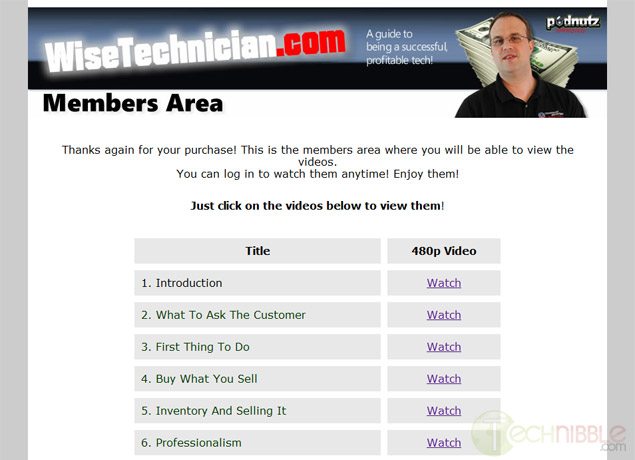
The WiseTechnician videos are a collection of videos about the business and marketing side of the computer repair business. The package includes 26 High Quality 480p videos resulting in 3.5 hours of content. There are also audio-only versions of each of the videos so you can listen to them on the go.

The package includes videos on a variety of topics such as what to ask the customer, stocking inventory and selling it, finding a wholesaler, parts and pricing, billing and accounting, working in small/depressed areas, managed services, getting business customers and more.

Under The Hood

The videos are done in an interview style over Skype with Steve Cherubino from Podnutz as the host. The videos are broken up into 26 different topics and each video ranges from 5 to 10 minutes in length making them 3.5 hours in total.

Once you pay for the product via Paypal, you will be sent an email with login details to access the members only area on the WiseTechnician website which allows you to access the videos from any computer and mobile device capable of playing .mp4 files. Having the product stored like this is handy if you lose the videos because you can just login and download them again.


So What Are The Videos Like?

The videos are high quality Skype video calls and both Steve Cherubino and Chris Barre having good microphones and webcams. While the total length of the videos is only 3.5 hours long, there is little fluff in these videos and they are full of “gold nuggets” of information. In fact, while I was watching these videos there were many times where I thought “That tip alone is worth the cost of these videos”.
The videos are like watching one giant Podnutz interview and Chris can quite animated. He really is a no nonsense kind of guy.


A lot of technicians talk about ideas that they are going to try which may or may not work. I found the videos useful because they say “Do this, it works. Here is how to say it”.

I have only two gripes with this product. First, there are a couple of points audio drops out, but only for a split second. I guess thats is the the nature of Skype.
Second, I am not a fan of the site design as it looks too infomercial-like. However, the product itself is no-fuss, solid content.

So Who is Chris Barre?

Chris (the “Wise Technician”) has been doing computer repair for the last 7 years and has been sales for 14 years in both retail and business to business.
He used to own an an applicance repair company which had a store front and as well as doing onsite applicance repair. That business is still going strong and had 5 employees when he sold it.
Chris wanted to make a product that helped Computer Technicians make some serious money and get over the “computer guy shyness”. He has been talking to Computer Technicians for the past 3 years on the Podnutz network and their issues always came down to them not charging enough, feeling bad for making “too much” profit on a product, and not being able to sell new services and products to their existing customers.

Who Is This Product Not For?

If you have been running your business for many many years (Say, 5 years plus) then you are going to get less out of it. That is not to say you wont get anything out of it as the videos are a combination of startup tips and sales tips. I myself have been in business for about 10 years and I still got sales tips out of it that would make it worth the cost. If you still dont feel comfortable with sales then you will find the product useful.

The videos are not for you if you dont plan to invest the time to actually watch/listen to the videos and impliment the tips. This is not a get-rich-quick plan.

Who Is This Product For?

If you are within the first few years of your business, you will get a lot of great tips from these videos. As mentioned above it covers both startup tips (such as how to find a supplier) as well as sales tips. I know most new computer business owners dont feel comfortable about sales since they came from a more technical background. They often feel like a sleezy car salesman when trying to sell. Chris gives you some really elegant ways to sell to your clients without feeling like a scumbag.

The product retails for $79.95 and comes with a 60 day money back guarantee. There is really is no reason not to give them a try as it is risk free.

Check out the WiseTechnician Videos Here


© Technibble – A Resource for Computer Technicians to start or improve their Computer Business
To get started with your own computer business, check out our Computer Business Kit.

image

Read more: